FREE TERMINAL · NO ACCOUNT NEEDED

Tell it what's wrong. It investigates the network.

SSH, remote desktop, serial and Meraki in one free application. Lina finds the cause and drafts the fix. Paste it yourself, or apply it as a governed change you approve.

Download free for Windows

Windows 10 (22H2) and Windows 11. 18 MB, signed by PACKET 365 LLC. Mac and Linux versions are coming soon.

AI NetShell on edge-rtr1. At the top, the end of show access-lists VPN-USERS, with line 40, deny ip 10.8.0.0 0.0.0.255 host 10.2.5.20, and 127885 matches. Below it, Findings and fixes, one medium finding: VPN-USERS ACL entry 40 denies the whole VPN pool to ACCT-SRV, including the CFO's address, with Lina's evidence under Observed and the tag Lina's conclusion. Then the fix in plain words, add a host-specific permit for the CFO's VPN address above the pool-wide deny, and the commands: ip access-list extended VPN-USERS, then 38 permit ip host 10.8.0.14 host 10.2.5.20, with the Copy commands and Apply as governed change buttons.

Recorded in the real app, cut to its key moments, with camera moves added. Discovery is shown at 6x speed; everything else plays at real speed. The Meraki pane shows demo data, and a user name in a file path is blurred.

Approved changes are proven live on Cisco IOS · Cisco NX-OS · Cisco IOS XE · Arista EOS · Juniper Junos · Palo Alto PAN-OS · Fortinet FortiOS. Cisco FTD is read-only.

Meraki dashboards are read-only, with a one-screen site report and AI investigation.

ONE WINDOW

Everything you open all day, in one window.

Switches, servers, config files and Meraki sites, each in a tab. Your logins stay encrypted on your own PC.

An SSH session to the switch C9K-CORE1 showing show cdp neighbors and show interfaces trunk. On the right, Lina's answer in labelled parts: Finding, CORE1 sees four CDP neighbors, each with its local port, neighbor and remote port; Explanation, these links are known only from CORE1's side and this was a topology question, so no fault and no change; Next, read the trunk table and the interface status list. Below it, Pick a next step with Run show interfaces trunk, Run show interfaces status and Ask Lina something else.

SSH client and serial console

Every switch, router and firewall, including console into a box that is not on the network yet.

Instead of PuTTY
A remote desktop session to the Windows 11 server DEV-SERVER2, filling the workspace, with its own taskbar and desktop icons.

Remote desktop

The Windows servers you look after, in a tab next to the switches.

Instead of a separate RDP client
The built-in editor open over SFTP on LAB-LINUX1, showing network/vlans.yaml in color: a VLAN plan for the access switches with VLANs 10 STAFF, 20 MARKETING, 30 VOICE and 999 NATIVE-UNUSED, and the trunk uplinks Gi1/0/1 and Gi1/0/2 allowing 10, 20 and 999. The user name in the file path is blurred.

Remote file editor

Open and edit a config file on a Linux box over SFTP, in the same window.

Instead of WinSCP and Notepad
Demo data. The Meraki site report for HQ - Main Campus of a demo organization: Needs attention, with three open alerts and one VPN peer unreachable. Devices: 13 online, 0 offline, 0 alerting, 2 not reporting, one of them marked as an expected spare.

Meraki dashboard

A one-line status first, then devices, uplinks, VPN, wireless and alerts for each Meraki network.

Instead of another browser tab
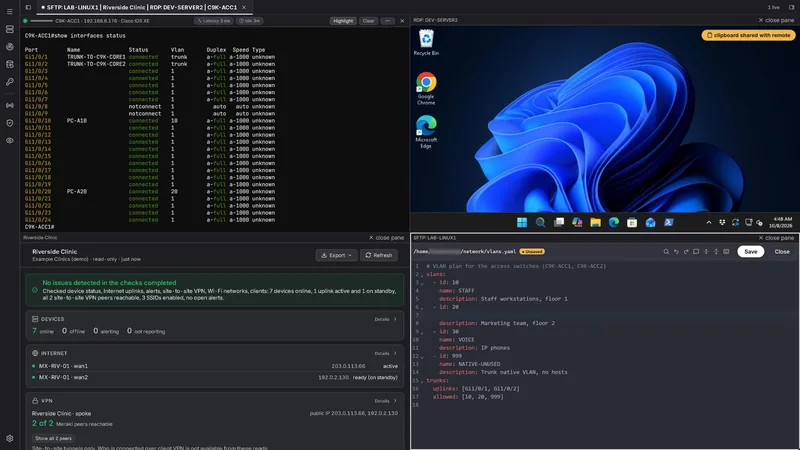
AI NetShell with four panes in one tab: the switch C9K-ACC1 after show interfaces status, a Windows remote desktop, the Meraki site report for Riverside Clinic of a demo organization with No issues detected, and the built-in editor on a YAML VLAN plan.
Four live panes in the real app. The Meraki pane shows demo data; a user name in a file path is blurred.

All four, live, in one tab.

Split any tab into panes and keep a switch, a server, a config file and a Meraki site side by side.

The terminal is free. No account. Add Lina when a ticket needs her.

Download the free terminal

MEET LINA

Your digital coworker. You make the call.

Lina does the legwork on a ticket: she reads the devices, shows every command and its output, finds the cause and drafts the fix. Nothing on a device changes until you approve it.

Ticket · VPN

“The CFO can't open the accounting server from the VPN.”

What Lina found
Line 40 of the VPN access list blocks every VPN user from that server. Nothing above it lets the CFO's laptop through.
The fix you approved
+ 38 permit ip host 10.8.0.14 host 10.2.5.20
Result
Checked on the router after the change: line 38 is in place. Undo stays one click away.
About 2 minutes, question to verified fix Watch, 1:23
See every command
You ask
“The CFO can't open the accounting server from the VPN. Why?”
Lina checks
The VPN router, edge-rtr1 (IOS XE), read-only. She reads:
show crypto session detail → Session status: UP-ACTIVE
show running-config | section ip access-list · show hosts
show crypto ikev2 sa detailed · show ip local pool
show access-lists VPN-USERS → 40 deny ip 10.8.0.0 0.0.0.255 host 10.2.5.20
What she found
She is connected fine. Line 40 of the access list blocks every VPN user from the accounting server, and it catches her too. No line above it lets her through. Each fact names the device and command it came from.
By hand
log into the router, page through the access list, find the line, write the permit, remember it has to sit above the deny, test it, save it.
Proposed fix
governed write · Resolve tier
+ 38 permit ip host 10.8.0.14 host 10.2.5.20 (CFO laptop → accounting)
  40 deny ip 10.8.0.0 0.0.0.255 host 10.2.5.20 (unchanged)
Approveproposed and previewed · rollback point first · verify after
Verified
✓ After the change, AI NetShell read the router again and confirmed the intended outcome: line 38 is in place. Undo stays one click away.

Ticket · Internet

“Marketing says the internet is down.”

What Lina found
Both uplink trunks to the core switches leave VLAN 20 (Marketing) out of their allowed list, so Marketing's traffic has no path off the access switch.
The fix you approved
interface GigabitEthernet1/0/1 switchport trunk allowed vlan add 20 interface GigabitEthernet1/0/2 switchport trunk allowed vlan add 20
Result
Checked on the switch after the change: VLAN 20 is allowed on both uplinks.
Under 2 minutes, question to verified fix Watch, 0:35
See every command
You ask
“Marketing says the internet is down. They're on VLAN 20 on this switch.”
Lina checks
Their access switch, C9K-ACC1 (IOS XE), read-only. She opens the vlan-trunk-mismatch playbook and compares the recent change history with the saved copy, then reads:
show running-config · show interfaces trunk · show vlan brief · show interfaces status
show running-config interface GigabitEthernet1/0/1 → switchport trunk allowed vlan 10,999
show running-config interface GigabitEthernet1/0/2 → switchport trunk allowed vlan 10,999
What she found
Marketing's port, Gi1/0/20, is in VLAN 20, and that is fine. Both uplinks to the core switches, Gi1/0/1 and Gi1/0/2, allow only VLANs 10 and 999. VLAN 20 has no path off the switch, so for Marketing “the internet is down.” One finding covers both uplinks.
By hand
log into the switch, check the port and the VLAN, walk both trunks, spot VLAN 20 missing from each allowed list, and add it without replacing the list.
Proposed fix
governed write · Resolve tier
  interface GigabitEthernet1/0/1
+  switchport trunk allowed vlan add 20
  interface GigabitEthernet1/0/2
+  switchport trunk allowed vlan add 20
Approveone fix, one approval · additive, +2 / −0 lines · rollback point first · verify after
Verified
✓ After the change, AI NetShell read the switch again: both uplinks now allow VLANs 10,20,999. Undo stays one click away.

New site · No diagrams

“We just took over this site. Nobody has a diagram.”

What it did
Started from one core switch, found 5 switches, and drew the physical, spanning tree and routing maps.
What you hand over Resolve
An as-built PDF, map images, CSV tables and every running config.
Result
Documentation on day one.
5 switches found in under 30 seconds Watch, 1:02
See every command
You start
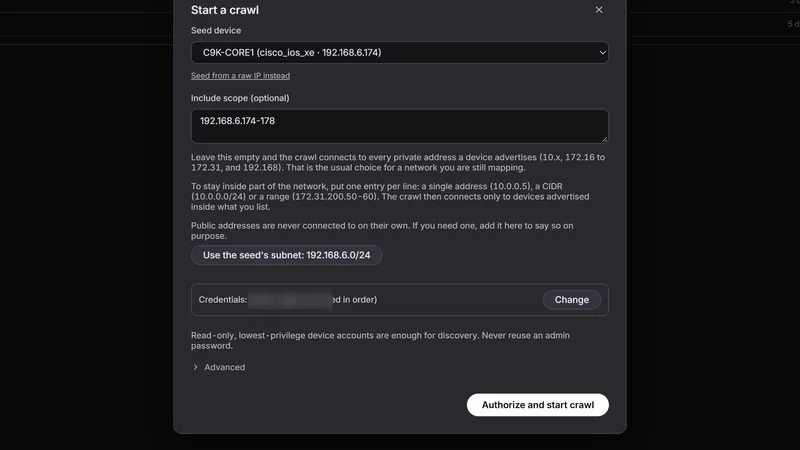
Discovery, one seed switch (C9K-CORE1), a scope of 192.168.6.174-178, and Authorize.
It reads
On each switch it can log into, the same fixed list of read commands. A CDP neighbor inside the scope is the only thing that hands it the next switch to try.
show cdp neighbors detail · show version · show logging last 30 · show inventory
show ip interface brief · show spanning-tree · show ip protocols · show vrf
show running-config · show startup-config
Routing neighbor reads run only where show ip protocols reports that protocol running.
What it found
“Crawl complete. Found 5 devices.” Three views of the same run: Physical, Spanning Tree (VLAN 10, with C9K-CORE1 as root bridge and one alternate (backup) path) and Routing.
Deliverable
documentation package · Resolve
as-built PDF · three map images · CSV tables · running configs

All three walkthroughs are real recordings.

MERAKI

Meraki networks, right next to your switches.

Add your Meraki organization with a read-only API key. Every network shows up in your inventory with a one-screen health report. Something offline? Click Investigate and Lina reads the dashboard for you, the same way she reads a switch.

  • A one-line status first, such as Needs attention or Not reporting, then devices, internet links, site-to-site VPN, wireless and open alerts, on one screen
  • Lina investigates Meraki devices, clients, SSIDs, uplinks and firewall rules
  • Copy the report into a ticket or an email, with secrets removed
  • Read-only: AI NetShell never changes your Meraki dashboard
Demo data. The Meraki site report for HQ - Main Campus: Needs attention. Devices, 13 online and 2 not reporting, with Mark spare and Unmark. Internet, two uplinks, one active and one ready on standby. VPN, 5 of 5 Meraki peers and 1 of 2 third-party peers reachable, the unreachable one with Investigate. Wireless, 4 SSIDs, 237 clients online now, 193 on Wi-Fi, and the top talkers. Alerts, one critical.
Demo data: an invented organization shown in the real app's Meraki report.
Lina on a Cisco Meraki sandbox network, asked what the alert Configuration is out of date on the camera QBSD-55NC-6LTG means. The dashboard reads are on the left; her answer on the right, under Checked, Finding, Meaning and Next: the camera has never contacted the Meraki cloud, so it has not pulled its settings or firmware; power it and give it an uplink and the alert should clear.
Lina explains a Meraki alert on a real Cisco sandbox network. The report above uses demo data.

AUTOMATIC NETWORK DISCOVERY

Start from one switch. Automatically discover and document your network.

Discovery maps the network for you. Give it one device, a scope and a login. It follows CDP and LLDP neighbors from switch to switch, stays inside your scope, and never sweeps a subnet. A device it cannot log into is drawn as not reached, never guessed.

  • Three maps from one run: physical, spanning tree per VLAN, routing
  • An as-built PDF, with Resolve: inventory, addressing, VLANs, spanning tree, routing, end of support and every running config
  • Run it again later and see what is new and what is gone

Network discovery and maps are on Investigate and up.

Watch one device become a full map, 1:02
The as-built PDF generated by AI NetShell, open on page 1 of 15: its cover carries the AI NetShell lockup and tagline, Network as-built documentation for the example client Lakeside Paper Co., then the network 192.168.6.174-178, the capture and generation times and the run ID. Beside it, the export folder: configs and csv folders, the as-built PDF, a manifest, and the physical, routing and spanning tree map images.
The as-built PDF with its export folder. Real app. The cover shows the name you give the snapshot; this client name is an example.
A real discovery run, shown at 4x speed (the run took 26 seconds), then the Physical and Routing views. Real app.
The physical map of one discovery run: five Catalyst 9000v switches, C9K-CORE1 and C9K-CORE2 at the top, C9K-ACC1, C9K-ACC2 and C9K-REMOTE1 below, each with its address and model. Seven links, each labeled with the interface at both ends, such as Gi1/0/1 to Gi1/0/1 between the two cores. The legend reads: showing all 7 links.

Five switches and the seven links between them, from CDP and LLDP, each labeled with both interfaces.

Tap the map to open it full size.

One real discovery run, three views. Real app.

CHANGE HISTORY

Know when someone changed something by hand.

Backups, discovery runs and approved changes land on one timeline per device. When a device is changed outside AI NetShell, the next snapshot flags it, and the diff shows the exact line.

AI NetShell's side-by-side comparison of two saved configurations of the switch C9K-ACC2, before (10/4/2026, 6:57:11 PM) and after (7:08:29 PM). 232 unchanged lines are folded. Under interface GigabitEthernet1/0/17, the after column has one added line, 241, description TEMP-VENDOR-ACCESS, highlighted in green.
A hand edit, flagged on the change timeline. Real app.
  • Compare any two points, line by line
  • Every approved change is recorded with its reason and the account that approved it, in a tamper-evident log on your PC
  • Hand edits are marked "out-of-band" so they stand out
Watch a hand edit get caught, 0:51

EVERY CHANGE. GOVERNED.

Read-only until you say so. On every plan.

The limits below are enforced by the app, not requested of the AI. How it works, in detail

Lina reads. You approve every change.

Her read commands run on their own, or one at a time if you turn on confirmation for every read. A fix she drafts changes nothing until you approve it.

Changes are disabled by default.

On Resolve, configuration changes stay disabled until you turn on Allow configuration changes in Settings, and turning them on is logged. After that, every change waits for your approval: preview it, approve it, and the app checks the result.

Some commands are never allowed.

No plan, setting or approval lets the AI run them.

  • reload
  • erase
  • format
  • factory reset
  • shell escapes

Rollback is offered where the vendor recovery method supports it and can fail if a device stops answering. Keep an independent way back in for production work.

PRICING

The terminal is free. Add AI when you need it.

Investigating is read-only on every plan. Resolve adds approved changes, switched on when you want them.

NO ACCOUNT NEEDED

Free

$0
the terminal

The terminal for SSH, RDP, and serial, with file transfer, your device inventory, and an encrypted credential vault.

NO SUBSCRIPTION

Pay as you go

From $15
prepaid AI credits · never expire

Everything in Free, plus: AI investigations on your live devices, with exact fix commands, on Claude Sonnet 5.5 and Haiku 4.5. Packs of 600, 1,750, or 4,000 AI credits.

Investigate

$29
per month · one person

Everything in Pay as you go, plus: 500 AI credits a month, network discovery, maps, drift alerts and end-of-support views. Your own AI: connect your Anthropic key for Claude Sonnet 5.5, Opus 5.5 or Haiku 4.5, or your ChatGPT account for GPT-6.1 Sol or GPT-6 Luna.

START HERE

Resolve

$59
per month · one person

Configuration changes are disabled by default. Turn on Allow configuration changes in Settings when you are ready, and every change still waits for your approval.

Everything in Investigate, plus: approved changes with a rollback point and a verified result, map exports, the network report and the as-built package in PDF, 1,500 AI credits a month, and Claude Opus 5.5 in your Included AI. Need 6,000 a month? Resolve 6K is the same plan, $149/mo.

7-day trial on monthly Resolve only: card required, then $59/mo unless canceled.

Compare plans and included AI models

QUESTIONS

What people ask before they download.

For MSPs, IT teams and network engineers alike.

What do I download?

One Windows installer, about 18 MB, signed by PACKET 365 LLC. It runs on Windows 10 (22H2) and Windows 11. The terminal works without an account; you sign in only when you add AI. If Windows SmartScreen appears, choose More info and check that the publisher reads PACKET 365 LLC. Mac and Linux versions are coming soon.

Does it work with Meraki?

Yes, read-only. Add your organization with a read-only API key and every network appears in your inventory with a site report. Lina can investigate Meraki devices, clients and SSIDs. Nothing in the app can change your dashboard.

Is there a Mac or Linux version?

AI NetShell runs on Windows 10 (version 22H2 or later) and Windows 11. Mac and Linux versions are coming soon.

Can my whole team share one plan?

Every plan is for one person.

What leaves my machine?

Your logins stay encrypted on your own PC. When you ask Lina, the output she needs goes to the AI with known secret formats removed first. AI NetShell keeps no copy of your configs.

What if Lina is wrong?

Every finding shows the command and output it came from, so you can check it. Nothing changes unless you approve it, and after a change the app reads the device again to confirm the result.

Do I need an inventory first?

No. Start discovery from one device and a scope. It finds the rest by following the network's own neighbor tables.

What does AI NetShell need to run?

Windows 10 (22H2 or later) or Windows 11. The terminal needs no account and no internet: SSH, serial and remote desktop work offline. Sign-in, AI, updates and Meraki need internet over HTTPS. The Install & update docs list every address to allow through a firewall.

How do updates work?

The app downloads and checks updates in the background. When one is ready, you click Restart now.

Which vendors are supported?

Approved changes are proven on Cisco IOS, IOS XE and NX-OS, Arista EOS, Juniper Junos, Palo Alto PAN-OS and Fortinet FortiOS. Cisco Meraki and Cisco FTD are read-only.

GET STARTED

Try it on your own gear.

The terminal is free, with no account. Add Lina when a ticket needs her.

Download for Windows