SETUP
Set up AI
Configure Included AI or Your own AI, choose a model, test the connection, and understand what data is sent.
Verified against AI NetShell 0.4.11
Purpose#
Connect AI NetShell through either Included AI or Your own AI, then choose a model and confirm that the full path works.
Before You Begin#
Choose one setup path:
- Included AI: On Free, use a prepaid credit pack. On a paid tier, use monthly plan AI credits or pack credits. This path needs no provider API key.
- Your own AI: Use an Investigate, Resolve, or Resolve 6K plan with an Anthropic API key or Sign in with ChatGPT account. Requests go directly to that provider and use no AI credits.
You also need an authorized device session for the final end-to-end test. See Devices & connections if you have not connected one yet.
Steps#
1. Set up Included AI#
- Open Settings, then Account.
- Under AI NetShell account, complete Sign in with your browser if the account is not connected.
- Open Settings > Usage and confirm that Usage shows monthly plan AI credits or pack credits.
- Open Settings > General.
- Under Default AI model, choose a model from the group whose heading begins Included with your plan.
- Select Save.
Included AI offers Claude Sonnet 5.5 and Claude Haiku 4.5 on pay as you go and Investigate. Resolve and Resolve 6K also offer Claude Opus 5.5.
You do not enter a provider API key for this path. Included AI consumes AI credits. A prepaid pack gives you pay-as-you-go access to full read-only Included AI investigations, across many open devices at once, and tops up every paid tier. Spending stops when the available balance reaches zero. Your own AI still requires Investigate or higher.
2. Set up Your own AI#
To configure an Anthropic key:
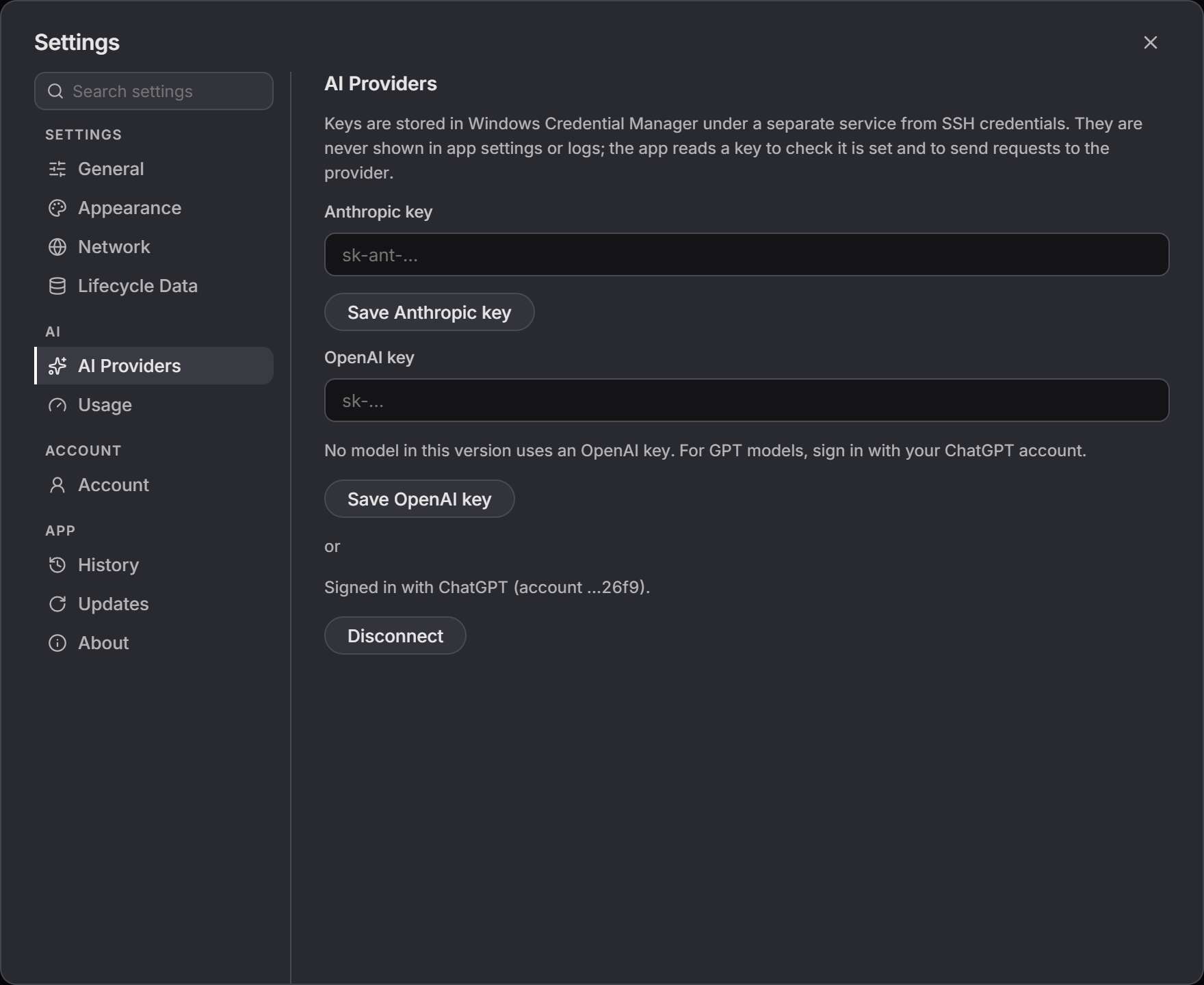
- Open Settings > AI Providers.
- Paste the provider key into Anthropic key.
- Select Save Anthropic key.
- Confirm that the field label shows ✓ set. The key is stored in Windows Credential Manager and is never shown in app settings or logs.
- Open the model picker and select a model under the group whose heading begins Your Anthropic key. That group lists Sonnet 5.5, Opus 5.5, and Haiku 4.5.
Saving confirms that Windows Credential Manager accepted the secret. It does not prove that the provider will authenticate the key.
To use a ChatGPT account, select Sign in with ChatGPT account and complete the browser flow. After sign-in, the pane shows Signed in with ChatGPT and a Disconnect button. The model picker places that route under Your ChatGPT account. It lists GPT-6.1 Sol, the default, and GPT-6 Luna. The sign-in renews itself before it expires.
To remove a saved route, select Remove Anthropic key or Disconnect, then confirm the dialog. Removing or disconnecting one route does not change the other.
If the plan does not include Your own AI, the pane explains that the saved keys are kept but cannot be used until an eligible plan is active.
3. Choose the default model or a model for the next question#
Use either model control:
- In Settings > General, select Default AI model, then Save. This becomes the starting choice for new questions.
- In Lina, the AI NetShell assistant, use the model picker in the row below the composer. A change there applies to the next message. An investigation already running keeps the model it started with.
The picker groups models by who pays for the request. Your own AI groups appear when they are configured. An Included AI model your plan does not cover stays visible and is marked unavailable. If a saved provider is no longer available, select a model from a visible group before sending another question.
A saved default model may stop working, for example after you remove the key for its provider. Chat then uses another available model. Default AI model in Settings > General says why the saved model cannot run and which model chat is using, and offers a button such as Use Included AI. Select it, then Save, to make that model your default.
The picker still lists an Included AI model your plan does not cover, and marks it instead of hiding it. When the connected plan does not include Opus, the Opus 5.5 row under Included with your plan: uses credits shows the caption Resolve plan in place of its usual caption, cannot be selected, and carries the screen-reader description Included with Resolve. Or use your own AI. If Opus 5.5 was already saved as your choice, the app moves the selection to Sonnet 5.5 and says once: Opus is included with Resolve. Switched to Sonnet 5.5. The same marking and the same notice appear in Settings > General and in Lina's model picker.
If your saved choice is a Claude model that is no longer offered, the app uses the current model of the same family. Any Opus moves to Opus 5.5, any Sonnet to Sonnet 5.5, and any Haiku to Haiku 4.5. A saved choice of an older ChatGPT model moves to GPT-6.1 Sol. The settings file keeps the old choice until you next save settings.
4. Test network connectivity#
- Open Settings > Network.
- Under Outbound proxy, review the current Proxy mode.
- Select Test connection.
- Confirm that the result is successful.
This test sends no provider credential. It checks DNS, proxy, TLS, and HTTP reachability against a fixed Anthropic endpoint. It does not validate an API key, AI NetShell account, credit balance, or selected model.
For the end-to-end test:
- Open an authorized device session.
- In Ask Lina a question, enter a narrow read-only request such as
What software version is this device running? - Select Send.
- Approve the proposed read if your read-approval mode asks.
- Confirm that Lina returns an answer grounded in the device output.
5. Understand what data is sent#
For Included AI, AI NetShell makes no background upload and keeps no standing service copy. The model receives only the redacted output you trigger.
With your own Anthropic key, requests go directly to Anthropic under your agreement with Anthropic. What Anthropic stores or retains is governed by its terms, not by AI NetShell. AI NetShell still sends only the redacted output you trigger.
| Path | Where the triggered AI request goes | Provider secret |
|---|---|---|
| Included AI | Through the built-in AI NetShell service to the selected model | No provider API key is required. The connected account and AI credits authorize the request. |
| Your own AI with an Anthropic key | Directly to Anthropic under your agreement with Anthropic | The provider key is used for authentication and is never shown in app settings or logs. |
| Your own AI with ChatGPT | Directly through the signed-in ChatGPT account route | The ChatGPT account pays for the request. No AI credits are used. |
Device output selected for a model request is passed through the app's secret redactor before the model sees it. Redaction reduces exposure but is not a substitute for reviewing commands, limiting device access, and avoiding unnecessary sensitive output.
Expected Result#
A usable model appears in Lina's model picker, Test connection confirms outbound reachability, and a narrow question against an open device session completes through the selected Included AI or Your own AI route.
Troubleshooting#
No Included AI models appear#
Confirm the AI NetShell account under Settings > Account, then check Settings > Usage for available monthly or pack credits. Reopen the model picker after refreshing account status.
A saved OpenAI key does not produce a usable model#
An OpenAI API key can be saved, but it is not usable because the current catalog has no OpenAI API-key model group. The line under the OpenAI key field says so: No model in this version uses an OpenAI key. For GPT models, sign in with your ChatGPT account. Use an Anthropic key or Sign in with ChatGPT account instead.
The answer says the model is not included in your plan#
The message reads That model is not included in your plan. Opus is included with Resolve. Pick Sonnet 5.5 or Haiku 4.5, or use your own AI. The request reached the Included AI service, and the plan on the connected account does not cover the model that was sent. Choose Sonnet 5.5 or Haiku 4.5 under Included with your plan: uses credits, or switch to Your own AI with an Anthropic key or a ChatGPT account.
Lina asks you to sign in#
The chat card says Sign in to use Lina. Select Sign in with your browser, complete sign-in in the browser, and return to the app. The same action is available under Settings > Account.
Your ChatGPT sign-in expired#
Your ChatGPT sign-in renews itself before it expires. If ChatGPT refuses to renew it, Settings > AI Providers says Your ChatGPT sign-in expired. Sign in again. and offers Sign in with ChatGPT account. In the chat, the message reads Your ChatGPT sign-in expired. Sign in again to keep using ChatGPT models. Select Sign in again to open Settings > AI Providers and start the sign-in.
A ChatGPT sign-in made before version 0.4.9 cannot renew itself. It keeps working until it expires. To replace it, open Settings > AI Providers, select Disconnect and confirm, then select Sign in with ChatGPT account.
Test connection passes but the question fails#
The network test does not authenticate the selected AI route. Check the provider key, connected account, AI credit balance, selected model, and current plan. Then retry the narrow end-to-end question.
If the failure says the named provider request did not complete and may or may not have reached the provider, delivery is uncertain. Check account usage or the credit balance before sending the same request again. The app retries only an explicit rate-limit response within a bounded wait; it does not automatically replay an uncertain transport failure.
Test connection fails#
Review Settings > Network. If you use a manual proxy, confirm its URL and bypass list. AI NetShell supports HTTP and SOCKS5 proxy URLs, but not credentials embedded in the proxy URL.
The question cannot be sent#
Open a device session first. The regular AI providers require at least one open terminal in the investigation scope.