CORE WORKFLOWS
Resolve
Turn an approved diagnosis into a governed change, review the current and proposed states, apply or cancel it, and verify the result.
Verified against AI NetShell 0.4.15
Purpose#
Read Change safety before your first change.
Use the governed change workflow to draft a configuration change, inspect its before-and-after preview, decide whether it should reach the device, and review post-change verification.
Before You Begin#
You need:
- An active Resolve or Resolve 6K plan
- An open SSH session to a supported network platform
- A device account with the permissions required for the intended change
- Allow configuration changes turned on under Settings > General
- A maintenance window and an independent way to recover the device if the management path is affected
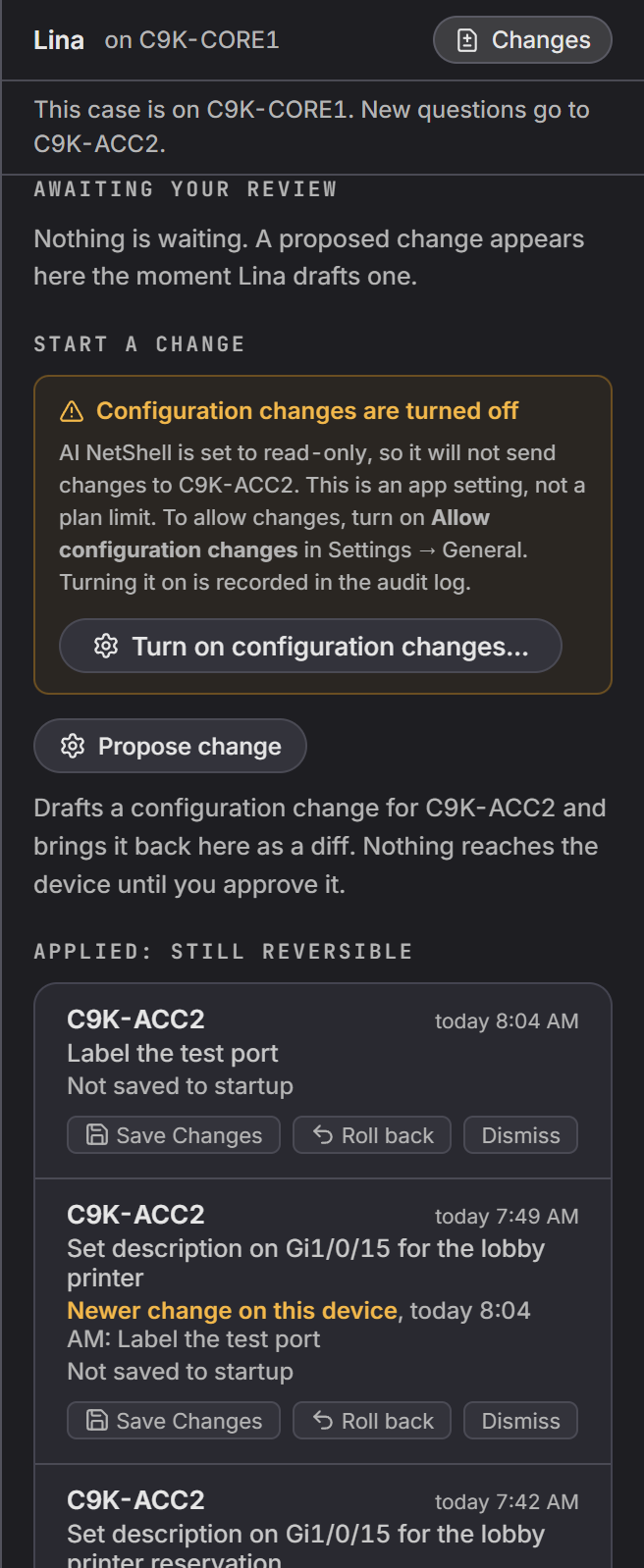
Allow configuration changes is the switch that lets this PC send a configuration change to any device. It is off by default. It sits in the Configuration changes row of Settings > General, and its note reads: "Off by default. Each change still shows a diff for your approval on every device. Switching this is recorded in the audit log." Turning it on approves nothing by itself: every change still stops for your review. If the switch is off when you start a change, the Changes view says Configuration changes are turned off, names Allow configuration changes, and offers Turn on configuration changes…. You can still review, edit and copy the fix to run it yourself.
Steps#
1. Know when to use Investigate or Resolve#
| Workflow | Use it for | What reaches the device |
|---|---|---|
| Investigate | Read-only diagnosis, evidence collection, findings, and focused follow-up questions | Only approved or permitted read commands |
| Resolve | A reviewed configuration change based on an operator draft or finding | Configuration statements only after the policy check and human approval |
Complete the diagnosis first. If the evidence is incomplete, ask a focused follow-up question before proposing a fix. Lina runs the available precondition reads before she recommends a configuration change.
2. Propose a change#
Start in either place:
- From a finding with a fix, select Apply as governed change.
- In Lina, the AI NetShell assistant, select Changes, then Propose change.
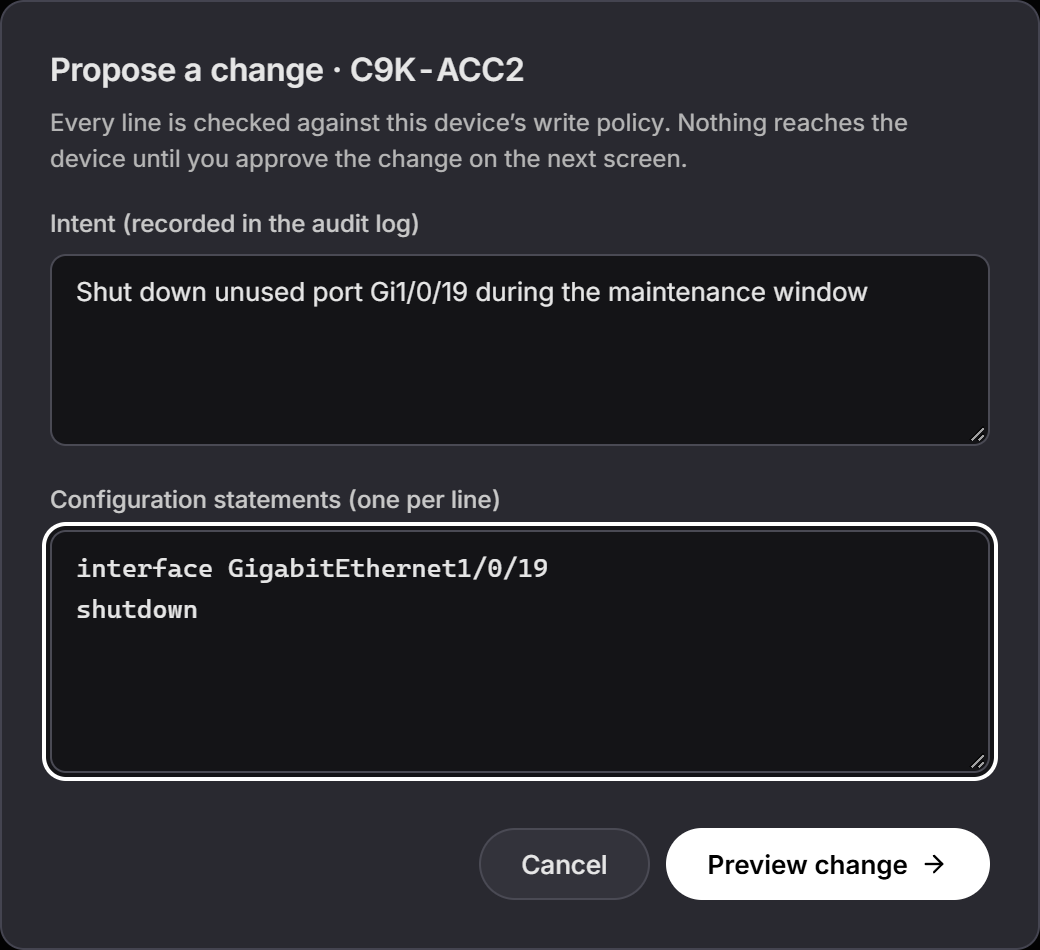
In Propose a change:
- Review or enter Intent (recorded in the audit log).
- Review Configuration statements (one per line). Replace placeholders and remove anything outside the intended scope.
- Select Preview change.
Every line is checked against the device's write policy. A failed check stops the proposal before the approval preview.
When Lina files one problem that needs the same fix on several interfaces of a device as one finding with one fix, the composer names the interfaces: One fix for n interfaces: names. You approve it once. It is applied and checked as one change, and if it fails it is rolled back as one change. Lina keeps unrelated problems on the same device as separate findings, each with its own change.
3. Review the before-and-after preview#
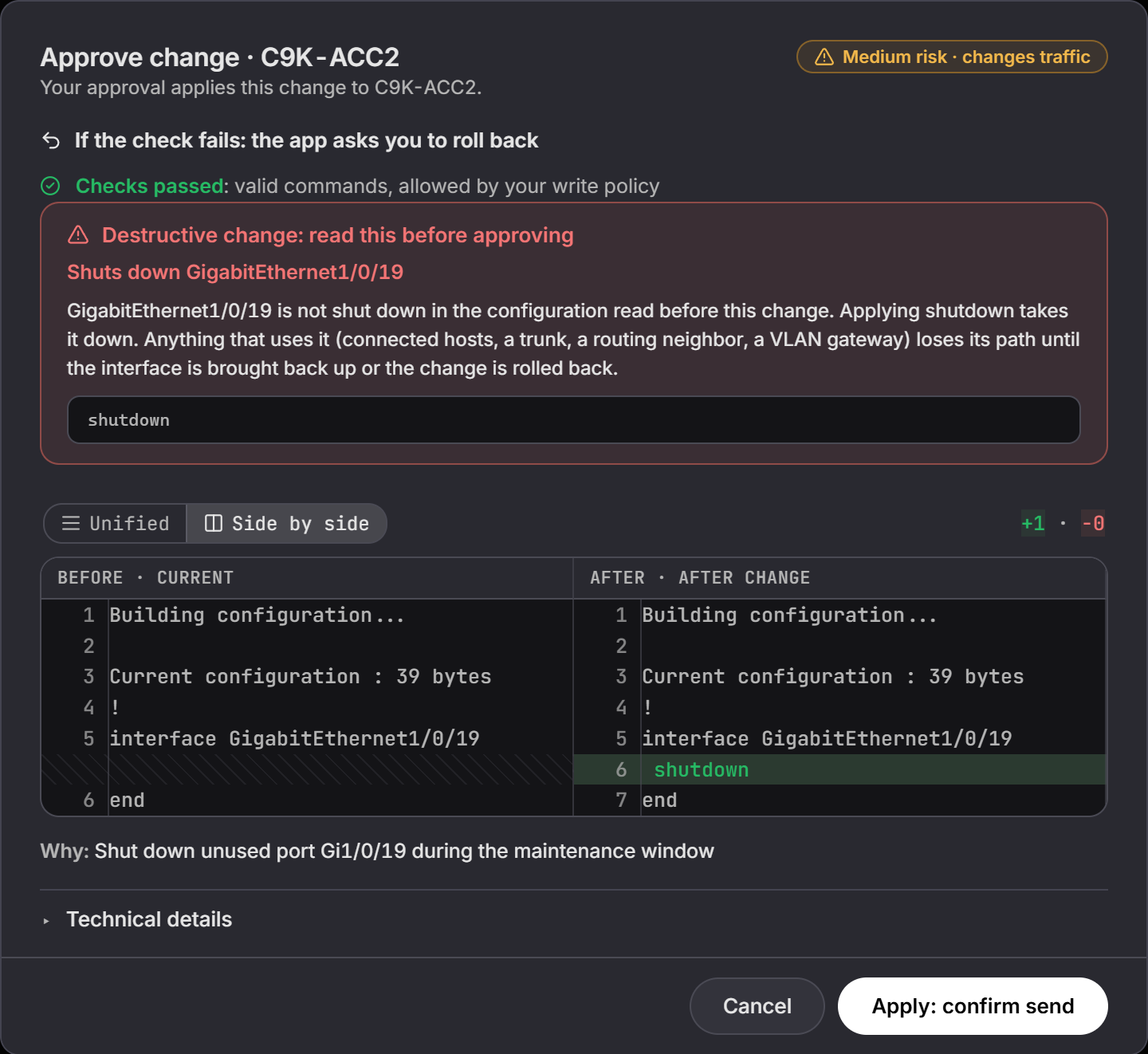
The approval card shows the configuration change as two columns labeled current and after change. Above them, a few plain lines give the risk, such as Low risk · adds config, Medium risk · changes traffic, or High risk · can cut access. They also say what happens If the check fails, such as the app asks you to roll back, and show Checks passed: valid commands, allowed by your write policy. If another change is in progress on the device, the card says so up front. The supporting evidence sits under the closed Technical details line. Review:
- Added and removed lines
- The recorded intent under Why
- The risk and what happens if the check fails
- The checks result and any management-path warning
- The captured before state and undo method, under Technical details
- Destructive-change warnings, when present
Do not approve a preview with unexpected lines, an unresolved placeholder, the wrong device, or a change to the management path you cannot recover independently.
For a modeled Cisco IOS or IOS XE object removal, the app also reads the full running configuration and checks whether another line still refers to that prefix list, ACL, route map, or other supported object. Remove the references first when the preview warns that the deletion could fail open. If the full reference check could not run, treat the warning as unverified and do not approve until you have checked the references yourself.
Some fixes change settings that AI NetShell cannot check after a change, such as HSRP settings, OSPF interface settings, port-channel membership, or duplex settings on Arista EOS. When you apply such a fix from its finding, the approval card shows Manual change and a sentence such as "AI NetShell cannot check HSRP settings after a change. If you apply this fix, confirm the result on the device yourself." Read it before you approve. After the change is applied, it is not marked verified. Check the result on the device, then select Keep without the check or Roll back.
4. Understand the two approval phases#
The approval card shows the first check's result as Checks passed: valid commands, allowed by your write policy, and the line under its title reads Your approval applies this change to device.
The two phases are:
- AI NetShell checks every proposed configuration statement against the device's write policy and builds the preview from a captured, redacted snapshot.
- You review the exact change and deliberately approve it.
The policy result does not replace human approval, and human approval cannot override a failed policy check.
5. Approve or cancel the proposal#
For a normal proposal:
- Select Apply change to approve and begin the apply.
- Select Cancel to discard the draft without sending it.
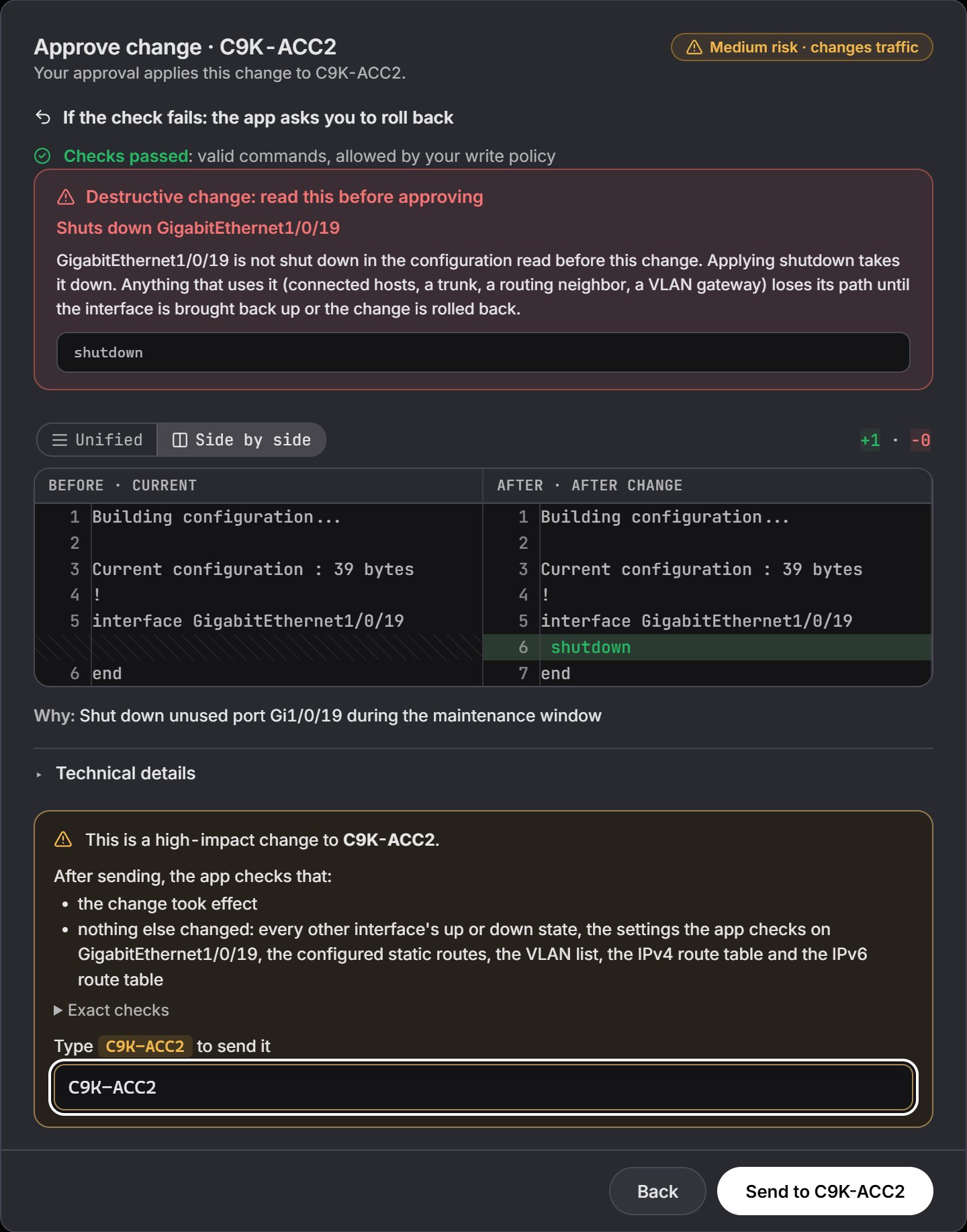
For a high-impact proposal, such as shutting down an interface that is up, the app adds a confirm-send step. Select Apply: confirm send. The box says in plain words what the app checks after sending: that the change took effect, and that nothing else it checks changed. Select Exact checks to see the exact lines. Type the device name in the field under Type device to send it, then select the Send to action for that device. Back leaves the confirm step without closing the review.
Cancel on a change you have not approved discards it for good. Nothing is sent to the device. The change leaves Awaiting your review and the review banner, and it can no longer be applied. The audit log records who discarded it and when. If you open its card again, the title reads Change discarded. Restarting the app does not bring a discarded draft back. To make the change later, propose it again.
If the app cannot discard the draft, the review stays open and the message begins The change was not discarded. followed by the reason. That happens while the change is being prepared or applied, after it has already been approved or sent, or when the audit log cannot record the discard.
Once a change has been approved or sent to the device, Cancel only closes the card. It does not undo or discard the change. Use the actions on the change card, such as Roll back, instead.
6. Watch the apply and post-change verification#
After approval, the review docks so the terminal remains visible. When the device accepts the change, the card shows Change applied. Snapshot captured. and keeps Roll back beside it when the recovery method supports it.
Once the change is sent, the window shows the diff, Why, the green Change applied. Snapshot captured. result with Roll back, and Post-change check. The before configuration, the live state, the undo commands and the device output stay folded under one closed Technical details line. The title reads Change applied · device while the check runs. Check results read in plain words, such as "GigabitEthernet1/0/1 allows VLANs 10, 20, 999". Hover a result to see its technical label.
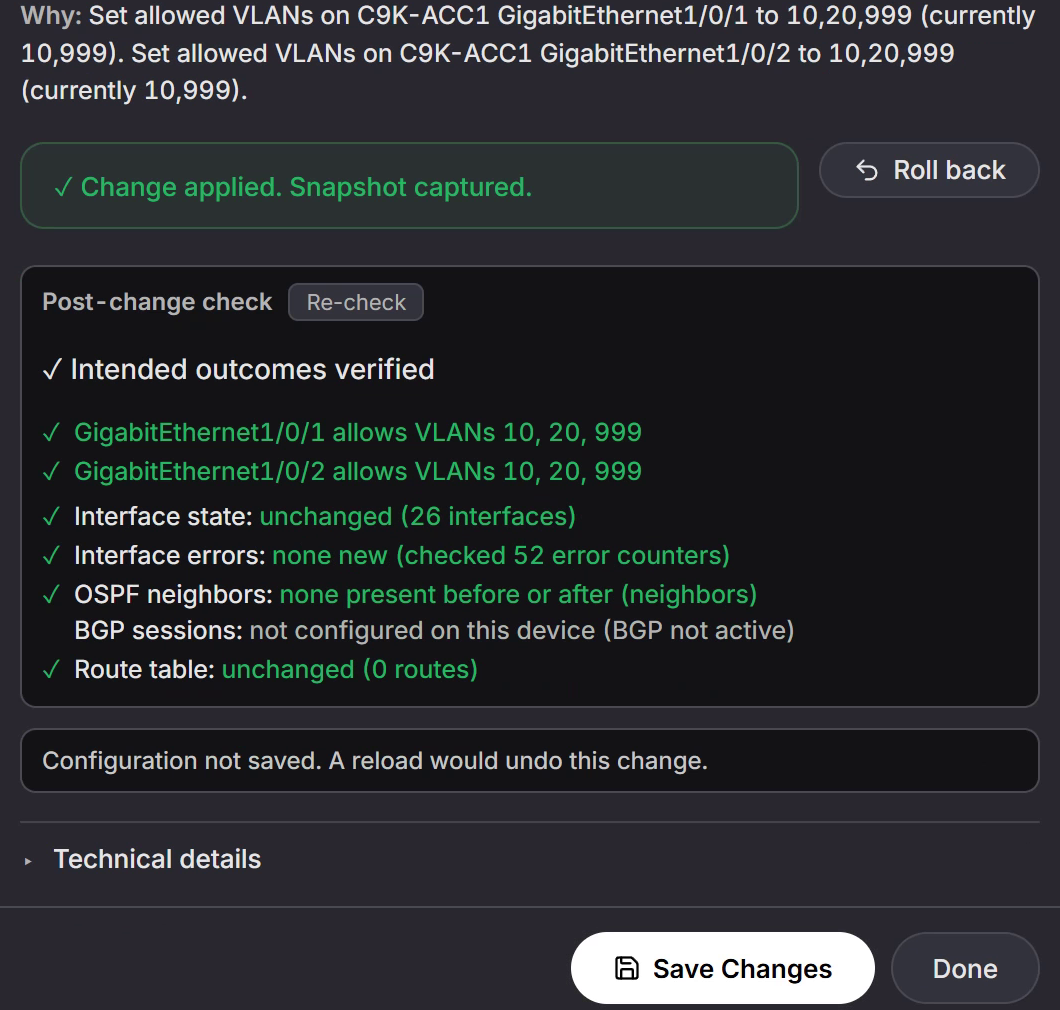
Under Post-change check, AI NetShell compares fresh device readings with the pre-change baseline and the sealed intended outcomes. The host continues this verification even if the review card closes or the app restarts.
Timed auto-revert is a FortiOS-specific recovery method, not a step on every governed change. For a FortiOS modification that uses this method, AI NetShell arms the device's five-minute revert timer before applying the change. When the app offers Keep the change, that action sends the FortiOS save sequence and makes the runtime-only change permanent. If you do not keep the change, or the save cannot be sent before the deadline, the device reboots to its last saved configuration when the timer expires. Additive FortiOS firewall-address objects use a targeted inverse instead and do not use this timer. A targeted inverse rolls back by deleting the exact object the change added, with no reboot.
Use the result carefully:
- Intended outcomes verified: The sealed checks succeeded.
- A failed check says The check found a problem: and names what failed. When the change then waits for you, the window says Your decision needed. New changes to this device wait until you choose. Review the device, then select Roll back to undo the change, or Keep the change if the device looks right to you.
- If the app reports that the change was applied but verification is incomplete, the change reached the device, but the app could not prove the result. Use Verify again, Keep without the check, or Roll back only when that action is offered and after checking the device.
Select Verify now for an extra immediate sample or Re-check after a completed result. If the check is already running, Verify now says The check is already running. The result will show here. These actions do not replace direct device checks for management reachability and service health.
7. Finish or recover#
- Confirm the intended device state in the terminal and through any relevant monitoring path.
- If verification succeeds, select Done.
- If the outcome is wrong and Roll back is available, review the current device state, then select Roll back.
- If the app presents a recovery or resolution action, follow the exact on-screen instruction and confirm the real device state before accepting an unverified result.
On Cisco IOS, IOS XE, NX-OS, and Arista EOS, a change goes into the running configuration only. Once it passes its post-change check, the window says Configuration not saved. A reload would undo this change. and offers Save Changes next to Done. The same button is on the change's row in the Changes list. Save Changes asks first. It saves everything in the device's running configuration, including anything changed by hand since the last save, and the confirmation says so. The app says the change is saved only when the device confirms the save. If the device does not confirm it, the app says so and the button stays. Only you can save. Lina cannot.
On Juniper Junos and Palo Alto PAN-OS, a committed change is already saved. On FortiOS, an additive change is saved as soon as it is applied, and a change that uses the five-minute timed revert is saved when you select Keep the change. The window says so, and a reload keeps the change.
You can also roll back from the Changes view. Each row names the device, the local time and the full change. Every Roll back there asks first and says what will happen. A row with a newer change on the same device says so in amber.
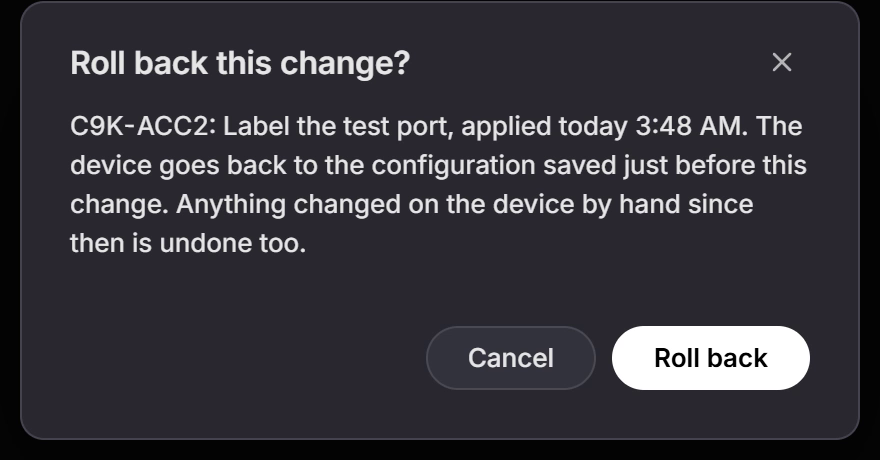
After a rollback, read its result. It says whether the configuration was restored, and whether the cleanup was confirmed.
- When the configuration was restored, the result says Rolled back to the pre-change snapshot. Read the rest of it. If a cleanup step was not confirmed, or the rollback copy is still on the device, the card's title reads Change needs attention and the result names the command to run yourself. On Cisco IOS and IOS XE, for example, that can be
file prompt alertin configuration mode. - If nothing reached the device, the result starts with Nothing was sent, and Roll back stays available. Select Roll back again when the session is free.
- If the rollback did not complete, stop and check the device. On Cisco IOS, IOS XE, NX-OS, and Arista EOS, the result names the rollback copy the app kept on the device on purpose, and the commands to restore from it by hand.
On Cisco IOS, IOS XE, NX-OS, and Arista EOS, a rollback changes the running configuration only. If you already saved the change with Save Changes, the result says Rolled back, but not saved yet. A reload would bring this change back. Click Save Changes to keep the rollback. Select Save Changes to save the rollback too. A Roll back from the Changes list says this before you confirm it. If the app has restarted since the save, that confirmation asks you to save the running configuration on the device yourself instead.
8. Review the governed-change record#
After the attempt settles:
- Open Changes and look under History. It lists only the changes that still need you. Each device has one line, such as 2 need you · 14 finished, with a Change timeline button. Finished changes stay in the app's change record and are hidden from this list.
- For a change listed there, confirm the recorded intent and its status.
- Select Change timeline on the device's line. You can also open Config & Compliance > Snapshots, select the device, then select Change timeline.
- Review the attributed interval and use View change for the exact configuration difference.
The audit record captures the human actor when account identity is available, the exact approved statements, the recorded intent, lockout warnings shown during approval, consent outcome, and later lifecycle outcomes. The durable change history keeps applied, rolled-back, kept, and operator-resolved outcomes grouped by device, including the finished changes that History does not list. Closing a rollback card does not erase the history record.
The configuration timeline joins that audit trail to the retained snapshots. When a matching record falls within the changed interval, the timeline links it; open the change record itself for the authoritative view of who acted, the recorded intent, the approved statements, and the outcome. If a governed pre-change capture exists but no matching audit row can be found, the timeline says so instead of inventing attribution.
When you roll back an approved change on Cisco IOS, IOS XE, NX-OS, Arista EOS, or Palo Alto PAN-OS and the device confirms it, the timeline can label that interval Governed rollback and name the change, who rolled it back, its intent, and the rollback lines. For a change to several interfaces or to other parts of the configuration, and for any change on PAN-OS, this needs a backup between the change and its rollback, such as the post-change backup the app tries to take right after a change settles. See Investigate for how the timeline and run alerts treat each case.
Expected Result#
The proposed statements pass the write-policy check, the approval card shows the correct current and after change states, and no configuration reaches the device until you approve it. After apply, Post-change check reports whether the intended outcomes were verified or which recovery decision remains. On Cisco IOS, IOS XE, NX-OS, and Arista EOS, the app does not save the change to the startup configuration until you select Save Changes. The attempt remains visible in durable change history, and its pre-change point can be compared and attributed in the configuration timeline.
Troubleshooting#
Preview change is unavailable#
Enter a non-empty intent and at least one configuration statement. Confirm that the plan includes governed changes and that Allow configuration changes is turned on under Settings > General. If Settings says governed changes are unavailable because the app could not open its audit log when it started, restart the app. If that keeps happening, contact support.
A statement is refused before preview#
The device's write policy does not allow the proposed sequence. Do not try to disguise or combine the command. Recheck the diagnosis and use an approved change shape for that platform.
The preview is stale or the device changed#
Cancel the review and propose the change again. AI NetShell rechecks the plan and captures a current baseline before sending. A stale verification baseline is refused without applying the change.
Cancel did not discard the change#
Cancel discards only a change you have not approved. If the review stays open with The change was not discarded., read the reason. Wait for a preparation or apply to finish, then look at the change again. A change that was already approved or sent is not discarded; Cancel only closes its card.
Verification is incomplete#
The apply may still have reached the device. Read the exact state and offered actions, inspect the device directly, and do not report success from an unverified result.
Roll back is unavailable#
Not every state or recovery method allows an immediate remote rollback. Follow the action shown by the app, use the device's out-of-band recovery path if needed, and do not start another change while the current one still needs resolution. After a rollback restores the configuration, Roll back is no longer offered for that change.
Roll back says it is not the newest change#
A rollback puts back the whole configuration saved just before the change. If a newer change is still on the device, the app refuses, sends nothing, and names the newer change. Roll back the newer change first. If the newer change can no longer be rolled back by the app, the message says the older one can only be undone on the device by hand.
Roll back says the device is not connected#
If the device's session has ended, Roll back in the Changes view's Applied changes list sends nothing. The row says Nothing was sent. device is not connected. Connect to it, then roll back. and shows Connect. Select Connect to bring the device's terminal forward, reconnect it, or open a new terminal for it. When the device's session is live again, the note goes away and Roll back is ready. Nothing is sent until you select Roll back again.
The app says the session is busy#
Only one task types on a device session at a time. A change or a rollback holds the session from its first line to its last cleanup line. The app's own checks and Lina's reads wait for it. A change or a rollback waits up to 4 minutes for the session, and a read waits up to 1 minute. If the session is still busy, nothing is sent, and the message names the task that holds it, for example The change was NOT applied. This session is busy (a verification read). Try again in a moment. Wait for that task to finish, then try again.
Do not type in the device's terminal while AI NetShell applies or rolls back a change on it. The app does not stop you, and your typing can make the change stop part way.
The app reports an incomplete record#
The device action may already have happened even when the history or rollback record could not be completed. Read the exact error, preserve the terminal output, check the real device state, and do not repeat the change just to create another record. See Troubleshooting for the local audit file and redaction guidance.