GUIDES
Find why a trunk drops a VLAN
One VLAN is down and the rest of the site works. Check the trunks on Cisco IOS XE, find the VLAN missing from the allowed list, and add it the safe way.
Verified against AI NetShell 0.4.15
"Marketing says the internet is down." Everyone else is fine, the ports are up, and the switch looks healthy. When one VLAN is dead and the rest of the site works, look at the trunks that carry that VLAN off the switch. This guide walks through the manual checks on a Cisco IOS XE access switch, then shows the same ticket worked in AI NetShell, from a real recording.
The example follows the recording: the access switch is C9K-ACC1, Marketing is VLAN 20, their PC is on Gi1/0/20, and the two uplinks Gi1/0/1 and Gi1/0/2 are trunks to the core switches C9K-CORE1 and C9K-CORE2.
Why "the internet is down" for one VLAN is usually a trunk problem#
A VLAN's gateway is normally on the core, so its traffic has to cross a trunk. If the trunk does not carry that VLAN, hosts in it can talk to each other on the same switch and nothing further. To the users that is "the internet is down".
Three things take a VLAN off a trunk:
- The VLAN is not in the trunk's allowed list.
- The VLAN does not exist on one end, so it is not active on the trunk.
- Spanning tree blocks the VLAN on that link, or VTP pruning removed it.
show interfaces trunk answers all three in one screen.
Step 1: Confirm the VLAN exists and the users' port is in it#
show vlan brief
show interfaces status
The VLAN should be active with the users' ports under it, and in show interfaces status the port should read connected in the right VLAN. If the port is in the wrong VLAN, fix that first.
Example output, trimmed:
VLAN Name                             Status    Ports
---- -------------------------------- --------- -------------------------------
10   USERS-A                          active    Gi1/0/10
20   USERS-B                          active    Gi1/0/20
In the recording, VLAN 20 is active and Gi1/0/20 is in it. The users' side is fine.
Step 2: Check which VLANs the trunks actually carry#
show interfaces trunkThe output has four tables. Read them in order:
- Mode and status. Each uplink should be
trunking. - Vlans allowed on trunk. This is the configured allowed list. If your VLAN is not here, you have found the cause.
- Vlans allowed and active in management domain. A VLAN in table 2 but not here does not exist on this switch, or is shut down.
- Vlans in spanning tree forwarding state and not pruned. A VLAN in table 3 but not here is blocked by spanning tree or removed by pruning on this link.
Example output, trimmed and consistent with the recording:
Port        Mode             Encapsulation  Status        Native vlan
Gi1/0/1     on               802.1q         trunking      999
Gi1/0/2     on               802.1q         trunking      999

Port        Vlans allowed on trunk
Gi1/0/1     10,999
Gi1/0/2     10,999
VLAN 20 is missing from the allowed list on both uplinks. Both trunks are up, and VLAN 10 is allowed, which is why everyone else is fine.
Step 3: Read the trunk configuration and find the far end#
Confirm it in the configuration, so you know what you are changing:
show running-config interface GigabitEthernet1/0/1
show running-config interface GigabitEthernet1/0/2
Example output for one uplink:
interface GigabitEthernet1/0/1
 description TRUNK-TO-C9K-CORE1
 switchport trunk native vlan 999
 switchport trunk allowed vlan 10,999
 switchport mode trunk
Then find out what is on the other end, because the fix may be needed there too:
show cdp neighborsIf CDP is off, show lldp neighbors gives the same answer where LLDP is on. In the example, Gi1/0/1 goes to C9K-CORE1 and Gi1/0/2 to C9K-CORE2.
To learn when the list changed, compare the running configuration with your last saved copy.
Step 4: Add the VLAN without replacing the allowed list#
This is the step that takes down other VLANs when it is done wrong. switchport trunk allowed vlan 20 replaces the list with only VLAN 20, so VLAN 10 drops off the trunk. Use add:
configure terminal
 interface GigabitEthernet1/0/1
  switchport trunk allowed vlan add 20
 interface GigabitEthernet1/0/2
  switchport trunk allowed vlan add 20
 end
Fix both uplinks in the same change. If only one carries the VLAN, the ticket comes back the first time traffic moves to the other link.
Step 5: Verify the fix#
show interfaces trunkBoth uplinks should now list 10,20,999, and VLAN 20 should appear in the forwarding table at the bottom. Then:
show mac address-table vlan 20The PC's address should be on Gi1/0/20 and the gateway's on an uplink. Then have a Marketing user ping the gateway and open a website.
When you are satisfied, save the running configuration to startup, in whatever form your change process requires.
Step 6: Check the other end#
A trunk has two allowed lists. If the core side also leaves VLAN 20 out, or has no gateway for VLAN 20, Marketing is still down. Run show interfaces trunk and show ip interface brief | include Vlan20 on each core switch. In the recording the fault was on the access switch, and the core was not in scope.
How AI NetShell does the same investigation#
The ticket above is a real recording in the app on a lab switch, 35 seconds, silent. You can watch it on the features page. Here is what happens in it.
You ask. With the switch's terminal open, you type the ticket to Lina, the assistant built into AI NetShell: "Marketing says the internet is down. They're on VLAN 20 on this switch."
Lina reads the switch, read-only. She opens the vlan-trunk-mismatch playbook, compares the running configuration with the saved copy, then reads, in order: show running-config, show interfaces trunk, show vlan brief, show interfaces status, show running-config interface GigabitEthernet1/0/1 and show running-config interface GigabitEthernet1/0/2. Each read is listed before it runs. See Investigate.
She shows the evidence. Her answer names what she checked and what she found: VLAN 20 exists and is active, the PC is on Gi1/0/20 in VLAN 20, both uplinks are up and trunking, and both allow only VLANs 10 and 999. The saved copy allowed 10, 20 and 999 on both uplinks, so VLAN 20 was removed after that copy was taken; from this switch she cannot say who removed it or when. She says what she did not read: the core switches, so whether they still allow and route VLAN 20 is unconfirmed.
One finding, one fix. Because the same fault is on two interfaces of one switch, Lina files one finding, "VLAN 20 missing from the allowed list on both uplink trunks", rated HIGH and tagged "Lina's conclusion", with one fix: switchport trunk allowed vlan add 20 on each uplink, noting that the additive form removes nothing. You can copy the commands and run them yourself on any plan.
One approval. With Resolve, you choose "Apply as governed change". The app checks each line against the switch's write policy, saves a copy of the running configuration as the rollback point, and shows the approval card: C9K-ACC1, Low risk (adds config), two lines added and none removed, the two added lines under their interfaces. Nothing is sent until you click "Apply change". Both interfaces are applied, checked, and if needed rolled back as one change. See Resolve and Change safety.
It checks the switch again. After the change, the app reads the device on its own. In this recording the result was "Intended outcomes verified", with "GigabitEthernet1/0/1 allows VLANs 10, 20, 999", "GigabitEthernet1/0/2 allows VLANs 10, 20, 999", interface state unchanged on 26 interfaces, no new interface errors, and the route table unchanged. Roll back stays one click away.
Saved when you say so. The window says "Configuration not saved. A reload would undo this change." In the recording the engineer selects Save Changes, confirms, and the window reads "Saved to the startup config" once the switch confirms it. Lina never saves. See Resolve.
Her next step points at the core. Lina's last line: if Marketing is still down afterwards, read the allowed VLAN lists on C9K-CORE1 and C9K-CORE2 and check the VLAN 20 gateway. That is Step 6 above.
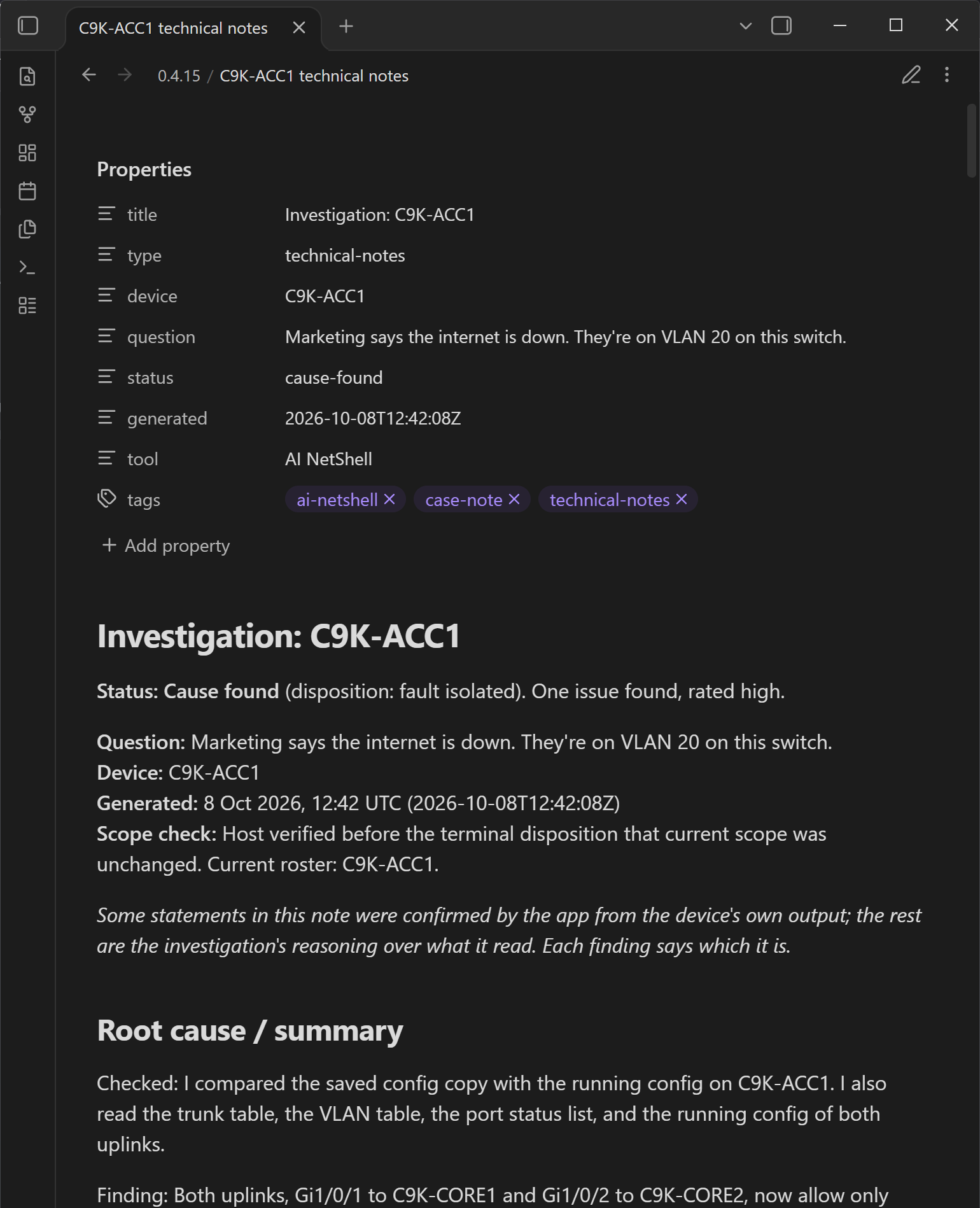
The notes write themselves. Lina's technical notes and executive summary for this ticket export as Markdown on every plan, ready for the ticket or the client.