SETUP
Credentials
Create reusable Credentials, assign them to devices, rotate passwords, and fix common authentication problems.
Verified against AI NetShell 0.4.11
Purpose#
Credentials hold the authentication details AI NetShell uses when it connects to a device. Create a Credential once, then select it when you add or edit devices that use the same account.
Before You Begin#
Have the device username and one of these authentication methods ready:
- A password or secret
- A private key file and its optional passphrase
- A running SSH agent available through
SSH_AUTH_SOCK. An SSH agent is a separate program that holds your unlocked private keys and signs the login for you, so the app does not need the key file.
Steps#
1. Create a Credential#
- Select Credentials in the left navigation rail.
- Select New credential in the Credentials pane.
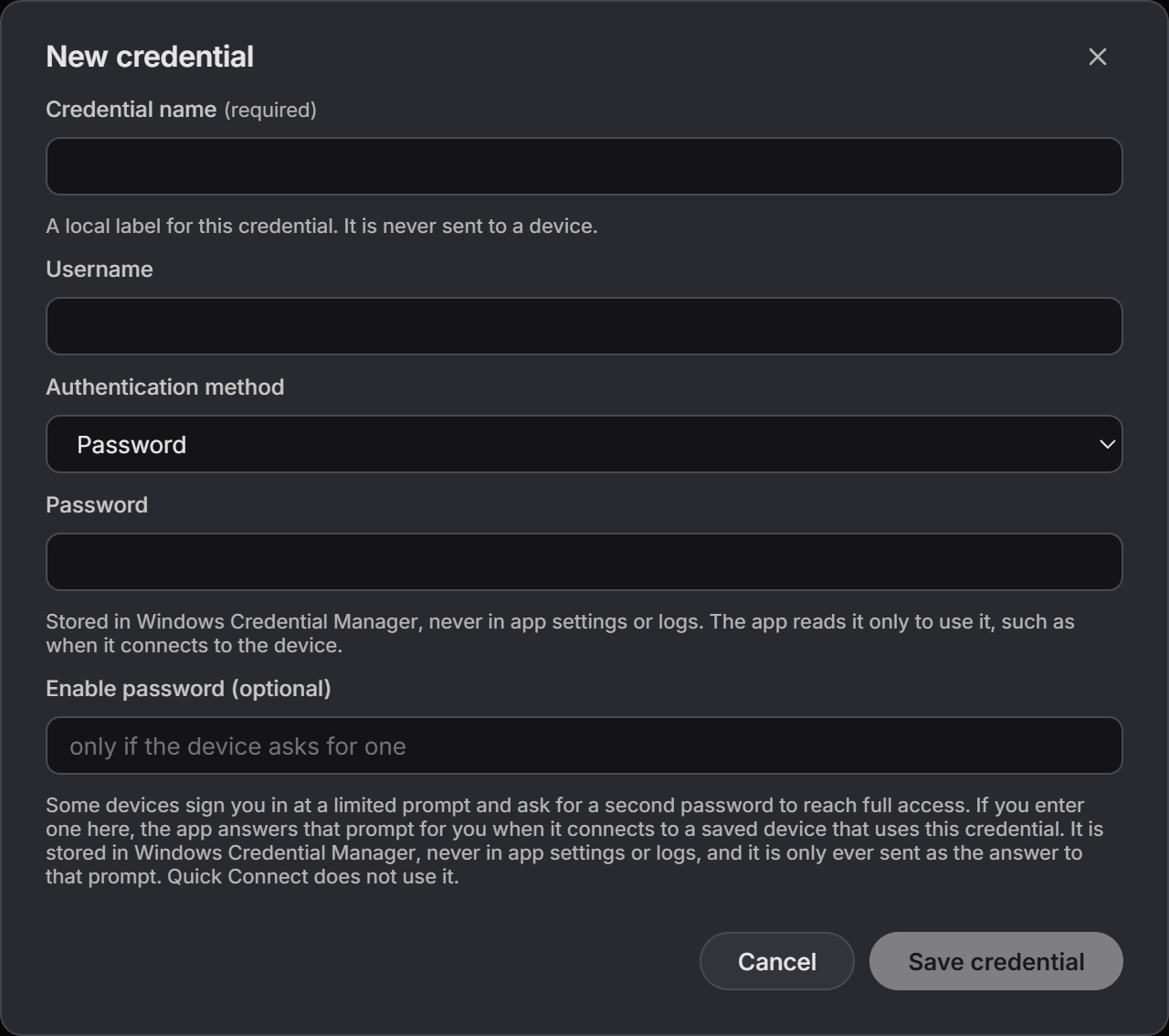
- Enter a Credential name and Username. The Credential name is a local label for this credential and is never sent to a device.
- Under Authentication method, choose an option:
- Password: Enter the Password. It is stored in Windows Credential Manager, never in app settings or logs. The app reads it only to use it, such as when it connects to the device.
- Private key file: Enter the Private key file path. Add a Passphrase (optional) if the key is protected. AI NetShell stores the path, and any passphrase goes to Windows Credential Manager.
- SSH agent: Add a Key fingerprint (optional) to select one agent key. This option uses a running agent through
SSH_AUTH_SOCK. The Windows named-pipe agent is not supported, so use a private key file on Windows when needed.
- If the device prompts for a second password to enter full access, add Enable password (optional). It is stored in Windows Credential Manager and is sent only as the answer to that prompt. Quick connect does not use it.
- Select Save credential.
2. Assign a Credential to a device#
- Select Inventory in the left navigation rail.
- Add a device, or open Edit device for an existing device.
- In Credential, select the saved Credential.
- Select Add device or Save changes.
- Connect to the device to confirm that authentication succeeds.
3. Update a password, username, enable password, or Credential name#
- Select Credentials.
- Select the edit (pencil) button beside the Credential.
- Change the Credential name if needed. A name change saves on its own and updates devices that already reference the Credential.
- To change the Username or rotate the secret, also re-enter the credential secret before saving. For password authentication, enter it in New password (rotates the secret). For private key authentication, re-enter the Private key file path and optional passphrase. For SSH agent authentication, confirm the agent option and optional fingerprint.
- Enter a new Enable password (optional) to replace it, or select Remove the stored enable password to clear it.
- Select Save changes.
A Username change persists only when you re-enter the credential secret or authentication details in the same edit. A name-only change needs no secret.
4. Use ordered Credentials for Active Discovery#
Open Discovery, then select Start a crawl or New crawl. On the first run, the dialog opens Discovery credentials, tried in priority order. Use + Add credential and the move controls to order the saved Credentials. You can also create a Credential from a row without closing the discovery setup. Another Credential is tried only after a genuine authentication rejection.
Later runs show a summary such as Credentials: name, with (tried in order) added when more than one is listed. Select Change to edit the list.
For an enrolled Seed device, a blank list uses that device's saved Credential everywhere. Add an ordered list when discovered neighbors need different Credentials. The list applies to that run and does not change the Credential assigned to an existing Inventory device.
5. Understand Credential security#
Password secrets and private-key passphrases are stored in Windows Credential Manager, never in app settings or logs. A private key Credential stores the file path, while the key remains in that file. AI NetShell reads saved secret material only when authentication needs it instead of placing secret values in the saved Credential record.
A Meraki API key saved from Add cloud account is a Credential too. It is stored in Windows Credential Manager and listed in the Credentials pane. See Devices & connections.
Expected Result#
The saved item appears in the Credentials pane with its username and authentication backend. Devices assigned to it can use it the next time they connect.
Troubleshooting#
Save credential is unavailable#
Complete Credential name and Username. A new password Credential also needs Password, and a new private key Credential needs Private key file path.
The device rejects the login#
Confirm the Username and the selected Authentication method. Saving a Credential does not contact the device, so connect after saving to test it. If the device password changed, open Edit credential, enter New password (rotates the secret), and select Save changes.
A private key does not work#
Confirm that Private key file path points to a file the current Windows user can read. If the key is encrypted, enter its passphrase when you save the Credential.
An SSH agent key is not found#
Confirm that the agent is running and available through SSH_AUTH_SOCK. If you are using a Windows named-pipe agent, select Private key file instead.
Related#
Return to the documentation overview to browse the available guides.