GETTING STARTED
Install & update
Download AI NetShell safely, check the installer's publisher, complete first launch, and update an older build.
Verified against AI NetShell 0.4.11
Purpose#
Download AI NetShell from its official site, check that the installer comes from PACKET 365 LLC, and update an existing installation without treating a Windows SmartScreen warning as a generic bypass message.
Before You Begin#
Confirm that the PC runs Windows 10 version 22H2 or later, or Windows 11. Mac and Linux versions are coming soon. Use a Windows account that is allowed to install desktop software. Download AI NetShell only from ainetshell.com. Do not use an installer from a mirror, attachment, search ad, or third-party download site.
Network requirements#
The terminal needs no account and no internet. Everything else uses HTTPS on port 443. Allow these addresses through your firewall or proxy:
| For | Address to allow |
|---|---|
| Sign-in and plan status | account.ainetshell.com |
| Included AI (AI credits) | ainetshell-cloud.ainetshell.workers.dev |
| Your own AI: Anthropic API key | api.anthropic.com |
| Your own AI: ChatGPT sign-in | auth.openai.com |
| Your own AI: ChatGPT requests | chatgpt.com |
| Updates | downloads.ainetshell.com |
| Meraki (read-only API key) | api.meraki.com |
The terminal (SSH, serial and remote desktop) only needs a network path from this PC to each device and a device login. Plan status refreshes every hour; if the PC goes offline, single-device reads and rollback keep working for up to 7 days. Sign-in and checkout open in your web browser. If your network uses a proxy, set it under Settings > Network (HTTP and SOCKS5 are supported) and select Test connection to check the path.
Steps#
Download the installer#
- Download the Windows installer from the official AI NetShell website, ainetshell.com.
- Optional: to check the publisher before you run it, open PowerShell in the folder that contains the installer and run the following command, replacing
<installer filename>with the exact file name:
Get-AuthenticodeSignature -FilePath ".\<installer filename>" |
  Format-List Status, StatusMessage, SignerCertificate
Expect Status: Valid and a signer that includes O=PACKET 365 LLC. If the result differs, do not run the installer.
Current releases are signed by PACKET 365 LLC: the installer and every program file it installs, including AI NetShell.exe. After installation, Windows SmartScreen and your security tools can confirm that publisher on the app itself, not only on the installer. To check the installed files of a per-user installation, run:
Get-ChildItem "$env:LOCALAPPDATA\AI NetShell" -Recurse -Include *.exe, *.dll |
  Get-AuthenticodeSignature |
  Format-Table @{n='File';e={Split-Path $_.Path -Leaf}}, Status, @{n='Signer';e={$_.SignerCertificate.Subject}}
Expect Valid on every row and a signer that includes O=PACKET 365 LLC.
Respond to Windows SmartScreen#
- If SmartScreen shows Windows protected your PC, select More info and inspect the app and publisher details.
- The publisher must be PACKET 365 LLC. If SmartScreen shows Unknown publisher or any other name, close SmartScreen and do not continue.
- Only when the publisher is PACKET 365 LLC, select Run anyway if Windows offers that choice and you intend to continue.
Complete first launch#
- Finish the installer and open AI NetShell.
- Review the bundled AI NetShell End User License Agreement (EULA) and privacy link.
- Select Accept EULA and continue if you agree.
- A clean profile then opens the workspace directly. There is no separate local app sign-in.
- To connect an AI NetShell account, continue with the Quick Start.
Update from an older build#
AI NetShell checks for updates automatically. It downloads, verifies, and stages a new version without interrupting your work.
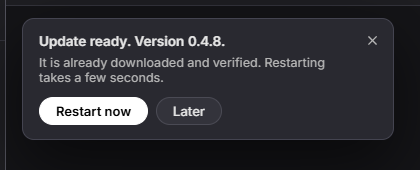
- When an update is staged, a card at the top left of the workspace reads Update ready. with the new version and says it is already downloaded and verified. Select Restart now, or select Later to keep working.
- After Later, the Update ready button above Settings on the navigation rail stays available. On a collapsed rail it shows as an arrow icon. Select it, review the ready version, then select Restart now.
- If the app says it cannot restart yet, finish the work named in that message and try Restart now again.
- After the restart, open Settings > About and confirm the installed version.
An open remote desktop (RDP) tab does not stop the update. Before the installer runs, AI NetShell closes its remote desktop helper, so the RDP session ends with the restart.
If you signed in with ChatGPT on a version before 0.4.9, sign in once more after you update. That older sign-in cannot renew itself. It keeps working until it expires, then stops. Open Settings > AI Providers, select Disconnect, then select Sign in with ChatGPT account.
To check by hand, open Settings > Updates and select Check for updates. The pane reports You are on the latest version. when no newer build is available. It shows download progress while preparing an update, then Update ready. Restart to apply. when the update is staged. A card titled Update ready. with the new version also appears, with Restart now and Later.
If automatic preparation fails, the Updates pane explains that the update could not be prepared and offers Open the download page. Use that fallback only from the app, and check that the downloaded installer is signed by PACKET 365 LLC before running it.
Expected Result#
AI NetShell opens on a supported Windows PC. The first installer came from ainetshell.com and was signed by PACKET 365 LLC, and Settings > About shows the installed version. Later updates download and verify in the app, apply only after you select Restart now, and report the new installed version after restart.
Troubleshooting#
SmartScreen shows an unexpected app or publisher#
Close the SmartScreen window and do not run the file. Download the installer again from ainetshell.com. If the publisher is still not PACKET 365 LLC, contact [email protected] with the version and file name, but do not attach the installer.
The last update check did not finish#
Confirm that the PC can reach the internet. The Updates pane says The last update check did not finish. It will try again on its own. You can also select Check for updates to retry now.
When the failed update state includes a manual download, the pane also says The update could not be prepared automatically. Select Open the download page, then check that the installer is signed by PACKET 365 LLC before running it by hand.
Restart now is unavailable#
Read the reason shown beside the update. Finish the named work, then open the update button above Settings again and select Restart now. The app does not restart itself.