MAP AND DOCUMENT YOUR NETWORK
As-built documentation
Turn a finished discovery into an as-built PDF, with the map images, the tables and masked configuration copies beside it in one folder.
Verified against AI NetShell 0.4.20
AI NetShell writes an as-built from a finished discovery of the devices you manage: a PDF that says what the network is, what was checked and what needs attention, with the map images, the tables and a masked copy of each running configuration the app could include, all in one folder. The facts come from what the devices reported on that run, plus three things from outside it: the app's support dates, an earlier backup where this run has no configuration copy for a device, and the previous saved run it compares against. Where a value was not read, the document says so.
You need a finished discovery under Saved runs, and the Resolve plan or the Resolve trial. For the VLAN, trunk and recovery facts, the discovery must have run with Back up configurations (running and startup) while connected turned on; it is on by default. Running a discovery is covered in Discover your network and draw the maps.
1. Open the run#
- Select Discovery in the left rail.
- Expand Saved runs and select the run to document. A run you just finished is already open. The run opens with its results.
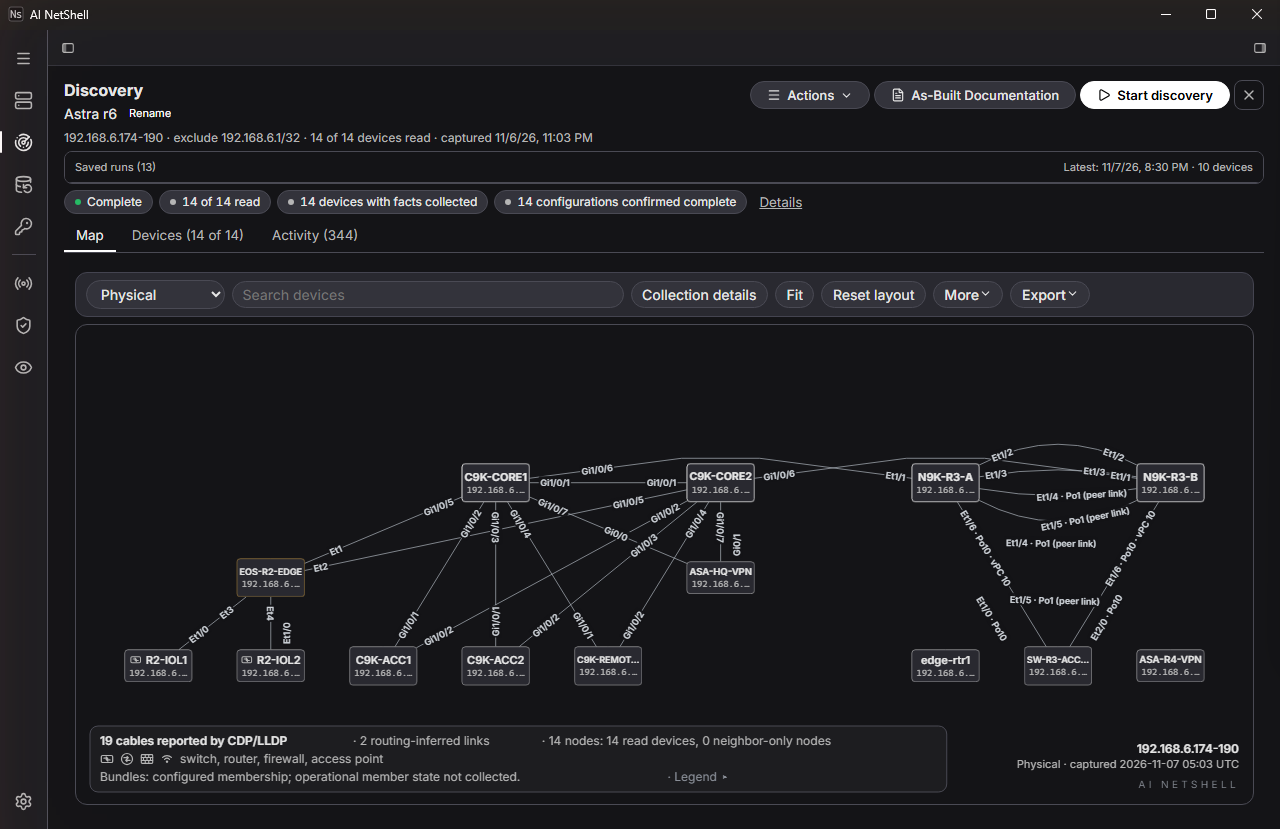
- In the run header, select As-Built Documentation. The As-Built Documentation dialog opens.
The button is grayed out while the app checks your plan, and it stays locked on a plan without exports. Its tooltip then reads Exports and documentation are part of the Resolve plan. An older saved run that kept only its map cannot be documented: the run shows a notice saying so, and the button is not there. Run a new discovery and document that one.
2. Say who it is for and what goes in#
The dialog is titled As-Built Documentation.
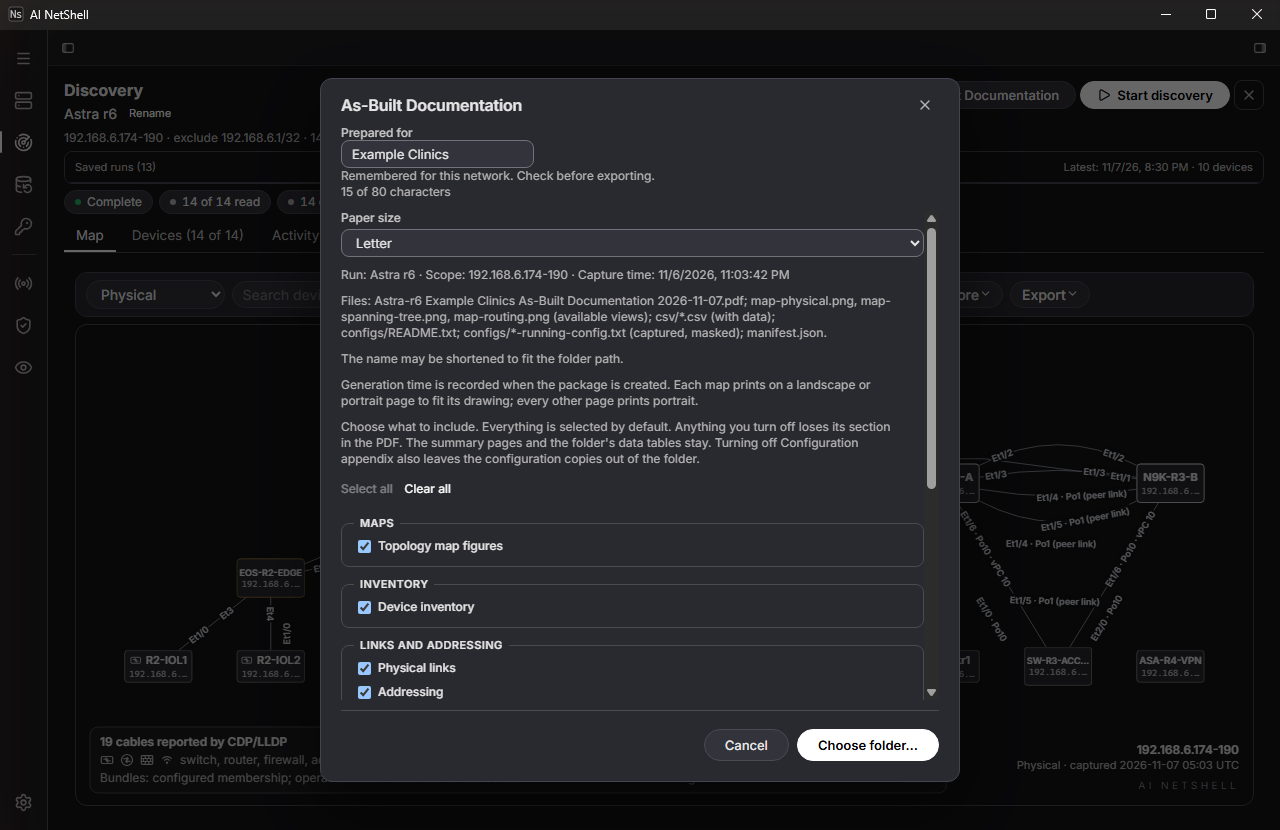
Prepared for. The client or organization name: up to 80 characters that the PDF font can print. It becomes the document's title, the cover and the PDF's file name. Leave it empty and the document is titled after the network. Once an export succeeds, the app remembers the name for this network, so check it before you export. If the printed form will differ from what you typed, a Will print as: line shows it.
Paper size. A4 or Letter, preset from your Windows regional settings. Each map prints on a landscape or portrait page to fit its drawing; wide tables print on landscape pages.
Below those, a line names the run, its scope and its capture time, and a Files: line previews the file names the folder will get.
Choose what to include. Every section starts selected. Turning one off removes it from the PDF, and the app remembers your choice for the next export on this PC, whichever network it is for. The dialog says what stays: Anything you turn off loses its section in the PDF. The summary pages and the folder's data tables stay. Turning off Configuration appendix also leaves the configuration copies out of the folder. So the At a glance summary can still mention a finding from a section you turned off, and the folder still gets its tables. Two sections also control files: turn off Topology map figures and no map images are written; turn off Configuration appendix (masked) and the folder gets no configs folder, neither the configuration copies nor their README. The sections, in the dialog's own groups:
| Group | Sections |
|---|---|
| Maps | Topology map figures |
| Inventory | Device inventory |
| Links and addressing | Physical links, Addressing, Shared segments |
| Switching | VLANs & trunks, VLAN and trunk mismatches, Spanning tree |
| Routing | Routing |
| Support and recovery | End of support, Recovery |
| Appendix | Configuration appendix (masked) |
The cover, the summary pages and the changes section are always in the PDF. Select all and Clear all sit above the list. Choose folder… stays disabled until at least one section is selected and Prepared for has passed its check.
During the Resolve trial a line above the buttons reads Trial exports carry an evaluation watermark. See During the trial.
3. Choose the folder#
- Select Choose folder… and pick a folder. The app offers the folder you exported to last time. The notice reads Documenting this network…. The app writes one new subfolder inside the folder you picked.
- Wait for the notice to change. It reads, for example, As-Built Documentation saved for 12 devices: 18 files in "Example Client As-Built Documentation 2026-11-05". Select Open folder to open it.
A long name is shortened to fit the folder path, and a second export into the same folder under the same name gets a numbered folder. If the section list cannot be loaded, the dialog says The section list could not be loaded. and offers Retry and Document everything…, which writes the full document.
What is in the folder#
| File | What it is |
|---|---|
Example Client As-Built Documentation 2026-11-05.pdf | The document. Named after Prepared for (or the network) and the export date, with the run's name in front when the run has one. The folder takes the same name. |
map-physical.png, map-spanning-tree.png, map-routing.png | The map images, one file per view the run has facts for, when Topology map figures is selected. |
csv/*.csv | The tables: inventory, commands, links, addressing, VLANs, trunks, spanning tree, routing, end of support, coverage, changes and more. A table with no rows is not written. |
configs/*-running-config.txt | One masked copy of each device's running configuration the app could include: from this run, or from a backup taken at or before the run's capture time when this run has none. Written when Configuration appendix (masked) is selected. |
configs/README.txt | Which device each file belongs to, where the copy came from and when, how many placeholders it holds, and why a device has no copy. Written with the configuration copies. |
manifest.json | Every file above with its size and SHA-256, the run, the generation time and the device counts. |
The configuration copies are masked. Passwords, keys and community strings are {{NS:...}} placeholders, so a file is not restorable on its own. The same is true of a configuration you export from Backups: its export action is Export without passwords..., and the file carries the same placeholders. Before you load either file on a device, replace every placeholder with the real value. See Backups and drift. The folder has no Word file. Word export is off in this version.
What the PDF says#
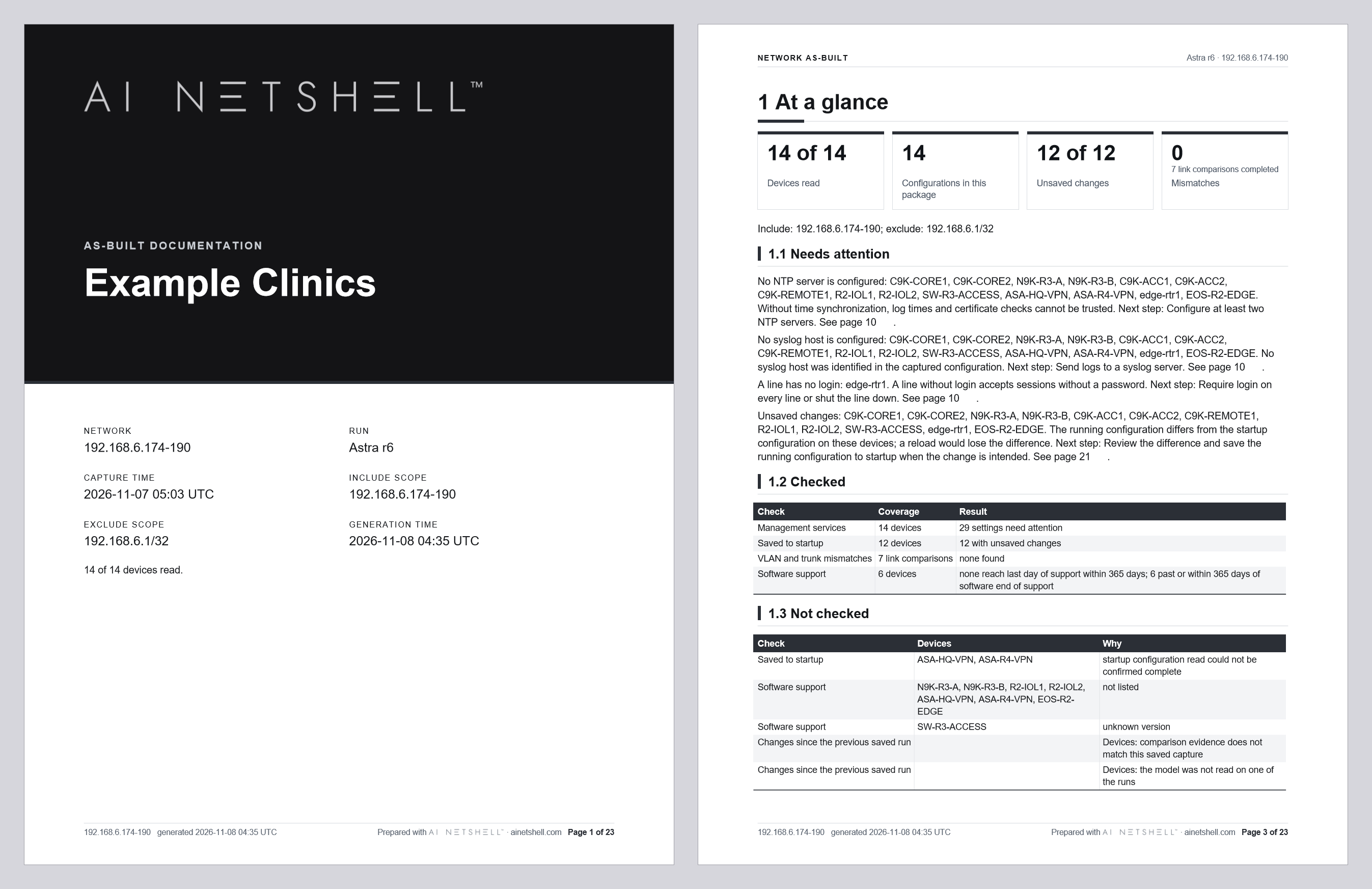
Device names and port names appear in short form (Gi1/0/1), the full name in parentheses where it matters. Sections, tables and figures are numbered throughout, and the contents page lists the sections. A running header reads NETWORK AS-BUILT with the run and the network; the footer names the network, when the document was generated, and the page number.
- Cover. The document's name, then Network, Run, Capture time, the discovery scope and Generation time, and one line such as 20 of 21 devices read. 1 could not be accessed, see page 6.
- Contents, followed by a short note on the words the document uses for a missing value, so "not read" is never confused with "none".
- At a glance. The headline numbers, then Needs attention, Checked (check, coverage, result) and Not checked (check, devices, why). Needs attention draws on the whole run, including sections you turned off.
- Maps. Physical links, Spanning tree and Routing, one per page, each with a caption that says what it shows. The maps draw what the devices reported on the capture date; cables no device reported do not appear. A view the run has no facts for, or a map too large to save as one image, is reported in a line at the top of the section instead of drawn. For a too-large map the line reads This map is too large to save as one image. View it on screen, or run discovery on a smaller scope to save it. The rest of the document is unaffected.
- One Site: name section per site, with devices that have no site under Network details (a run with no sites gets Network details alone). Each has Device inventory (plus Not read and OS versions), Physical links, Addressing by subnet, VLANs, Trunks, Spanning tree (with Blocked ports; every reported port is in
csv/stp.csv) and Routing. With VLAN and trunk mismatches selected, each site lists the native, allowed or trunk-to-access mismatches found across the links it could compare, says so when none were found, and names the links it could not check. - Shared segments. A mesh of one-sided neighbor claims folded into one layer-2 segment, with each member listed once.
- End of support. Hardware milestones matched on the part number each device reported, and Software support dates. A model that is not in the lifecycle data is shown as not listed, never as having no end of support.
- Recovery. Per device, how many placeholders its configuration copy holds and whether the running configuration is saved to startup, or why no configuration copy is available. The section ends with a note on recovery prerequisites: replace every placeholder with its real value before loading a configuration, and arrange the secret handoff with the client.
- Changes since the previous saved run. When the app can identify the previous saved run of this network, the differences by category, then Work done through the app. When there is no earlier run, or it cannot be matched, the section says so and compares nothing.
- Appendix A. Data files and configurations. Which data files were written and their row counts, and the configuration backups by device.
During the trial#
During the Resolve trial, every page of the PDF and every map image carries a light gray text frame along its edges: Evaluation copy. Not licensed for client delivery. followed by the account it was exported from and the export date. The page content sits inside the frame, not under it. On a paid plan there is no frame, and every page's footer ends with Prepared with AI NetShell™ · ainetshell.com. The app refreshes your account status before an export when it can, so a run exported after your plan starts normally comes out clean; until the app has the new status, an export keeps the trial frame.
When the document is not written#
The app checks your plan and the run again after you pick the folder and once more just before it writes. If anything changed in between, nothing is written, and the notice says why as long as the run you started from is still on screen. Two examples:
- As-Built Documentation was not written because the selected discovery changed during folder selection. Return to the intended discovery and try again.
- As-Built Documentation was not written because the selected discovery's full saved run is no longer stored. Choose a saved run with full results and try again.
If the maps cannot be drawn, the export stops with an error notice. Turn off Topology map figures to write the document without them.
Next#
- Discover your network and draw the maps: saved runs, Run again, and Compare with previous run.
- Backups and drift: what the placeholders mean and how to use an exported copy.
- Credits, plans and billing: which plan includes exports and documentation.
Checked on AI NetShell 0.4.20