MAP AND DOCUMENT YOUR NETWORK
Discover your network and draw the maps
Start from one device you manage, let discovery follow CDP and LLDP neighbors inside the scope you set, then read the devices it found and the three maps. Saved runs, Run again and Compare with previous run.
Verified against AI NetShell 0.4.20
Discovery maps the devices you manage by starting from one of them and following what that device says its neighbors are. It reads each device over SSH with read-only commands, collects the CDP and LLDP neighbor tables, and connects to the neighbors it was told about, inside the scope you set, until it runs out of neighbors or reaches its limits. If your scope is a range of up to 256 addresses, it also tries each address in it by default, and you can turn that off. It never resolves a hostname, and nothing on any device changes. The result is a saved run: the devices it found, what each one reported, and three maps drawn from those reports. A finished run is what As-built documentation documents.
Discovery follows neighbors from Cisco IOS, IOS XE, NX-OS and Arista EOS devices. A Cisco ASA, Firepower Threat Defense, Palo Alto PAN-OS or FortiGate device it reaches is read for its identity and interfaces, and discovery does not follow neighbors from it. A run can start from a saved device of any of those eight types; started from a firewall, it reads that device and goes no further unless the sweep is on. A neighbor of another kind stays on the map as a device that was found but not read.
You need the Investigate plan or higher to start a discovery. Opening a saved run and its map needs a paid plan; a credit pack on its own does not include the map.
1. Start a discovery#
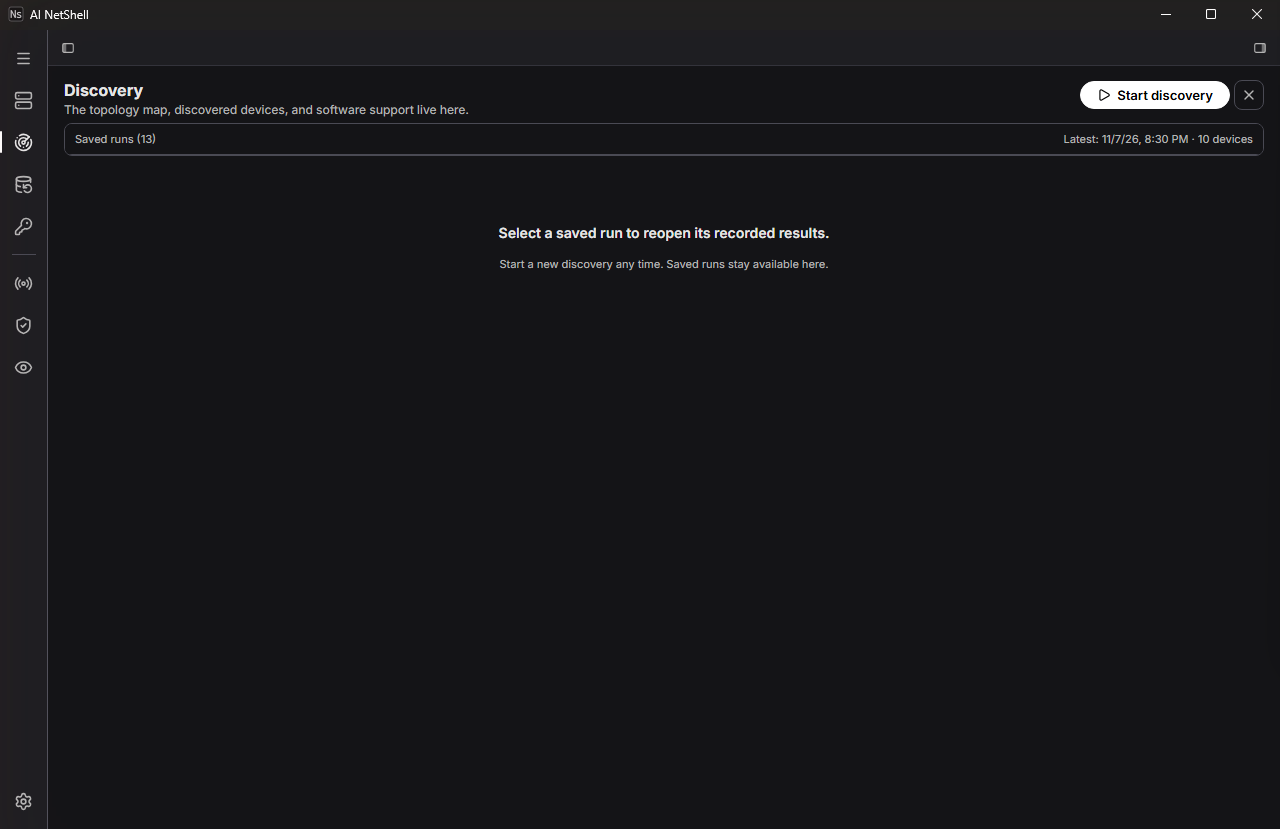
- Select Discovery in the left rail.
- Select Start discovery. The Start discovery dialog opens.
Before the first run, the page reads No discovery yet. On a plan without discovery the button is grayed out and the page says Active Discovery needs an Investigate plan or higher. The same line is the button's tooltip. While a discovery is already running, a new one cannot start: the app says Another discovery is running. and offers Show the running discovery.
2. Say where to start and how far to go#
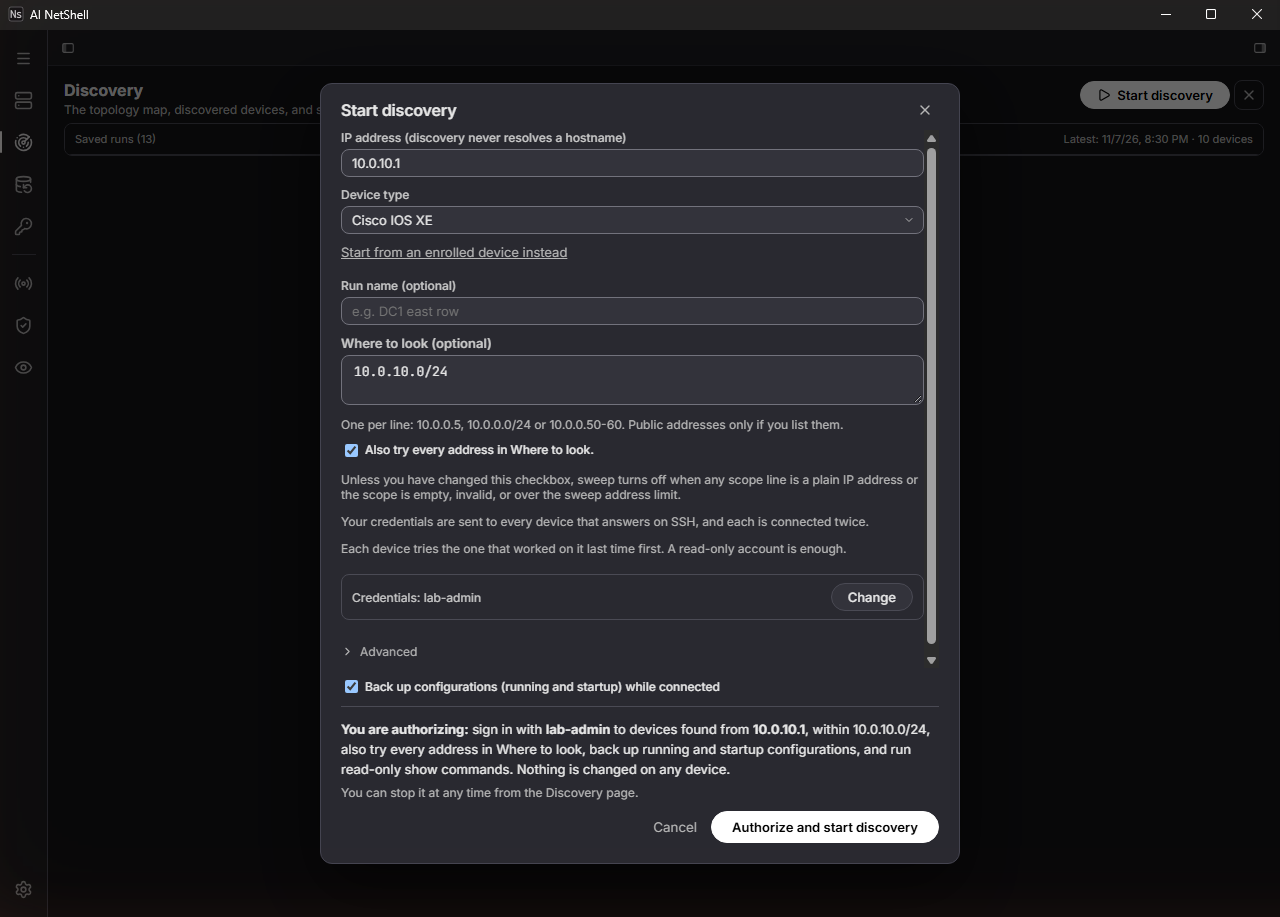
Start from. Pick a device from Inventory: a Cisco IOS, IOS XE, NX-OS, Arista EOS, ASA, FTD, PAN-OS or FortiOS device saved with an IP address, not a hostname. The list shows each device's name, device type and address. To start from an address instead, select Use an IP address instead, enter it under IP address (discovery never resolves a hostname) and choose the Device type: Cisco ASA, Cisco IOS, Cisco IOS XE, Cisco NX-OS or Arista EOS. Start from an enrolled device instead switches back. The dialog opens in address mode by itself when Inventory is empty or your last run started from an address.
Run name (optional). Up to 80 characters. It names the run under Saved runs; you can rename it later.
Where to look (optional). One entry per line: 10.0.0.5, 10.0.0.0/24 or 10.0.0.50-60. Leave it empty and discovery connects to every advertised address in 10.0.0.0/8, 172.16.0.0/12 or 192.168.0.0/16, and to nothing else; list IPv6 ranges yourself. Fill it in and it becomes a hard boundary: a neighbor outside it is not connected to, even on a private address, and a public address is connected to only when you list it. A single address is saved as that one host (10.0.0.5/32, /128 for IPv6) and the field shows it that way when you leave it. Use this device's subnet (10.0.0.0/24) adds a /24 built from the starting device's address, not from its real mask, so check it against the range you mean to approve. If you list the whole address space (0.0.0.0/0), a caution reads This scope covers every address. Discovery still connects only to devices advertised inside it, minus excludes.
Also try every address in Where to look. For a range scope within the limit, this is on by default. With this on, it also tries the other IPv4 addresses in the ranges you listed, up to 256 of them, skipping addresses it already knows, your excludes and reserved addresses. The dialog says what that means: Your credentials are sent to every device that answers on SSH, and each is connected twice. The box sets itself: it turns on when every line is a range of up to 256 addresses in total (a /24 qualifies), and off when a line is a plain address, the scope is empty or invalid, or the range is over the limit. Once you set it yourself, it stays as you left it. Check it before you start. It is always off with Ask me before connecting to each new device.
Credentials. The dialog says Each device tries the one that worked on it last time first. A read-only account is enough. After the first run it shows one Credentials: line with Change; the first time, and after Change, you see Credentials to try, in order, with + Add credential, move controls and Done. Leave the list blank when you start from a device in Inventory and that device's own saved credential is used everywhere. Add credentials to try others on the neighbors, in order; the next one is tried only after a device rejects the one before it. The starting device's own credential must stay in the list. No password is entered here: the rows name saved credentials.
Advanced holds the rest, and the defaults are the maximums:
| Field | What it does |
|---|---|
| Ask me before connecting to each new device | Nothing is connected to until you approve it, the starting device included. The start button reads Start discovery (review each device), and the results page changes: each device waits in a list with an Approve… button that opens Approve this device, where you confirm the address, the Device type and the Host key and select Add to selected; then Approve and discover selected (3) connects to the approved devices, and their neighbors join the list. |
| Addresses to skip | One entry per line. Skipped addresses win over Where to look. |
| Port | The SSH port, when you start from an address. |
| Devices to try | 100. When it is reached, discovery stops connecting to new devices and the run still counts as complete. |
| Hops from the start device | 4. |
| Sweep addresses | 256, shown when the sweep box is on. |
Back up configurations (running and startup) while connected sits above the start button and is on by default. Leave it on if you want backups and the as-built's VLAN, trunk and recovery facts for this run; the backups go to Backups under Config & Compliance. See Backups and drift.
The paragraph under You are authorizing: states exactly what the run will do, with the starting device, the scope, the excludes, the sweep and the backup choice, and ends Nothing is changed on any device. Select Authorize and start discovery. For the next run the app remembers the starting device or address, the device type, the scope, the addresses to skip, the limits and the credential list; it does not remember the run name, and every new dialog starts with backups on, per-device review off and the sweep box set from the scope again.
3. Watch it run#
The Discovery button in the left rail shows a badge with the count of devices tried out of those planned, from any part of the app. On the Discovery page the status card reads Running with the devices reached, not identified and not reached so far, and Details opens the sentence behind it. The results of an unattended run have three tabs: Map, Devices and Activity. Activity lists what the run is doing on each device as it happens; Filter by device narrows it, and scrolling away from the newest line shows Paused. Jump to newest. The Map tab draws itself as soon as the run has topology data and says so while the run is going.
A slow device or a configuration backup can take minutes. If nothing has changed for a while, the card says No progress for 2m. A slow device or a configuration backup read can take several minutes, so this may still be working; if nothing changes for much longer, stop the discovery and check the connection report. To stop, open the Actions menu in the run header, select Stop discovery and confirm Stop discovery. The dialog says what that does: Stop this discovery? Devices still waiting or connecting are canceled and no new connections are made. You can still view what was collected.
When the run ends, a notice appears wherever you are in the app: Discovery complete. 12 of 12 devices read., followed when it applies by how many more could not be identified, how many could not be accessed, and which neighbors could not be reached, with the reason for each (up to three by name; the report names the rest). It goes away after 12 seconds; the status card keeps the same sentence under Details, with Complete, how many devices have facts collected and how many configurations were confirmed complete. A run that stopped at Devices to try reads The device limit was reached after 100 devices. Remaining candidates were not contacted. and is saved like any finished run.
4. Read what it found#
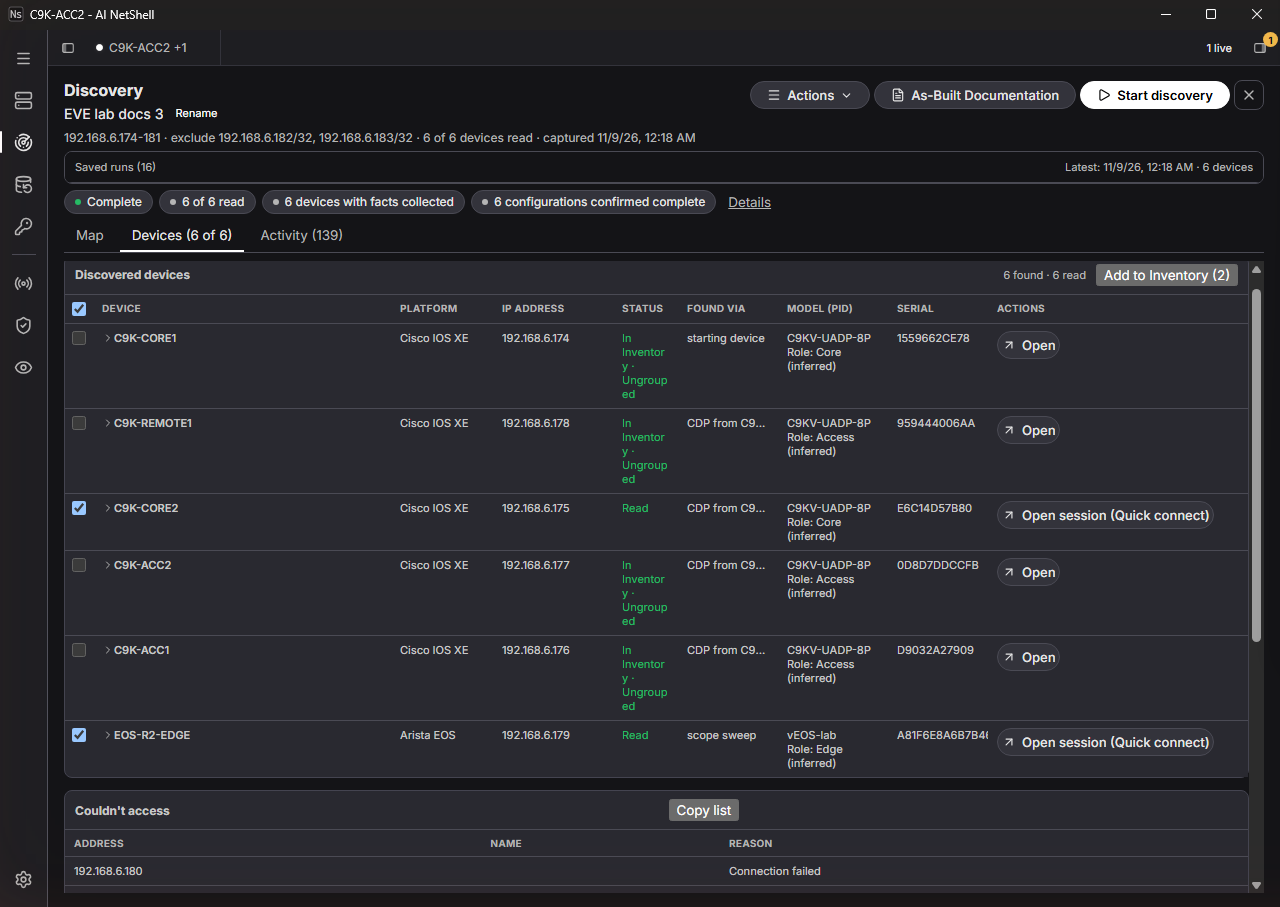
The Devices tab lists every device under Discovered devices, with its Platform, IP address, Status, Found via (how the run learned of it), Model (PID) and Serial. The line above the table counts them: found, read, not identified, not read, and seen but not tried. A device's status is Read, Not read, Not read · refused the credential, Not permitted, Found, not identified (it advertised nothing that names a supported device type) or Device not identified (it answered, but its login did not say what it is). A device already in Inventory reads In Inventory with its folder.
To add devices to Inventory from the run you just finished, select their rows and Add to Inventory (4), choose Existing folder or New folder in Add discovered devices, and select Add to Inventory (4). When the run left gaps outside the devices you selected, the dialog says so and the button reads Add anyway (4); a selected device whose own read was incomplete is refused by name whichever button you press. Inventory results then shows each device's outcome. Only a device that was read, has a hostname and has an approved address can be added; a row that cannot be added says why when you hover its checkbox, for example Not reached, so it cannot be added. A run reopened from Saved runs cannot add devices: it says Run discovery again to add them.
Couldn't access lists each device discovery could not read, with its address, name and a plain reason: Credentials rejected, Host key changed, Host key not approved, Command not allowed, Did not answer, SSH refused, Timed out, Connection failed and a few more. Copy list copies the table. Support shows software and hardware support dates from the app's bundled dataset and its local Cisco EoX cache; a model in neither source reads No date on file. Diagnostics, folded at the bottom, holds every address tried, every candidate and every retry.
5. The three maps#
Select the Map tab. The first control in the toolbar picks the view: Physical, Spanning Tree or Routing. A view this run has no facts for is marked (no data) and cannot be chosen. The maps draw only what the devices reported: a cable no device reported is not on the map. Each device card has a solid border when the device was read and a dashed border when it was not. Select a card and a button offers to hide it from the drawing; a device that was not read also shows why. Hidden cards stay off the map until you select More and Show 2 hidden devices, then select the card and its Show ... on map button. Search devices finds a card by name. Collection details opens the counts behind the map: devices mapped, devices read, neighbor reports outside Inventory, and what was not counted. Fit brings the whole map into view. You can drag a card to a new place; the app keeps it there on every later visit until you select Reset layout.
Physical. Every link the run found, labeled with the port at each end. The legend names the kinds of line, among them CDP neighbor, LLDP neighbor, One-sided claim (only one end reported the link), Inferred from routing, No backup path and Unmanaged device. Clear a kind's checkbox to hide those lines on screen; the legend then says Saved PNG and PDF still include every link.
Spanning Tree. The same cards with the spanning tree drawn over them. The VLAN picker shows All or one VLAN; with one VLAN chosen, All VLANs goes back. The root bridge is named on the drawing, and each port carries its role (RP, DP, ALT and so on). The legend adds Forwarding counts exclude Master, other roles, and ports whose role was not read. and says whether a saved image shows one VLAN or every VLAN.
Routing. Which routers peer with which. Line style names the protocol and line color names the session state: Up: FULL, Established, Forming, or the ends differ, Down: Idle, DOWN and, when the map has one, Other state, or not read. A peer that is not on the map is drawn as Peer not on this map. Hover a line to read both ends' own words. A strip under the map lists the devices that are not on it: No dynamic routing protocol reported on 3 devices and Routing not read on 1 device; Hide puts the strip away.
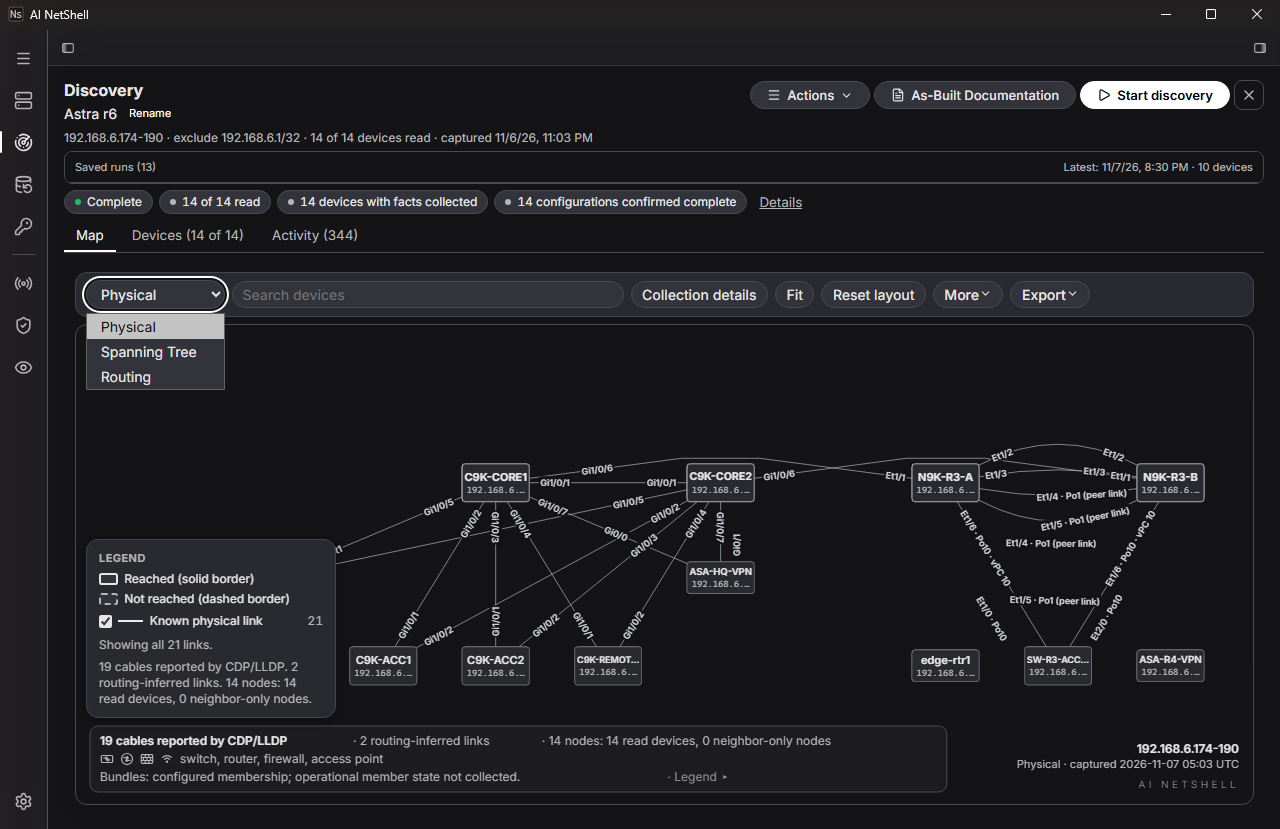
Export, at the right of the toolbar, offers Map image (.png), Printable map (.pdf) and Device tables (.csv). The three need the Resolve plan; on another plan each item carries Resolve plan beside it and the Discovery page shows Exports and documentation are part of the Resolve plan. with a link to change your plan. During the Resolve trial a map image or printable map carries the evaluation frame described in As-built documentation. A map too large to save as one image saves no image and shows This map is too large to save as one image. View it on screen, or run discovery on a smaller scope to save it.; Device tables (.csv) still saves its tables, without the map. For the full as-built folder, use As-Built Documentation in the run header: see As-built documentation.
Saved runs#
Every finished discovery is saved on this PC. On the Discovery start page, Saved runs (3) shows the latest run's date and device count; expand it to see up to the newest 200 runs, each with its name, device count, network and date. A run is named after its Run name, or after its starting device (its Inventory name, or its address) when it has none. Select a row to open it. The ... menu on each row holds:
- Open. The same as selecting the row. A run you just finished is already open.
- Run again. Opens Start discovery filled in from this run: the starting device, the scope, the addresses to skip, the backup choice, the limits, the review choice, and the run name with (again) added. The credential list is the run's recorded credentials, where they still exist, with any credential from your remembered list added after them; the subnet rules a credential had on the original run are not restored. Check every line, the credentials most of all, before you start it. If the starting device is no longer in Inventory, the dialog says so and uses its saved address. The item is disabled while a discovery is running.
- Rename. A Run name field in place, up to 80 characters, with Save. The same Rename control sits in the header of an open run. The notice reads Run named Example Client east row. or Run name cleared.
- Delete run. The Delete run? dialog names the run, its network and its saved time, then says what goes and what stays: This removes the saved run from this computer: its device list, its map, and the report built from it. This cannot be undone. Device configuration backups, the audit log and devices you added to Inventory stay. A running discovery cannot be deleted.
The app keeps the full results of the newest 200 runs across all networks. An older run is normally reduced to its row and its map; when you open one, a notice says so, the Devices tab is gone, and As-Built Documentation and Compare with previous run are not available for it. Run a new discovery to document that network.
Closing Discovery with Back to the workspace or Esc while the open run is listed under Saved runs means you are done with it: the next time you open Discovery it starts on this page, one click from the same results. A run you opened from the list is remembered until the app closes. After the app restarts, Discovery opens on the start page; the runs are under Saved runs.
The Discovery actions menu#
With a run open, the Actions button in the run header (its tooltip reads Discovery actions) holds, as they apply:
| Item | What it does |
|---|---|
| Run again | The same as Run again on the saved run's row. |
| Reload results | Reads the results again from the app, and shows the newest discovery if one started elsewhere. |
| Stop discovery | While a run is going. See Watch it run. |
| Run alerts | The alerts raised by scheduled runs of this network; the label carries the unread count. |
| Refresh known devices | Reads the devices the last run reached again, now, with no new per-device approvals. |
| Schedule refresh | A Daily or Weekly re-check of the known devices. |
| Compare with previous run | Opens the comparison below. Disabled for a run that kept only its map. |
Scheduled runs, refreshes and the alerts they raise are covered in Backups and drift.
Compare with previous run#
The sheet is titled Changes since the previous run. Compare against lists the other recorded runs of the same network, newest first, each with its date, its device count and, when it applies, stopped early or partial; the newest is compared first. Four sections follow, each with a sentence when it is empty so you know it was checked:
- New since the previous run: devices this run recorded that the earlier run did not. When the earlier run did not finish, each row says the device may have been there all along. Empty: No device appeared that was not there before.
- Confirmed gone: devices the earlier run recorded that this run did not, where this run finished, covered the same ground and was allowed to visit the device's address. Empty: Nothing we could confirm as removed.
- Cannot be compared: devices the earlier run recorded that this run cannot vouch for, each with its reason: this run was stopped early or hit a limit, covered less ground, was not allowed to visit the address or was told to skip it, or has no address it could check. Empty: The two runs covered the same ground.
- Device changes: per device, the Change, Before and After. Empty: No device reported anything different.
Above the sections, This run: and Previous run: state how much ground each covered. When the two runs did not cover the same ground, because one was partial or stopped early, or the scope changed, a banner reads These two runs did not cover the same ground, so a device missing from the newer run is not proof it was removed. Anything we could not compare is listed separately. The first run of a network has nothing to compare against, and the sheet says so.
When a discovery stops early or cannot be saved#
- You stopped it. The notice reads Discovery stopped. and the status card reads Stopped with The discovery was stopped. under Details. What was collected stays on screen, and the run's header ends with STOPPED. Stopping does not save the run by itself. The app records a run when it finishes, and also whenever it reads the run's map, which it does in the background once the run has topology data, so a stopped run is normally under Saved runs as it stood when the map was last read. Check the list: a stopped run that is not there is gone when the app restarts.
- It paused. If the scope, the credentials or the limits change while a run is going, or you approve a device by hand during an unattended run, the run stops before its next batch and the card reads Paused, with Discovery paused: and the reason under Details. Select Approve again and continue to resume with the current settings.
- It could not continue. When a batch cannot run, the card reads Stopped with The discovery stopped: and the cause. Fix the cause and run the discovery again.
- It finished but could not be saved. The notice reads The discovery finished, but its results could not be saved. Run the discovery again. If it happens again, contact support. It stays until you dismiss it, and the status card reads Stopped with the same sentence under Details. The run is not under Saved runs. The app recovers nothing on its own; run the discovery again.
Next#
- As-built documentation: turn a finished run into the as-built folder.
- Backups and drift: the configurations this run backed up, scheduled re-checks and drift alerts.
- Add devices and credentials: the devices and saved credentials discovery starts from.
Checked on AI NetShell 0.4.20