MAP AND DOCUMENT YOUR NETWORK
Backups and drift
Every configuration copy the app keeps of a device, how it is protected, how to compare two copies and export one, and how the change timeline tells an approved change from one nobody recorded.
Verified against AI NetShell 0.4.20
AI NetShell keeps copies of a device's configuration: when you ask for a backup, before and after a governed change, during a discovery, and after you connect to a device. A governed change is a change Lina proposes, you review as a diff and approve, and the app can roll back. The copies are stored encrypted on your PC. In Config & Compliance you can view any copy, compare any two, export a masked copy, and open a change timeline that says which changes came through the app and which did not. This version has no restore, and every export is masked. This page says what each copy holds, which copy you can really recover a device from today, and how the app finds drift.
Where backups come from#
Each backup carries a source label in the list.
| Label | Taken when | What it holds |
|---|---|---|
| manual | You select Back up config | The running configuration, masked |
| pre-change | The app builds a governed change proposal. The copy is labeled manual until the approved change is sent to the device, then pre-change | The running configuration, or only the part of it the change touches, masked |
| post-change | A governed change settles on a Cisco IOS, IOS XE or NX-OS, Arista EOS or Palo Alto PAN-OS device and the app can read the device right then | The running configuration, masked |
| discovery · running, discovery · startup | A discovery runs with Back up configurations (running and startup) while connected on, which is the default | The complete configuration, secrets included, encrypted |
| connect backup · running, connect backup · startup | You connect to a device whose Keep a config backup setting is on: the first time, and again whenever its running configuration has changed since the last connect backup | The complete configuration, secrets included, encrypted |
Masked means that passwords, keys and community strings were replaced with placeholders before the copy was stored. A placeholder looks like {{NS:cisco-secret#1}}: the kind of secret and a number. The app reads a backup with the device's own read-only show command, so the device type needs one: Cisco IOS, IOS XE and NX-OS and Arista EOS keep a running and a startup configuration; Juniper Junos, Palo Alto PAN-OS and Fortinet FortiOS keep one. A manual backup needs the device's terminal open; otherwise the app answers Connect to device first: open its terminal or reconnect its tab. For a manual backup, a read that ends before the device's prompt returns, or that the device rejects, stores nothing.
Taking, viewing, comparing and exporting backups, the scan and the change timeline check no plan. Discovery backups come with discovery, which needs a plan that includes it; see Credits, plans and billing.
How a backup is protected on your PC#
Every backup this version stores is encrypted (AES-256-GCM) with a key the app creates once and keeps in Windows Credential Manager. If that key cannot be read, the app stores nothing and says so: The Windows Credential Manager key is unavailable, so the app will not write an unencrypted copy. If the key is lost, the app cannot read the backups it encrypted. Manual, pre-change and post-change copies are masked before they are encrypted. Discovery and connect backups are encrypted complete, secrets included. The files live under time_machine in the app's data folder, one file per backup. When an investigation reads a backup, it gets a masked copy; what Lina receives from the app is covered in Security and privacy.
1. Open a device's backups#
- Select Config & Compliance in the left rail.
- On the Backups tab, select the device. Servers are not listed. The device's backups appear newest first, each with its capture time and source label.
Hover a row to see how it is protected: Passwords kept (encrypted) on a discovery or connect backup, Passwords removed: view and compare only on the others. A pre-change copy that covers one part of the configuration shows that part after its time, as section only, and its tooltip starts with Read before a change. A device with no copies yet reads No backups yet. One is captured before every governed change, or on demand from the device's History.
The same list opens from Inventory: right-click a device set up for SSH and select Config history…. The History · device window has the Back up config button, the quick filters All, Last 24h, Last 7 days and Since last Tuesday, and the same rows with View and Export without passwords… on each. In the device's terminal, right-click and select Back up config to take a backup without opening either list.
Below the devices, OLDER BACKUPS holds the copies of devices that are not in Inventory now: renamed, removed, or found by discovery only. Right-click one to Link to saved device…. The button below them, Delete this older backup… or Delete these n older backups…, covers every older backup shown that can be deleted, not one entry; the confirmation states the count and the size before anything is removed.
2. View, export or lock a backup#
Right-click a row. The menu holds Restore this version... (coming), which is disabled, Lock as baseline (or Unlock), View, Compare with selected and Export without passwords....
View opens the copy as it is stored. For a masked copy the line above it reads Stored with secrets masked. Not restorable on its own: passwords, keys and communities are placeholders. Exporting shows what to have ready. For a discovery or connect backup it reads Stored encrypted, full configuration with secrets., and the text below it is the complete configuration, passwords included. A comparison of two such copies shows them too, as stored.
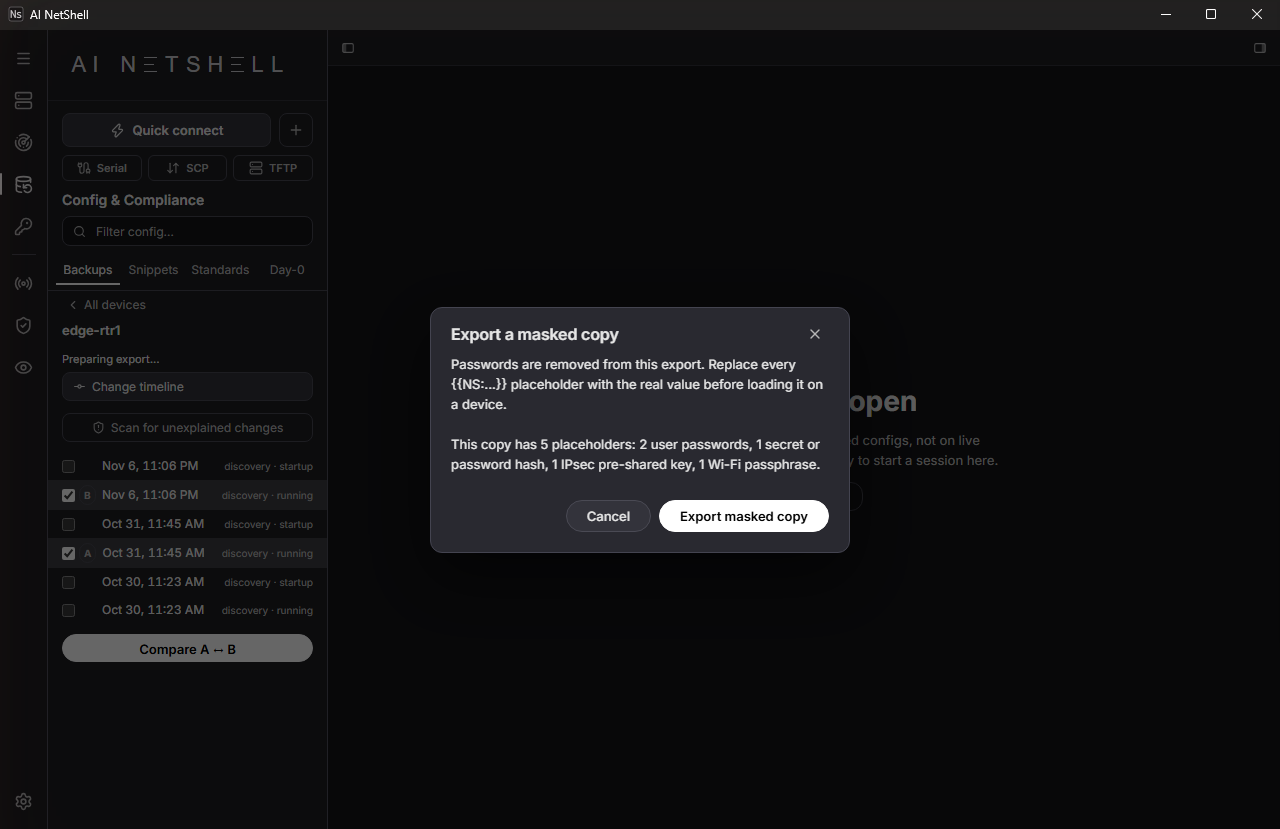
Export without passwords... masks the copy, whatever its protection, and shows the dialog Export a masked copy: Passwords are removed from this export. Replace every {{NS:...}} placeholder with the real value before loading it on a device., then a count by kind, for example This copy has 2 placeholders: 1 user password, 1 SNMP community. Select Export masked copy and choose where to save the .cfg or .txt file; the name offered is the device name and the capture time. The notice then reads, for example, Exported a masked copy. 2 placeholders to fill before use. For a saved Cisco IOS, IOS XE, NX-OS or Arista EOS device the file opens with ! comment lines, for a saved Junos, PAN-OS or FortiOS device with # lines, that name the device, the capture time, the source and the scope, repeat the placeholder warning and list the placeholders by kind; then the masked configuration follows. The same export is offered by the viewer, by History, and by the compare view, where it exports B, the newer copy.
Lock as baseline marks the copy with 🔒 and keeps it out of the retention caps described under Keep or remove backups. Unlock removes the mark.
3. Compare two backups#
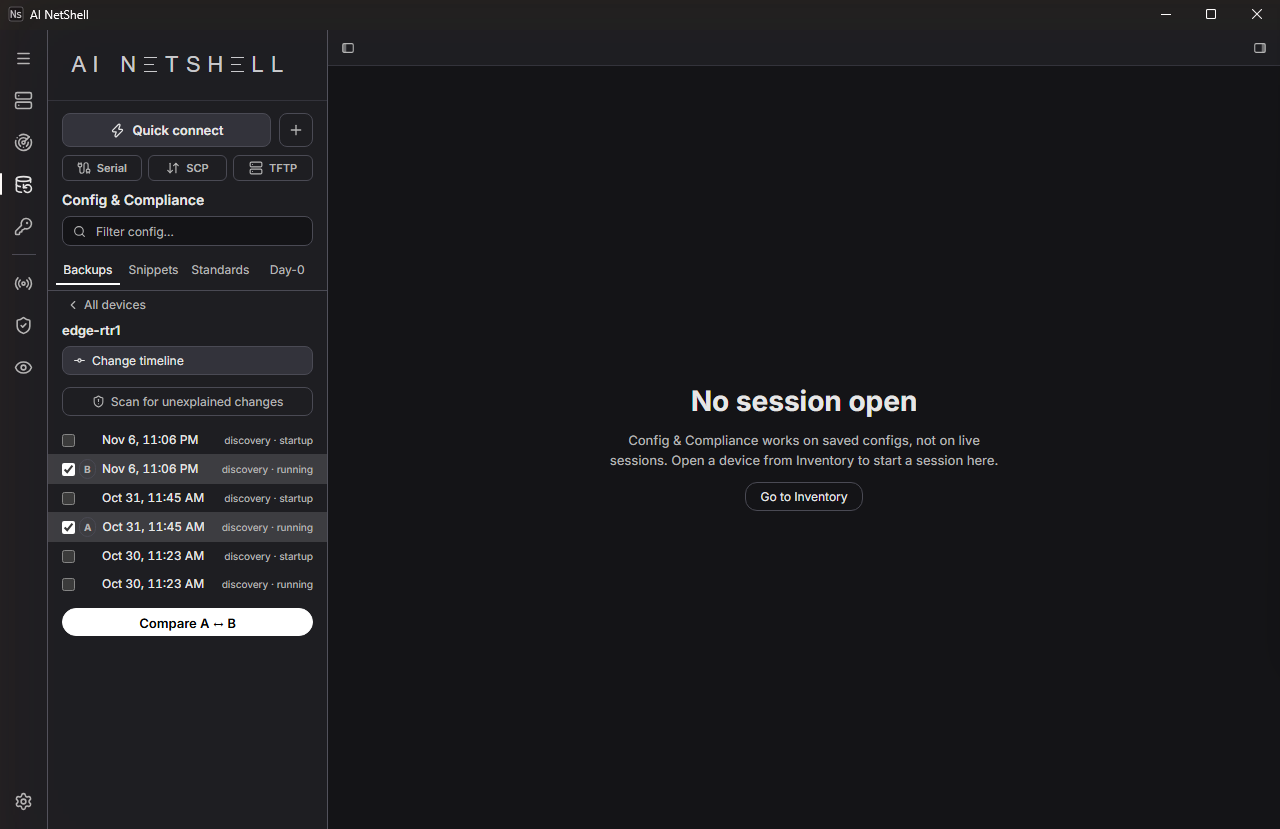
- Tick two rows. The older one is tagged A, the newer B, whichever you ticked first.
- Select Compare A ↔ B. The comparison opens in the center of the window, from older to newer, with the capture times in its header and a count such as +4 · −1 lines changed.
Lines that change on their own, such as timestamps and auto-tuned counters, are hidden as known noise and are not counted; the comparison can be shown side by side or unified, and Ignore whitespace drops whitespace-only differences. When the two copies do not cover the same thing, the header says so instead: Different scope: A is the full configuration, B is only section. When the two copies can be compared line by line, the compare view has Export without passwords and the disabled Restore this version... (coming). In History, ticking two rows and selecting Compare shows the same comparison inside the window, and Change selection returns to the list.
Recovering a device today#
- The app has no restore. Restore this version... (coming) is disabled wherever it appears.
- Every configuration file the app exports is masked. Before you load an exported copy on a device, replace every placeholder with its real value. The dialog and the file header count them by kind: user passwords, secrets or password hashes, SNMP communities, IPsec pre-shared keys, Wi-Fi passphrases, NTP keys, private keys, and other keys or secrets.
- The complete copy of a discovery or connect backup exists only inside the app. View shows it, and a comparison of two such copies shows it; nothing exports it to a file.
- The copy a device can load as it is lives on the device. Before a governed change on Cisco IOS, IOS XE or Arista EOS the app saves the running configuration to a file on flash, on NX-OS it creates a checkpoint, and on PAN-OS it saves a named configuration; Roll back loads that copy. On Junos the app sends no rollback in this version, because it cannot confirm that the device's newest commit is its own change; undo a Junos change on the device yourself. See Fix a problem. Outside a governed change, the restorable copy is the one the device keeps itself.
4. Find changes that did not come through the app#
With two or more backups of a device, the Backups tab shows two buttons above the list.
Scan for unexplained changes compares each stored copy with the one before it, running with running and startup with startup, and reports the result on the tab:
- No config changes across retained backups.
- 3 changes, all through governed writes., or all saves of the running config., or all through governed writes or saves of the running config.
- 1 unexplained change, not through a governed write, followed by one line per change with its date, Startup config when it was found there, Made through AI NetShell, not matched yet when it applies, and the lines added and removed.
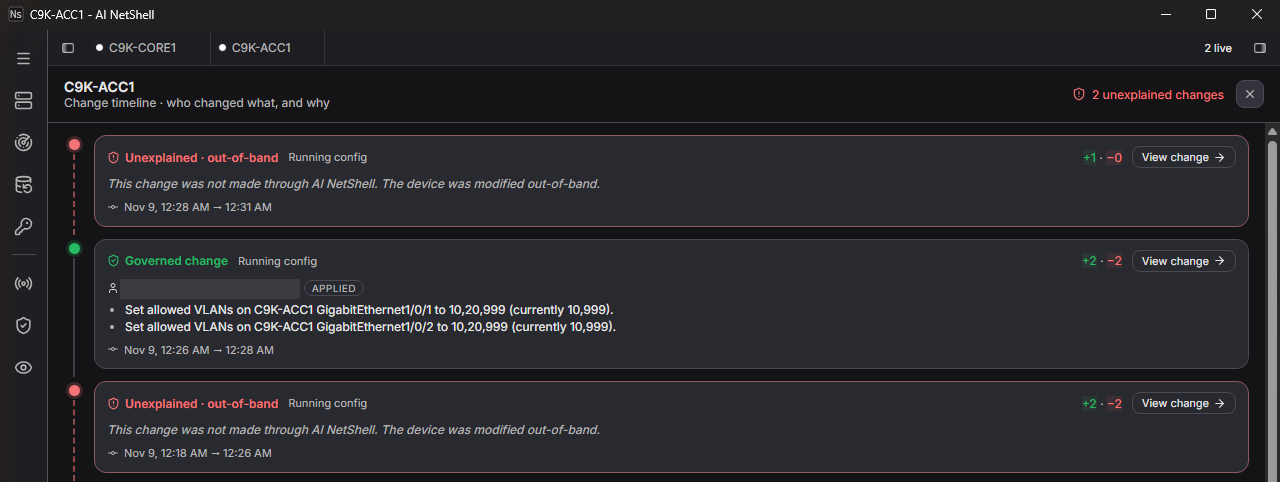
Change timeline opens the same findings in the center of the window, under Change timeline · who changed what, and why, with No unexplained changes or n unexplained changes in the header. Each change is one card:
| Card | Meaning |
|---|---|
| Governed change | The older copy is the pre-change copy of a governed change, or a pre-change copy of one part of the configuration was taken inside the stretch. The card shows who approved it as recorded (or Not recorded), the outcome and the intent in plain words. When no matching record is found in the audit log, the card says Looks like a governed change, but no matching audit record was found. |
| Governed rollback | The app rolled back one of its own changes and the device confirmed it: AI NetShell rolled back change id and the device confirmed it. |
| Running config saved | The startup config now matches a running config captured since the last startup backup. The running config was saved. |
| Not matched yet | Made through AI NetShell, but this device type cannot be matched to it yet. Other edits made in the same time are not told apart, so check this change by hand. Counted as unexplained. |
| Unexplained · out-of-band | This change was not made through AI NetShell. The device was modified out-of-band. |
Every card shows Running config or Startup config, the lines added and removed, and View change, which opens the two copies in the compare view.
How the verdict is reached, in plain terms:
- Only stored copies are compared. A change made after the newest backup is not visible until the next backup; on the five device types with a post-change backup, the app tries to take that backup as soon as the change settles. When a complete copy is compared with a masked one, both sides are compared masked, so a change to a password alone does not show.
- A change counts as governed when the older copy of the pair is the full pre-change copy of a governed change. When that copy covered only one part, what changed inside that part after its pre-change read is credited to the change, without checking each line against what was approved; everything outside that part stays unexplained.
- On Junos, FortiOS and device types the app does not know, a pre-change copy of one part cannot be placed, so the stretch that holds one is Not matched yet; a full pre-change copy still gives Governed change.
- A change the app rolled back inside the same stretch explains nothing there: what it did was undone. A rollback is credited only when the device confirmed it, on Cisco IOS, IOS XE or NX-OS, Arista EOS or PAN-OS.
- A manual or post-change backup explains nothing by itself.
- If the audit log cannot be read, the scan still runs on the copies alone, and the timeline shows an error instead.
Alerts after a scheduled discovery#
When a scheduled discovery backs a device up again, the app compares the new running copy with the latest earlier discovery backup of that device in the same network and records an alert when they differ. In the run header, Actions > Run alerts lists the alerts per device with n added, m removed and Explained by a governed change or No governed change recorded; Mark all read clears the unread count. The alert is stricter than the timeline on purpose: it reads explained only when every change between the two runs is a governed change matched to its exact part of the configuration or a rollback the device confirmed, so a change the timeline shows as Governed change can still read No governed change recorded in the alert. Scheduling a discovery is covered in Discover your network and draw the maps.
Keep or remove backups#
By default the app keeps up to 200 backups and 1024 MB per device, oldest removed first; a discovery's or connect backup's running and startup pair counts as one. Change that in Settings > Backups under Max backups per device and Max size per device (MB), then select Save. Each value must be at least 1, and the new caps apply at the next backup. A locked backup is never removed by the caps, and the newest complete discovery or connect copy of each configuration is kept as well. Backups of a device that is no longer in Inventory are removed from OLDER BACKUPS as described above.
Next#
- Discover your network and draw the maps: the backup setting of a discovery and the completion report.
- As-built documentation: the masked configuration copies in the as-built folder.
- Fix a problem: the rollback copy the app saves on the device, and what Roll back does.
- Security and privacy: what leaves your PC and what Lina receives.
Checked on AI NetShell 0.4.20