USE THE TERMINAL
Terminal basics
Open SSH, serial and remote desktop sessions in tabs and split panes, work in the terminal, connect to an address without saving it, and edit a file on a server.
Verified against AI NetShell 0.4.20
AI NetShell's terminal is an SSH client with tabs and split panes, a serial console and a remote desktop view for Windows servers, in one window beside Lina's chat. It needs no account: the account unlocks Lina, not the terminal. One session is one pane, a tab holds up to four panes, and sessions in background tabs stay connected.
You need a device you manage saved in Inventory with its credential, or its address and a username and password for a one-off connection, plus the device's host key fingerprint from a source you trust. For a console session you need a console cable on a COM port. Saving devices and credentials is covered in Add devices and credentials.
1. Open a session#
- Select Inventory in the left rail.
- Double-click a saved SSH device. You can also right-click it and select Open terminal (SSH), or drag it onto the workspace. (A double-click opens a device on its own protocol: a Windows device opens as a remote desktop, section 7.) A new tab opens. The pane reads Connecting to ACC-SW1..., then names each step: Handshaking..., Opening the shell..., Checking privilege level.... After two seconds it adds the time elapsed. The handshake and sign-in have a 60-second limit; Cancel stops waiting sooner.
- On the first connection to a device the app stops at Unknown host key, shows the device, its address, the key type and the fingerprint, and asks Trust this key and connect? Only if you recognize the device. Compare the fingerprint with the value you trust, then select Trust. The app does not sign in until you answer. The terminal opens at the device prompt.
A device that later offers a different key is refused with Host key changed; see Check an SSH host key. A device that offers only older SSH algorithms asks This device only offers older SSH algorithms (...). Connect anyway? before it connects. Connect anyway continues, and for a saved device the app remembers that choice on the device.
Each double-click opens another tab, so you can hold several sessions to one device. When the device closes the connection, the pane prints [session ended] and the header offers Reconnect, which starts a fresh connection in the same pane.
2. Work in the terminal#
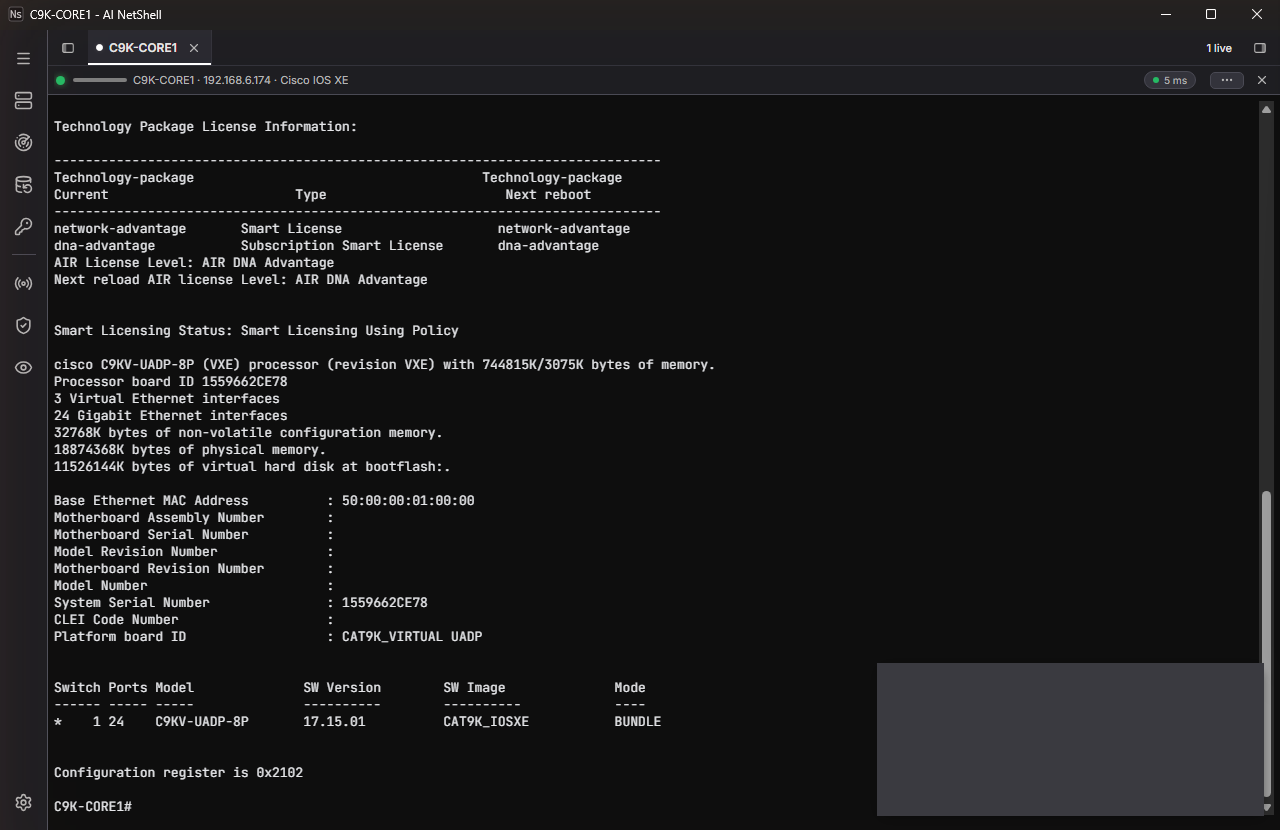
The pane header shows a status light, the device name with its address and device type, and the connection's latency in milliseconds when the header has room. Select the light for Connection details: host, vendor, status and the time it connected. The More button holds the pane's actions, and Close pane ends the session.
Typing and pasting. What you type goes to the device as you type it. Selecting text copies it to the clipboard at once. A paste, from the keyboard or with right-click Paste, sends the text with each line break as Enter. A paste of three or more lines, or one that holds a command on the app's high-risk list such as reload or erase, normally first opens Paste N lines into ACC-SW1? with a numbered preview and Cancel and Paste. The dialog says what it is: Line breaks are sent as Enter. No policy is applied to your own terminal. This is a confirmation, not an approval, and only you decide it. If the app cannot review a paste, it sends it as typed.
Right-click menu. Copy, Paste, Copy and Paste, then Find, Select All, Clear Screen, Clear Scrollback, Clear Screen and Scrollback. Two more become available when you select text: Ask AI about this puts the selection into Lina's chat box as evidence for your question, and Copy as masked copies it; in both, the app first replaces the secrets it recognizes, such as passwords, keys and community strings in known formats, with placeholders. On a saved network device the menu ends with Back up config, which takes a configuration backup now on a device type that supports it; on a device saved as a server it ends with Open SFTP here instead. (These labels are quoted as the app shows them.)
More menu. Highlight is on by default: green for words such as up, connected and established, red for the app's list of problem words, cyan for IPv4 addresses, yellow for interface names. Turning it off removes the app's coloring; colors the device itself sends stay. Clear clears the screen. Find in output… (Ctrl+Shift+F; Ctrl+F stays with the device) opens a find bar over the session's output with a match count, Match case and Enter or Shift+Enter to step through. The pane keeps 10,000 lines; when you open the bar after that has filled, it adds Scrollback is full, so the oldest output has already been dropped. No match here does not mean it never happened. Save pane output… writes the output the app has kept for the session, masked, to a text file: the save dialog proposes a name such as scrollback-10.0.0.5-2026-11-05-14-30-07.txt in the folder you used last, and the file begins with two lines that say when it was exported and how much of the session it holds. Disconnect ends the connection and leaves the pane open, and the header offers Reconnect.
While the app itself works on a session, applying or rolling back a change for example, it holds the keyboard and says so in the header, counting the seconds: Typing paused: a change is running (5s). Lina's reads leave the keyboard free. If a read Lina ran did not return to the prompt, the header reads Paused and the pane says This session is paused; use Reconnect, then Check again. Lina sends nothing more on that connection, but what you type still reaches the device, so select Reconnect before you continue. Both are described in Known limitations.
When the chat panel is hidden, its button counts the problem words that appeared in device output meanwhile. Settings > General > Text size (Normal or Larger) enlarges the app's lists, not the terminal text; the terminal font size is fixed.
3. Tabs#
Each session opens in its own tab, named after the device. A terminal tab carries a status dot, Connected, Connecting…, Disconnected or Paused; remote desktop and SFTP tabs have none. The right end of the strip counts the connected SSH and serial sessions, for example 3 live, and the window title starts with the name of the live pane in the tab in front. Switching tabs disconnects nothing. Close a tab with its ×; when it holds more than one live session the app asks Close N sessions? first. Closing a tab ends its sessions.
With no tab open, the workspace reads No session open and Double-click a device to open a session. You can also drag one onto this workspace. After a restart it also offers ↺ Restore previous workspace with a line such as 2 tabs · 3 devices · reconnects on click. The app saves the arrangement of your tabs and panes as you work and never reconnects on its own; select the button and each saved device connects again with its saved credential. Quick connect and serial sessions are not part of it, and a device no longer in Inventory is skipped.
Hide devices, at the left of the tab strip, collapses the device list; Ctrl+B does the same when the terminal is not focused. If the list hides on its own, the pin Keep the device list open in the Inventory header keeps it open.
4. Split panes#
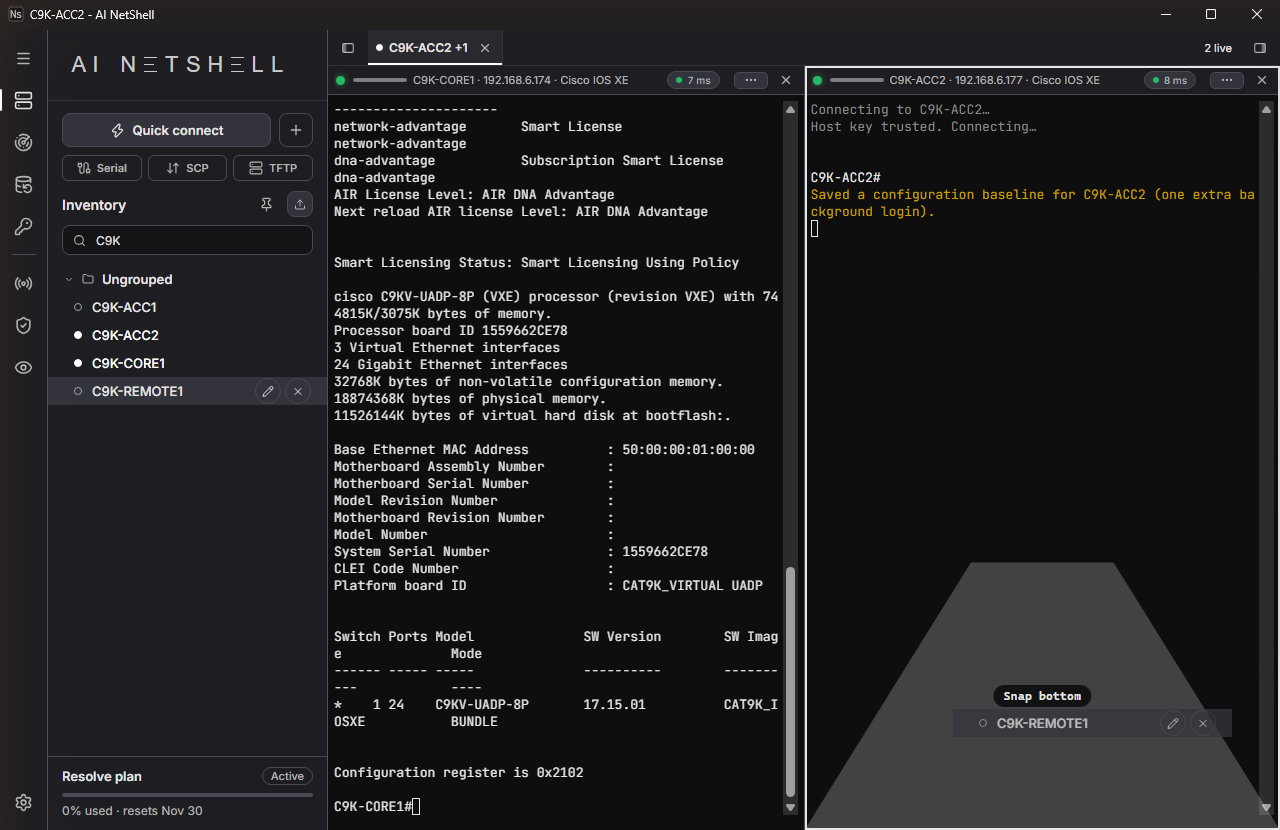
Drag a device from Inventory onto the left, right, top or bottom edge of an open pane. The overlay reads Snap left (or right, top, bottom); release to split the pane and open the device in the new half, on its own protocol. Drop it in the middle of a pane (New tab) to open a new tab instead. A tab holds up to four panes on a two-by-two grid. An edge that cannot take a split shows no overlay, and dropping there does nothing: two panes side by side can each split only top or bottom, two stacked panes only left or right, and a tab with four panes takes no more.
- Drag a tab onto a pane's edge to move its session into that split. The session stays connected. Only a tab with a single pane can be moved this way.
- Drag a pane by its header to another edge of the same tab to rearrange it. A pane cannot be dragged into another tab.
- Close pane closes one pane and the others grow into its space; closing the last pane closes the tab.
A split tab is named after the pane you worked in last, plus +N for the other panes, and its tooltip lists every device. Lina's Reads: this terminal covers every connected pane of the tab in front when you ask, and stays with that tab while she works even if you switch tabs; see Ask Lina about a problem.
5. Quick connect#
Quick connect opens an SSH session to an address without saving a device. Select Quick connect at the top of the Inventory pane (a fresh install offers it on the welcome screen too). The dialog is titled Quick connect and starts with a protocol choice: SSH, Serial, RDP.
- Leave SSH selected. When you already have saved SSH devices, the dialog lists them first under Saved devices, with a filter and the hint Opens with the device's saved address and credential.; select one to open it. For a new host, use the form under Or connect to a new host.
- Enter the Host or IP address and check the Port (22).
- Under Sign in with, keep Password (not saved) and enter the Username and Password, or choose Saved credential and pick one under Credential.
- Select Connect.
A tab opens, labeled
[email protected]. The host key check is the same as for a saved device.
A typed password is used for this connection and not stored. Because the session belongs to an address and not to a saved device, it does not get the device's saved settings: a saved credential's enable password is not used (the credential form says so: Quick Connect does not use it.), the right-click menu has no Back up config or Open SFTP here, Connect anyway for older SSH holds for that connection only, and the session is not part of Restore previous workspace.
RDP in this dialog lists your saved Windows devices and has no field for a one-off host. With none saved it reads No Windows devices saved yet. Remote desktop opens saved devices only, so each host keeps its own credential and certificate check. and offers Add Windows device; see section 7.
6. Serial console#
- Select Serial under the Quick connect button. The Quick connect dialog opens with Serial selected.
- Choose the COM port. Until a port is found the list reads No COM ports found. Plug in the console cable, then Refresh.; select Refresh after you plug one in. A USB adapter shows its product or manufacturer name beside the port when it reports one.
- Set Baud rate (9600, 19200, 38400, 57600, 115200 or 230400), Data bits (8 or 7), Parity (None, Odd or Even), Stop bits (1 or 2) and Flow control (None, Hardware (RTS/CTS) or Software (XON/XOFF)). The defaults are the console default the dialog names: 9600 8-N-1, no flow control.
- Select Connect. A tab opens, labeled with the port and speed, for example COM3 @ 9600.
A console has no host key, and the app sends no credential: you sign in at the device's own prompt. Typing, copying, the paste review, Highlight, Find in output… and Save pane output… work as in section 2; the right-click menu has no Back up config or Open SFTP here, and the header shows - for latency. A serial session is not part of Restore previous workspace.
7. Windows servers over remote desktop#
A Windows server opens as a remote desktop, not a terminal. Save it as a device with Type set to Server and Vendor / OS set to Windows. Port (RDP) then defaults to 3389 (a port you typed yourself is kept), and the device needs a password credential, because a key or agent credential cannot sign in to a remote desktop. The quickest route is Quick connect, RDP, Add Windows device, which opens the Add device form preset for Windows and opens the desktop as soon as you save.
Double-click the device (on port 3389 with a password credential, its right-click menu also offers Open RDP…). The tab is labeled RDP: FILE-SRV1; while it connects, the pane reads RDP · FILE-SRV1 and Connecting…. The app signs in with the saved credential. On the first connection it saves the server's certificate fingerprint with the device, and a later connection is refused if the server presents a different certificate.
Your mouse, wheel, right-click and keyboard go to the remote desktop while the pane has focus. The clipboard is not shared unless you turn on Sync the clipboard with RDP sessions under Settings > General (the RDP clipboard row) and select Save; the setting is read when a session starts, so reconnect after changing it. It shares text only and is off by default, so copied text stays on the side you copied it. In this version the pane shows clipboard shared with remote whether or not the switch is on; the switch decides.
When the remote side ends the session, the pane reads Session ended. and offers Reconnect. If no desktop image arrives within ten seconds of connecting, it reads No display received. The session may have ended. Closing the tab ends the session. The remote desktop is sized to the pane, and a split or a resize asks the server for a new size.
Lina reads terminal sessions. A remote desktop tab is not a terminal, so Lina does not investigate a Windows server you open this way. Supported devices says what she reads on each device type.
8. Edit a file on a server#
The built-in editor opens from the SFTP browser. Right-click a server in Inventory and select Open SFTP… (the action is offered on any SSH device), or right-click inside the terminal of a device saved as a server and select Open SFTP here to start in the shell's current folder when the shell reports it (many do not by default), otherwise in your home folder. The browser opens in a tab labeled SFTP: WEB-01. Double-click a text file to edit it.
The editor shows the file's path and ● Unsaved once you change it, with a find-and-replace panel already open. Save (Ctrl+S) writes the file back; before it does, the app compares the file's size and modification time on the server with the copy it opened and, if they differ, asks File changed on server with Overwrite or Cancel. A change that leaves both the same is not caught. The keyboard button lists the shortcuts: Ctrl+F find and replace, Ctrl+D select next match, Ctrl+Z and Ctrl+Y undo and redo, Ctrl+/ toggle comment, Alt+↑/↓ move line, Ctrl+Shift+K delete line, Ctrl+Space autocomplete, Ctrl+S save. Close asks Discard unsaved changes to nginx.conf? when you have edits, and Keep editing returns you to them; closing the tab instead discards them without asking.
The editor opens UTF-8 text files up to 5 MiB and refuses a file that looks binary; download those instead. When a save or another action finds the connection lost, Save is disabled and the strip reads Your edits are kept here. Reconnect, then Save as usual. Browsing, uploading and downloading files, SCP and the TFTP server are in Copy files to and from devices.
Next#
- Add devices and credentials: your inventory, folders and credentials.
- Copy files to and from devices: SFTP, SCP and TFTP.
- Ask Lina about a problem: what Lina reads from your open terminals.
- Known limitations: typing paused during a change, remote desktop limits.
Checked on AI NetShell 0.4.20