REFERENCE
Glossary
The words AI NetShell and these docs use, each in one plain definition, with the label it appears under in the app and the page that covers it.
Verified against AI NetShell 0.4.20
This page defines the words the other pages use, in alphabetical order. Each entry says what the word means in AI NetShell, names the label it appears under in the app in bold, exactly as the app shows it, and ends with the page that covers it. Where the app still uses an older word for the same thing in a few places, the entry says so, so you can match what you see on screen to what you read here.
Networking terms keep their ordinary meaning and are not defined here: VLAN, trunk, OSPF, BGP, CDP, LLDP, running configuration, startup configuration, enable mode.
A#
Account. Your sign-in with the AI NetShell account service, which carries your plan and your AI credits. Lina runs on it; the terminal and the inventory never need it. You sign in from Settings > Account or from Lina's chat panel with Sign in with your browser, and one account can be signed in on up to 3 PCs at a time. See Your account.
AI credits. What Lina spends when she runs on Included AI. Your balance is under Settings > Usage, where the Credit packs card also lists the packs you can buy; when the balance runs out, the chat shows Out of AI credits with Buy in your account. Lina on your own Anthropic key or your own ChatGPT account spends no credits, and needs the Investigate plan or higher. See Credits, plans and billing.
AI provider. The service that runs the model behind Lina: the AI NetShell service for Included AI, Anthropic for your own key, ChatGPT for your own ChatGPT account. The chat names it when a run cannot finish, in cards such as AI provider busy and Can't reach the AI provider; keys and sign-ins are kept under Settings > AI providers. See Use your own AI model.
Allow configuration changes. The switch in Settings > General that lets the app apply a governed change (a change Lina proposes, you review as a diff and approve, and the app can roll back) after your approval. Its note reads Off by default. Each change still shows a diff for your approval on every device. Switching this is recorded in the audit log. Saved as soon as you switch it. Turning it on approves nothing by itself. See Fix a problem.
As-built. A document the app writes from a finished discovery: a PDF that says what the network is, what was checked and what needs attention, with the map images, the tables and the masked configuration copies the app could include, for the sections you select, beside it in one folder. The button and the dialog are labeled As-Built Documentation, and the feature needs the Resolve plan: a locked control reads Exports and documentation are part of the Resolve plan. See As-built documentation.
Audit log. The file audit.jsonl in the app's data folder, where the app records each governed change and the switch that allows them. Each entry carries a hash computed over the previous entry's hash and its own content, so an edited or reordered entry, or a gap in the chain, can be detected; the log cannot show that entries were cut from its end. See Security and privacy.
Auto-approve reads. The default read-approval mode. See Read-approval mode.
B#
Backup. A copy of a device's configuration kept by the app and listed under Config & Compliance on the Backups tab. Every copy this version writes is stored encrypted on your PC; a copy written by a version before encryption still loads as it is. Each copy carries a source label: manual (you selected Back up config), pre-change and post-change (around a governed change), discovery · running and discovery · startup (taken during a discovery), connect backup · running and connect backup · startup (taken after you connected to a device with Keep a config backup on). Copies of devices that are no longer in Inventory sit under OLDER BACKUPS, where Link to saved device… joins one to a device. This version has no restore: Restore this version... (coming) is present but disabled, and every export is masked. These docs say backup throughout; a few app lines still say baseline for the same thing (Lock as baseline on a copy you want kept, and the terminal line Saved a configuration baseline for a device). See Backups and drift.
C#
Case. The whole thread with Lina about one set of terminals: the conversation, its findings and what she has learned so far. A case grows with each follow-up question. New investigation saves it as a case note (the chat then notes Case note saved.) and starts fresh; Discard asks Discard this case? and wipes it. Compare Investigation. See Ask Lina about a problem.
Case note. The saved record of a case, written as a Markdown file from the ⋯ menu at the top of the chat: Technical notes holds the full record with its evidence, Executive summary is the short form for a manager or a client. The same menu offers Copy for a ticket and Copy for an email. Saving from the menu opens Notes saved, which shows the file's path and offers Open folder; the folder is set under Settings > General as Notes save location. See Ask Lina about a problem.
Change. Short for governed change. See Governed change.
Change timeline. The view under Backups that goes through a device's stored copies and labels every change it finds between them: Governed change, Governed rollback, Running config saved, Not matched yet or Unexplained · out-of-band. Scan for unexplained changes gives the same findings as a line on the tab. See Backups and drift.
Changes view. The list behind the Changes pill in the chat header: changes under Awaiting your review, then Applied changes, where each row offers what fits its state: Roll back while the app can still undo the change, Save changes where a startup save is available, and Hide from list, which keeps the change on the device and gives up the app's rollback for it. Propose change starts a change from your own lines. See Fix a problem.
Check. What the app does after it applies a governed change: it reads the device again and compares what it finds with what the change promised. The panel is Post-change check, and when it passes the status line reads ✓ Verified on the device. Before you approve, If the check fails names one of three answers: the app rolls back automatically, the app asks you to roll back or you choose: roll back or keep. These docs say check; the app's status words say verified. See Fix a problem.
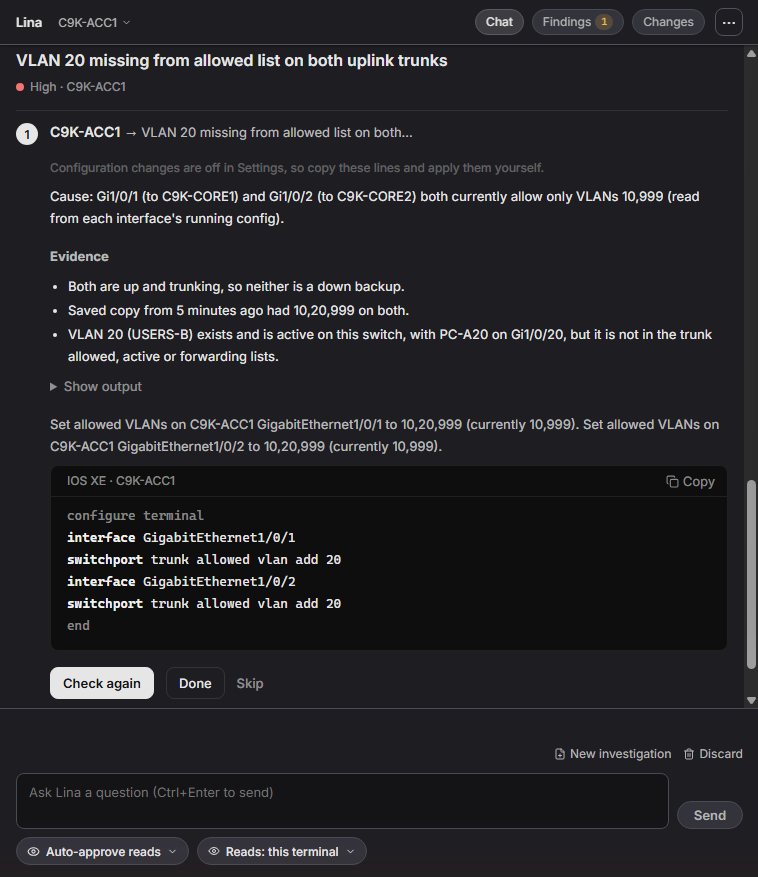
Check again. The button on a finding step that reads the device again and closes the step when the fix is there. The app does not check a device on its own after you paste a fix, so you select it. Where the configuration alone cannot show the result, the step offers Ask Lina to check instead. A passed check reads Config matches, Fixed · session up or Verified, depending on what proved it. See Ask Lina about a problem.
Cloud account. See Meraki site.
Config & Compliance. The left-rail pane whose Backups tab holds the backups, the change timeline and Scan for unexplained changes. The pane has other tabs; the Backups tab is the one these docs cover. See Backups and drift.
Connect backup. The backup the app takes in the background after you connect to a device whose Keep a config backup setting is on: the first time, and again when the running configuration has changed. It is stored complete and encrypted and labeled connect backup · running or connect backup · startup. See Add devices and credentials.
Credential. The saved sign-in the app uses for a device: a name, a Username, and an Authentication method of Password, Private key file or SSH agent (offered, but the app's SSH client cannot use an agent in this version, so choose one of the other two), plus an optional Enable password (optional). The password, passphrase and enable password go to Windows Credential Manager, never to a file the app writes; the form says Stored in Windows Credential Manager, never in app settings or logs. One credential is assigned to as many devices as use that account. Credentials are listed under Credentials in the left rail. See Add devices and credentials.
Credit pack. A prepaid block of AI credits bought in your account. The Plan row under Settings > Account reads Credit packs when you hold pack credits and no plan. See Credits, plans and billing.
D#
Device. Anything saved in Inventory: a network device or a server, with its address (the Host / IP field), port, device type, folder and credential. A Meraki site is saved as a device too. These docs say device where the app sometimes says host. See Add devices and credentials.
Device type. The choice under Vendor / OS in the device form, such as Cisco IOS XE or Other / unknown. It sets how the app connects, which permit list Lina's commands are checked against, and whether governed changes, backups and discovery exist for the device. See Supported devices.
Discovery. Starting from one device you manage, the app follows the CDP and LLDP neighbors each device reports, inside the scope you set, reads each device with read-only commands, and saves a run with the devices it found and three maps. It lives under Discovery in the left rail and starts with Start discovery; it needs the Investigate plan or higher, and a locked page reads Active Discovery needs an Investigate plan or higher. The run's Devices tab lists each device with a status: Read, Not read, Not read · refused the credential, Not permitted, Found, not identified, Device not identified, or In Inventory with its folder; the Couldn't access list says why a device was not read. See Discover your network and draw the maps.
Discovery actions. The Actions menu in a run's header, whose tooltip reads Discovery actions: Run again, Reload results, Stop discovery, Run alerts, Refresh known devices, Schedule refresh and Compare with previous run, as they apply. See Discover your network and draw the maps.
Done. See Finding card.
Drift. A difference between two stored copies of a device's configuration that the app cannot trace to a governed change it recorded, found by comparing the backups it holds. The change timeline reports it as an unexplained change; that count includes Not matched yet, a governed change on a device type where the app cannot yet match the part that changed. A scheduled discovery raises drift under Run alerts; the app's own line for the feature reads The Investigate plan includes scheduled discovery and configuration drift alerts. See Backups and drift.
E#
Enable password. The second password some devices ask for before they give full access. Saved on the credential under Enable password (optional), it is the answer the app gives when a saved device drops it at a limited prompt; without it the pane prints Not in enable mode. and what to do. See Add devices and credentials.
End User License Agreement. The agreement shown the first time the app opens, titled AI NetShell™ End User License Agreement; Accept EULA and continue opens the workspace. See Install AI NetShell.
Evaluation frame. See Trial.
Evidence. On a finding card, the facts and the commands behind a step, under the heading Evidence, with Show output for the device's own output, masked. See Ask Lina about a problem.
F#
File transfer. Three ways to move files, none of them Lina's: the SFTP browser (Open SFTP… on a device; the tab is labeled SFTP: and the device's name), the SCP file transfer dialog for one file to or from a device with no SFTP service, and the Built-in TFTP server that lets a device pull a file from this PC or send one to it. See Copy files to and from devices.
Finding. Something Lina found on a device: a problem with a cause, evidence and the lines that fix it, shown as a card under her answer; or an observation, which is a note, not a fault. The Findings pill in the chat header counts the open cards. These docs say finding; one app line still counts them as open issues. See Ask Lina about a problem.
Finding card. The card under Lina's answer. Its header shows the severity and the devices, for example High · C9K-ACC1. Below it, one step for each device that has fix lines: a Cause: line, the Evidence, the fix lines with Copy, and the buttons Check again, Done (marks the step done without checking the device) and Skip (the step does not apply, so it never counts as fixed). A step the app can apply as a governed change offers Review change instead of Check again and Done. See Ask Lina about a problem.
Fix. The exact command lines that correct a finding, shown on the step in a code block with Copy. On every plan you can paste them into the device's terminal yourself; on the Resolve plan, with Allow configuration changes on and a device type that supports it, the same lines can go through a governed change. See Fix a problem.
Folder. A group in Inventory that you make and drag devices into, nested with / (the prompt says use / for nesting); credentials have folders of their own. Devices in no folder sit under Ungrouped. The app's menus still say New group… for a new folder. See Add devices and credentials.
Free. What the Plan row shows when the account has no plan: Free, with No plan or Credit packs beside it. The terminal and the inventory need no account at all. See Credits, plans and billing.
G#
Governed change. The brand term for a configuration change made through the app: Lina proposes it, you review the diff and approve it, the app applies it and checks the result on the device, and the app can roll it back. Nothing on a device changes until you approve it. It needs the Resolve plan and Allow configuration changes turned on. A finding step that can be applied this way reads Governed change: you approve these exact lines, then the app applies and checks them. A few app lines still say governed write for the same thing, for example the scan result all through governed writes. See Fix a problem.
H#
Hop limit. How far discovery follows neighbors from the starting device, set under Hops from the start device; 4 is the most. See Discover your network and draw the maps.
Host key. The SSH key a device presents to prove it is the device you meant to reach. On the first connection the app stops at Unknown host key, shows the key's fingerprint (a value starting with SHA256:) and asks Trust this key and connect? Only if you recognize the device.; Trust saves the key with that saved device. A device that later offers a different key is refused with Host key changed, and Forget saved key… removes the old key so you can check the new one. See Check an SSH host key.
I#
Included AI. Lina running on the AI NetShell service, paid with AI credits, with nothing to set up. The model picker lists its models under Included with your plan: uses credits, and the chat names the model in short form, such as Sonnet 5.5 · Included. The other two routes are your own Anthropic key and your own ChatGPT account. See Use your own AI model.
Inventory. The left-rail list of the devices you manage, in folders, each with its credential. Saving a device writes to this PC only. See Add devices and credentials.
Investigation. One run of Lina on one question: from Send to her answer, with each command she ran listed in the chat. A case holds every investigation on the same set of terminals; New investigation saves the case as a case note and starts a fresh one. A run that could not finish ends in a card such as Investigation failed. See Ask Lina about a problem.
K#
Keep a config backup. The device setting that makes the app take a connect backup. It is offered for the device types that have a configuration backup and starts on for a new device of those types. Its hint reads Backs up the configuration at first connect, so the AI starts troubleshooting with the device's config in hand. See Add devices and credentials.
L#
Lina. The assistant in AI NetShell. She reads the devices you have open with read-only commands, explains what she found, and writes the exact fix; she can draft a change, and nothing on a device changes until you approve it. These docs call her Lina; a few app labels say the AI, such as Ask AI about this in the terminal's right-click menu and What reaches the AI in the left rail. See Ask Lina about a problem.
M#
Manual change. The note on a change review when the app cannot check a setting after the change, headed Manual change and naming what it cannot check. After you apply such a change, confirm the result on the device yourself. See Fix a problem.
Map. The three views drawn from a run on its Map tab: Physical, Spanning Tree and Routing. A view the run has no facts for is marked (no data). The maps draw only what the devices reported. See Discover your network and draw the maps.
Masked. Secrets replaced with placeholders before text leaves the app or is written to a file. The app runs text through a table of patterns for known secret formats, such as passwords, keys and community strings, and each match becomes a placeholder such as {{NS:cisco-secret#1}}: the kind of secret and a number. Masking is applied to what reaches the AI, to case notes, to every export from Backups (its action is Export without passwords...), to the configuration copies in an as-built folder, and to Copy as masked and Save pane output… in the terminal. It masks what its rules recognize, so read an export before you send it anywhere. The terminal itself shows the device's output as the device sent it. These docs say masked everywhere. See Security and privacy.
Meraki site. A Meraki network added to Inventory. You add a Meraki organization as a cloud account with Add cloud account…, in the dialog Add Meraki cloud account, by its Dashboard API key, and choose the networks under Sites to add; each becomes a site under the organization, opened with Open site report. The report's header reads read-only, because every request the app sends to Meraki is a read. See Meraki in 5 minutes.
N#
Neighbor. A device that another device reports over CDP or LLDP. Discovery connects to the neighbors it is told about, and the physical map's legend names each link's source: CDP neighbor, LLDP neighbor, or One-sided claim when only one end reported it. See Discover your network and draw the maps.
O#
Older SSH algorithms. A device that offers only older SSH algorithms asks This device only offers older SSH algorithms (...). Connect anyway? before the app connects. Connect anyway continues, the tab then reads Connected (older SSH), and for a saved device the choice is kept as Allow older SSH algorithms on the device. See Terminal basics.
P#
Pane. One session's area in a tab. A tab holds up to four panes on a two-by-two grid: drag a device onto a pane's edge and the overlay reads Snap left, right, top or bottom. Close pane ends that session. See Terminal basics.
Permit list. The list, built into the app for each device type, of the read-only commands Lina may run. Every command she proposes is checked against it before it is sent, in every read-approval mode; a command outside it is Not permitted. Permit policies in the left rail shows the lists, read-only. See Supported devices.
Placeholder. See Masked.
Plan. What your account includes. The Plan row under Settings > Account shows Free or your plan's name followed by plan. The app names two plans in its own lock lines: Active Discovery needs an Investigate plan or higher. and Exports and documentation are part of the Resolve plan. What each plan includes is on Credits, plans and billing.
Post-change backup. A backup labeled post-change: the running configuration read right after a governed change settles, on the device types where the app can read it then. See Backups and drift.
Pre-change backup. A backup labeled pre-change: the copy of the running configuration, or of the part a change touches, that the app reads before a governed change. The change timeline uses it to recognize a governed change. It is not the rollback copy, which lives on the device. See Backups and drift.
Q#
Quick connect. Opens a session to an address without saving a device. The button sits at the top of Inventory, and the Quick connect dialog offers SSH, Serial and RDP; a password typed there is Password (not saved). See Terminal basics.
R#
Read. A read-only command, one that shows state and changes nothing. Lina's reads are checked against the permit list and run under your read-approval mode; the chat's welcome line says Reads are always safe. Changes only happen after you approve a diff. See Ask Lina about a problem.
Read-approval mode. How often Lina asks before she runs a read-only command, chosen on the pill under the chat box: Auto-approve reads, the default, where read-only commands that pass the permit list run without asking and commands that change device state still stop for your approval; Confirm each read, where every new read-only command waits for you; and Approve investigation plan, where you approve the listed reads once. Every configuration change waits for your approval in every mode. Settings > General has the same switch as Run read-only commands without asking. See Ask Lina about a problem.
Reads: this terminal. The chip under the chat box that says which devices Lina can read: Reads: this terminal, every pane with a session in the terminal tab in front (once an investigation is running, the tab it started in), or Reads: all terminals (3), every open terminal, with the count. See Ask Lina about a problem.
Remote desktop. How a Windows server opens. Save it with Vendor / OS set to Windows and it opens in a tab labeled RDP: and its name, as a desktop rather than a terminal. See Terminal basics.
Revert timer. On Fortinet FortiOS, a governed change to an existing object is applied on the device's own timer: the window reads The device applied this on a revert timer and will undo it on its own unless you keep it. Keep the change to make it permanent. Select Keep the change within five minutes, or the device reboots to its last saved configuration. See Fix a problem.
Risk. The chip at the top of a change review that says what the change could do: Low risk · adds config (or removes config, or changes config), Medium risk · changes traffic, or High risk · can cut access when the change touches the path your own session rides on. The app warns; it never blocks you. See Fix a problem.
Roll back. Undo an applied governed change. Roll back stays beside the change while the app can still undo it, and the change timeline marks a rollback the device confirmed as Governed rollback. See Rollback copy and Fix a problem.
Rollback copy. The copy the app saves on the device itself before a governed change, and restores when you roll back: on Cisco IOS, IOS XE and Arista EOS a copy of the running configuration, loaded back with configure replace; on Cisco NX-OS a checkpoint; on Palo Alto PAN-OS a saved configuration that is loaded and committed. Junos keeps its own commit history, and the app does not roll a Junos change back in this version; FortiOS uses the revert timer. It is not the pre-change backup, which lives on your PC. See Fix a problem.
Run. A finished discovery, saved on this PC: the devices it found, what each reported, and the maps. Runs are listed under Saved runs on the Discovery page, each with Open, Run again, Rename and Delete run; Compare with previous run opens Changes since the previous run. The app keeps the full results of the newest runs; an older run may keep only its row and its map, and then cannot be documented or compared. These docs say saved run where older text said snapshot. See Discover your network and draw the maps.
Run alerts. See Drift.
S#
Saved to startup. On Cisco IOS, IOS XE and NX-OS and Arista EOS, an applied change is in the running configuration until it is saved; the window reads Not saved yet. A reload would undo this change. and offers Save changes, and the change's row reads Saved to startup or Not saved to startup. See Fix a problem.
Scope. The addresses a discovery may connect to, listed under Where to look (optional); Addresses to skip wins over it, and the form says so: Skipped addresses win over Where to look. See Sweep and Discover your network and draw the maps.
Serial console. A session over a console cable on a local COM port, opened from Quick connect with Serial. It has no host key; you sign in at the device's own prompt. See Terminal basics.
Session. A live connection in a pane: SSH, serial or remote desktop. A terminal tab shows its state, Connected, Connected (older SSH), Connecting…, Disconnected or Paused. When the device ends the connection the pane prints [session ended] and offers Reconnect. See Terminal basics.
Severity. The weight of a finding, shown on its card: High, Medium, Low or Info. A card with several findings shows the worst. See Ask Lina about a problem.
Site. In Meraki, one network; see Meraki site. In an as-built, devices are grouped under a Site: heading with the site's name when the run assigned them one, and the rest under Network details. See As-built documentation.
Skip. See Finding card.
Starting device. The device a discovery starts from, chosen under Start from; Use an IP address instead starts from an address and a device type. These docs say starting device, and so does the app's hop tooltip, Hops from the starting device; one dialog button still says Start from an enrolled device instead. See Discover your network and draw the maps.
Step. See Finding card.
Support dates. The software and hardware support dates a run shows under Support and an as-built shows under End of support, from a dataset built into the app and, with your own Cisco API credentials under Settings > Lifecycle data, from Cisco's EoX service. Hardware in neither source shows No date on file. See Supported devices.
Sweep. The discovery option Also try every address in Where to look.: besides the neighbors devices advertise, discovery also tries the other addresses in the ranges you listed, up to Sweep addresses (256 at most). See Discover your network and draw the maps.
Syslog listener. The left-rail item Syslog listener, which receives syslog messages from your devices, on port 514 by default. See Security and privacy.
T#
Tab. One or more panes with their sessions, named after the device. The right end of the tab strip counts the connected sessions, for example 3 live. See Terminal basics.
Trial. A free trial of a paid plan, started from Start free trial in Lina's chat panel or under Settings > Account. While it runs, the plan footer under Inventory shows the time left, for example Trial · 5 days left, and map and as-built exports carry an evaluation frame: Evaluation copy. Not licensed for client delivery. followed by the account it was exported from and the export date. The export dialog announces it as Trial exports carry an evaluation watermark. See Credits, plans and billing.
Trust. See Host key.
Typing paused. While the app works on a session, applying or rolling back a change for example, it holds that terminal's keyboard and says so in the header: Typing paused: a change is running. What you type then is not sent, and commands the device already accepted keep running. See Known limitations.
U#
Unexplained change. See Drift.
Update. The app checks for updates on its own, downloads and verifies the new version in the background, and installs nothing until you select Restart now on the Update ready. card. Settings > Updates has Check for updates and shows the installed version. See Install AI NetShell.
W#
What reaches the AI. The left-rail screen that says what is sent to the AI model when you ask Lina something, opening with Your saved device credentials and inventory stay on this computer, and lists the secret patterns the app masks. See Security and privacy.
Windows Credential Manager. Where the app keeps its secrets on your PC: device passwords, key passphrases and enable passwords (the credential form says Stored in Windows Credential Manager, never in app settings or logs.), your own AI keys (the AI providers pane says Keys are stored in Windows Credential Manager under a separate service from SSH credentials.), and the key that encrypts your backups. See Security and privacy.
Write policy. The list, per device type, of the configuration lines a governed change may contain. The change review checks every line against it, and its Checks passed line reads commands allowed by your write policy, device reachable, backup saved. See Supported devices.
Next#
- Your first hour: the words above in the order you meet them.
- Known limitations: what the app does not do yet.
- Security and privacy: masking, the audit log and what leaves your PC.
Checked on AI NetShell 0.4.20