WORK WITH LINA
Ask Lina about a problem
Describe the problem, let Lina read the devices you have open, and act on what she finds: her answer, the finding card, Check again, Done and Skip.
Verified against AI NetShell 0.4.20
Lina answers questions about the devices you have open in the terminal. She runs read-only commands on them in the device's own terminal session, lists each command in the chat, and ends with a conclusion you can check against what the device returned. When she finds a problem, a card under her answer holds the cause, the evidence and the exact fix lines, or the reason no fix can be given from here and what to do next. Nothing on a device changes until you approve it: reads run under the rule you choose in step 2, and every configuration change waits for your approval.
You need a terminal open to a device you manage, and your AI NetShell account signed in on Investigate, Resolve or the Resolve trial (Your first hour covers both). On Included AI, Lina spends the plan's AI credits; in this version a credit pack tops up a plan and does not stand in for one. With your own AI key or ChatGPT sign-in, the app requires the Investigate plan or higher; its refusal reads AI on your own API key or ChatGPT sign-in needs the Investigate plan or higher.
1. Choose what Lina reads#
Under the chat box, the Reads: this terminal chip says which devices Lina can read. Select it to choose:
- This terminal: every pane with a session in the terminal tab in front (both halves of a split tab). Once an investigation is running, it is the tab the investigation started in.
- All terminals (3): every pane with a session in every tab, with the count of open terminals. The chip then reads Reads: all terminals (3).
The choice stays until you close the app, and it does not reset when you start a new investigation. A case belongs to the set of terminals it was asked about, so change the set before a new question, not before a follow-up (see step 6).
Reading more than one device in one investigation works on any plan with Included AI, paid for with credits as each read runs, as long as your account is connected. With your own AI key it needs the Investigate plan or higher. When the app refuses the wider set of terminals, it says so in one of two ways. If you select Send with All terminals on and the refusal applies, the investigation does not start: the chat notes the reason, your question comes back to the chat box, and you can choose This terminal and send again. If you add terminals while an investigation is running, the running investigation keeps the terminals it started with, and a notice above the chat box says how many terminals Lina is reading, for example Lina is reading 1 terminal, out of 3 open in this investigation., with the reason and the way out: Open account settings when the account is disconnected, or a plan link such as See plans & pricing.
What reaches the AI: the output of the commands Lina ran and the recent lines of the terminal, masked first. The app replaces the secrets it recognizes, such as passwords, keys and community strings, with placeholders before the text leaves the app, and it keeps that same masked copy for the finding's evidence and the case notes; the masking changes nothing in your terminal. Your question is masked the same way, so keep secrets out of it anyway. Output longer than 8 KiB is kept as its head and tail, and a single read that reaches 1 MiB without the device prompt returning is stopped as a runaway. What the app sends, and to whom, is in Security and privacy.
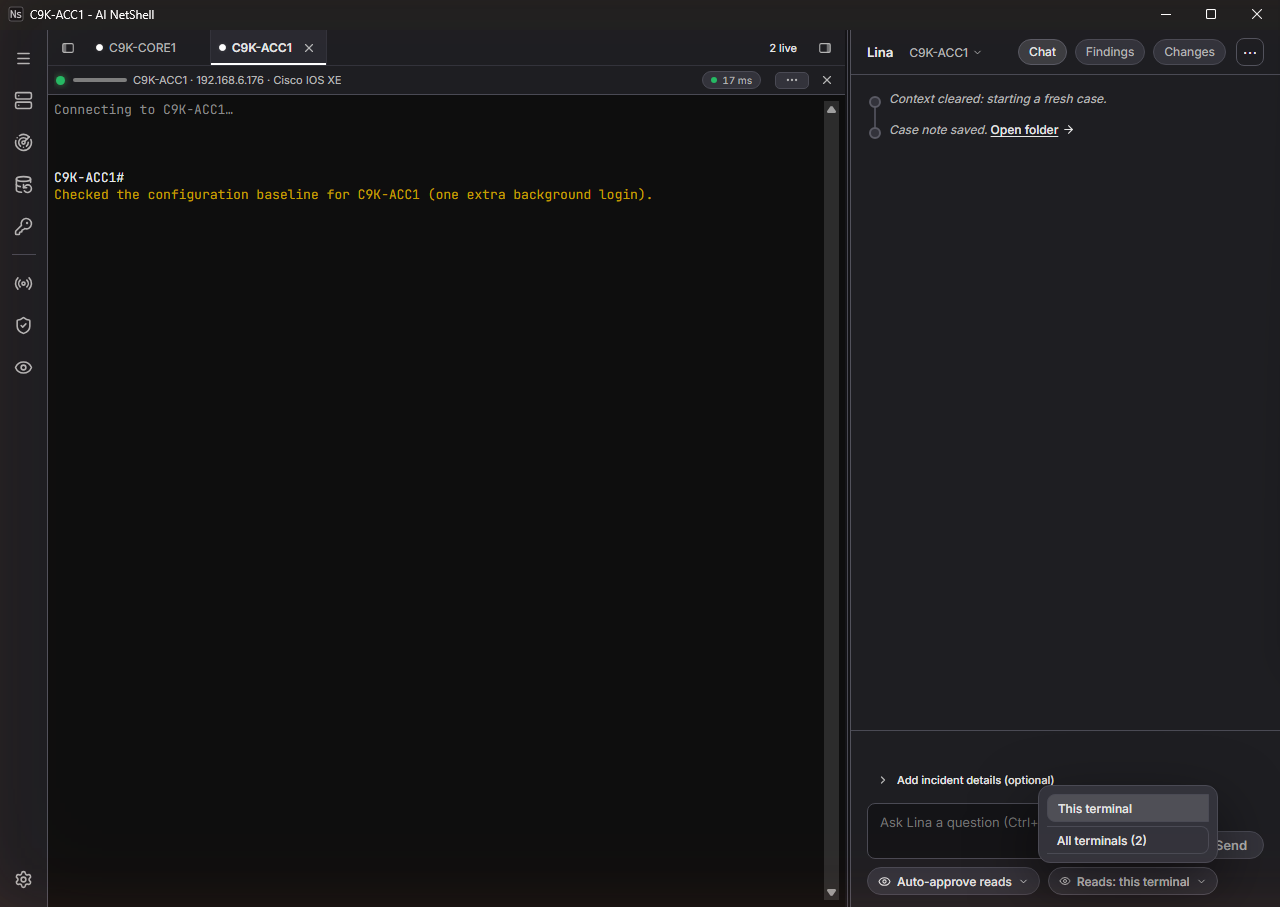
2. Choose how reads are approved#
The pill beside the chip shows the read-approval mode. The default is Auto-approve reads. Select the pill to change it; the dialog is titled Auto-approve reads whichever mode is on, and it opens with the line "Choose how often Lina asks before she runs a read-only command. The device permit list always applies." The three modes, in the app's own words:
| Mode | What the app says |
|---|---|
| Confirm each read | Ask every time. Approve every new read-only command before it runs. Maximum control. |
| Approve investigation plan | Approve the listed read-only steps once; those exact steps then run. New steps and all configuration changes still require approval. |
| Auto-approve reads | The default: read-only commands that pass the permit list run automatically. Commands that change device state (clear, debug) and every configuration change still require approval. |
The permit list is built into the app for each device type. Lina cannot read or change it, and every command is checked against it before it is sent, in every mode. A command that changes device state, such as clearing counters or starting a debug, always stops for your approval, and on MikroTik RouterOS every read asks, whatever the mode. In Approve investigation plan, a read you approve joins the plan for that device connection, so the same command does not ask again if Lina proposes it a second time.
The same setting is in Settings > General, in the Auto-approve reads row: the checkbox Run read-only commands without asking, with the hint "Anything that changes a device still stops for your approval. Turn this off to confirm every read." It switches between Auto-approve reads and Confirm each read only; Approve investigation plan is chosen on the pill. A run starts under the mode saved at the moment you select Send. The pill is locked while an investigation is starting; once the run is going, a change on the pill applies to that run as well as to the default.
When a read needs your OK, a card appears in the chat, titled Approve command? (or Approve commands? for several). It lists each command with its device. The pencil lets you correct a command before it runs; an edited command is checked against the permit list again. For several devices, untick any device you want left out. Then select Approve & run (Approve & run (2) for several) or Skip, which declines the commands on the card: Lina continues without that output, and reads that need no approval still run. Under Auto-approve reads, a card for a state-changing command explains itself: This changes device state (for example clearing counters), so it needs your OK even with Auto-approve on.
3. Ask the question#
With a terminal open and nothing asked yet, the chat reads How can I help today? with the line Reads are always safe. Changes only happen after you approve a diff. Below it are starter questions grouped by task; Troubleshooting, for example, holds Why is this interface down? Selecting one puts the question in the chat box for you to edit or send. Above the chat box, Add incident details (optional) opens a short form (who is affected, what they cannot reach, the expected behavior, when it started, the scope and whether a recent change is suspected); Lina gets what you fill in with your question.
- Type the question in the chat box. Its placeholder reads Ask Lina a question (Ctrl+Enter to send). Name the interface, VLAN, neighbor or address: a specific question gets a specific answer.
- Select Send, or press Ctrl+Enter.
While Lina works, Send becomes Stop, and a status line above the box shows what she is doing (Starting…, Responding…, Reviewing the result…, Waiting for your approval…) with the time elapsed. Each command she runs appears under the device's name with its result as a byte count; select a command to open its details and, for a supported
showcommand, the parsed table. The output itself is in your terminal, under the finding's Evidence, and in the Technical notes. A command the device rejected, or one the app could not run, is marked FAILED with the reason; a command the app held back because the session was not in privileged mode is marked NOT SENT. - Answer when she asks. If Lina needs a decision or a detail before she can go on, she asks in the chat, and while that question is scrolled out of view a Waiting on you: strip repeats its first line above the chat box.
Stop ends the run, and the chat notes Stopped.
If a device is busy with a change, a rollback or a check the app is running, Lina's read waits up to 1 minute for it to finish. A read that still cannot run is not sent, and Lina is told the session is busy.
If a run reaches one of the app's safety limits, the chat notes Paused at a safety limit., says which limit and why it exists, and ends Nothing is wrong with the device. Your findings so far are kept. Select Continue to pick up where it paused. When the whole case budget is spent, the note says The case budget is used up. Start a new investigation to continue. instead.
A run that could not finish shows a card that names the cause in its title: Out of AI credits, AI provider busy, Can't reach the AI provider, No answer this time, Investigation failed or API key rejected, with the action that fits: Retry, Buy in your account for credits, Open AI providers for a rejected key, or Choose a model.
4. Read the answer#
For a problem, Lina's conclusion comes in four labeled parts: Checked:, Finding:, Explanation: and Next:, with Next: set off as a callout; a simple question gets a plain sentence. The commands she ran stay in the chat above the answer, and the device's own words are in your terminal and under the finding's Evidence, so you can compare them with hers.
Every problem investigation ends one of three ways: a fault was isolated, no fault was found, or there was not enough evidence. "No fault found" is only accepted once every device she was asked to read was read, and it means no fault on the devices Lina checked, not a full health check. When the evidence is not enough, she says what is missing. An observation that is not a fault is reported as a note, not as a problem.
Under the answer, Pick a next step lists her recommended follow-ups as numbered options, each with Run (or Draft change for review when the next step is a change for you to review), the command, the device when the case spans several, and her reason. Three show at first; More steps (2) reveals the rest. Select one and it is sent as a follow-up; the list folds to a You picked line that records your choice. The options wait while she is still working.
For supported show commands, the app adds a table to the command's row: a filter box, columns that sort when you select them, and CSV, which copies the table to the clipboard. The table only re-presents output the device already returned.
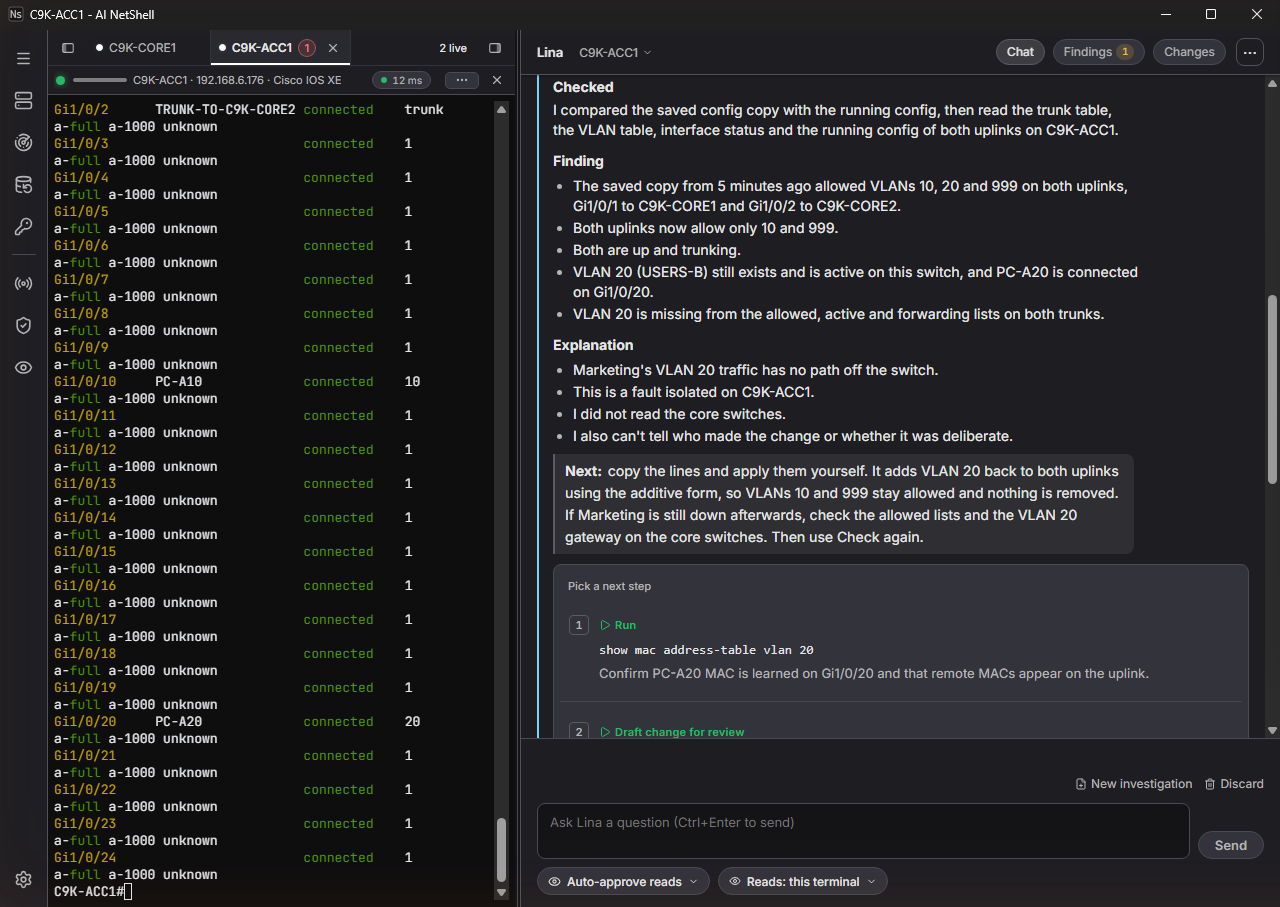
5. Work the finding card#
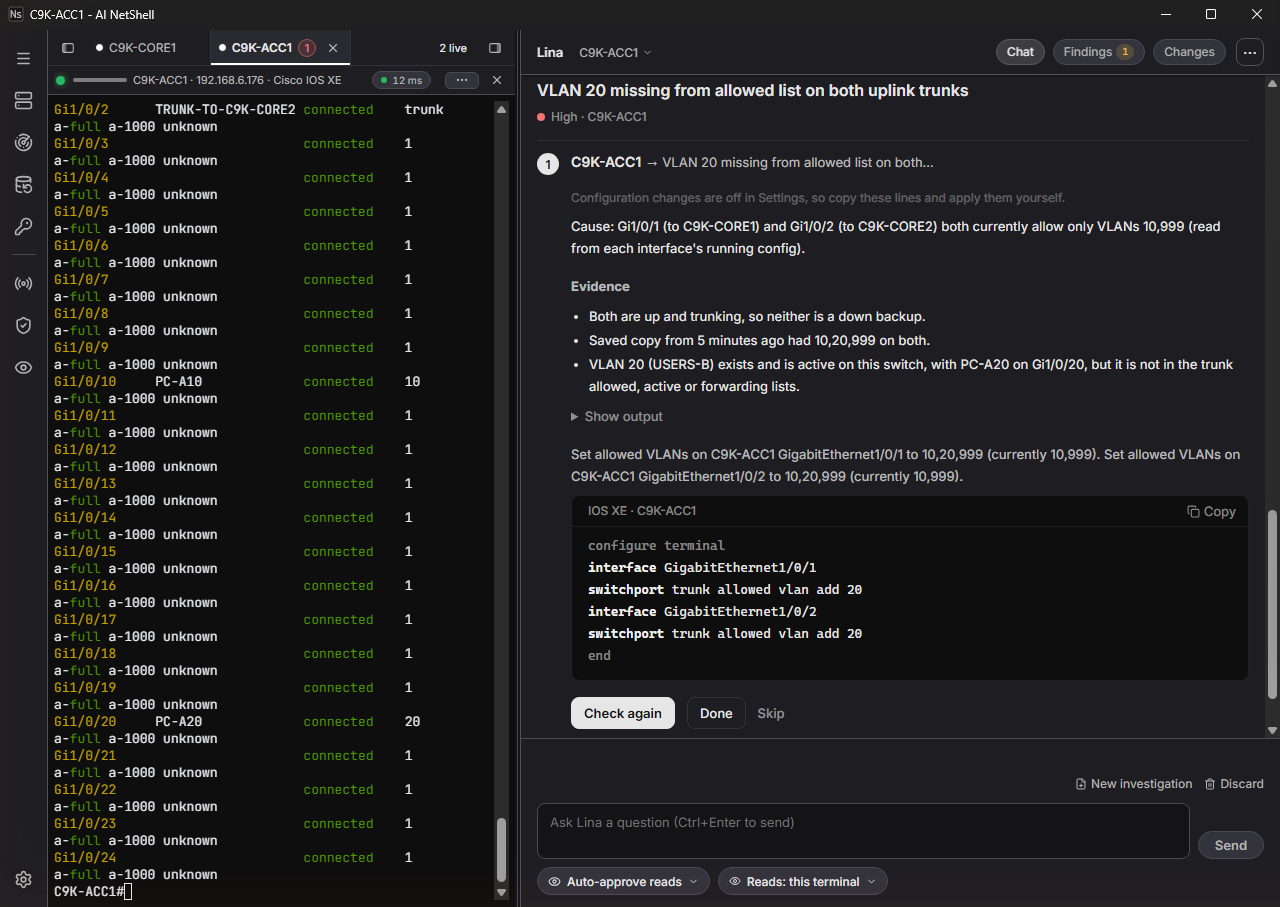
When Lina reports a problem, a card appears under her answer with the findings from that run, and the Findings pill in the chat header counts the open cards. The card's header is the finding's title, or your question when the card holds several findings (left out while the card is open, since the question is right above it), then the severity and the devices, for example High · C9K-ACC1, C9K-CORE1, and on a card with more than one step the progress, 0 of 2 done. Severities are High, Medium, Low and Info.
Below the header is one step for each device that has fix lines. A finding with nothing to run, such as an observation, has no step; its facts are under Details. One problem that needs the same fix on several interfaces of a device is one finding with one fix. A device with more than one finding still has one step, which holds each fix in turn.
Each step is one row: its number (a check mark once it is closed), the device, an arrow and the short fix. A step after the first open one shows Next. The first open step is expanded; select a row to open or close it. An open step shows:
- Governed change: you approve these exact lines, then the app applies and checks them. when the fix can be applied as a governed change, or Configuration changes are off in Settings, so copy these lines and apply them yourself. when the switch is off.
- Cause: followed by the fact behind the step.
- Evidence: up to three facts and the commands behind them, with Show output for the device output (the first 20 lines, then Show all).
- The fix lines in a code block with Copy in its header.
A governed change is a change Lina proposes, you review as a diff and approve, and the app can roll back. A governed step offers Review change in place of Check again and Done; every step of that route is in Fix a problem. On every other step, Copy puts the fix lines on the clipboard and nothing more: you paste them into the device's terminal and apply them yourself, then come back to the card, where the buttons are:
Check again reads the device again and closes the step if the fix is there. The app does not check the device on its own after you paste, so select it yourself. The result:
- The configuration holds the fix: the step reads Config matches · checked by the app while open and Config matches · 10:23 AM once it folds.
- The fix brought a session up: Fixed · session up · checked by the app while open, Fixed · session up · 10:23 AM once it folds.
- Lina's own confirmation commands proved it: Verified 10:23 AM.
- The fix is not there: Not fixed yet: and the reason. The read could not settle it: Not confirmed yet: and the reason, with the check's output under Show output. When that output needs your judgment, Mark as fixed sits under it.
- The configuration alone cannot show the result: the step says Can't check this from the config. Ask Lina to check, or mark it Done. and offers Ask Lina to check, which sends her a read-only follow-up for that device.
While the check runs, the step reads Lina is checking C9K-ACC1… with Cancel; a canceled check leaves Check canceled. Check again when you are ready. Check again checks the device, not the traffic through it. If the device's session is paused, the step says This session is paused; use Reconnect, then Check again. and offers Reconnect.
Done marks the step done without checking the device, for a fix you applied and confirmed yourself. The step then reads Done 10:23 AM and Reported by you.
Skip marks the step as not applying. It reads Dismissed · 10:23 AM and never counts as fixed. A done, verified or skipped step offers Undo.
Some fixes change settings the app cannot check after a change. Lina still files them, and the step carries the warning, for example AI NetShell cannot check HSRP settings after a change. If you apply this fix, confirm the result on the device yourself. If Lina revises a step while you work, it says Lina updated this step; check again to confirm.
When every step is closed, the card folds to one line: Fixed · C9K-ACC1 · verified 10:23 AM when her confirmation commands proved it, Config matches · C9K-ACC1 · checked by the app 10:23 AM when the app confirmed every step from the configuration, Fixed · C9K-ACC1 · 10:23 AM when you selected Done, and Dismissed on C9K-ACC1 · dismissed 10:23 AM with Undo dismissal when you skipped every step. Details opens the card again.
Details, at the bottom of the card, starts with reachability: Reachability after the fix: not tested yet (run a ping or traceroute), or Connectivity: verified 10:23 AM once a ping or traceroute Lina ran on one of the card's devices succeeded after a fix the app applied or checked (a test you type in the terminal yourself does not count). Then, for each step, the device, the fix and how it was closed (Checked by the app, Reported by you, Dismissed) with the time, and Before / after, which compares the device under Before the fix and After the fix. Until the device is read again, the after side says Not checked yet. Check again reads the device. Findings that have no step are listed by device with their facts and, where the app confirmed them itself, Confirmed by the app or Confirmed earlier, not re-checked. For a change the app applied, Details lists the change with Roll back while the app can still undo it.
On a plan without governed changes, an open step with fix lines carries the offer Want AI NetShell to apply this safely? with Start free trial (a subscriber sees Change plan), once the app has confirmed what your plan includes. Which plan includes governed changes is in Credits, plans and billing.
All findings in one list#
Select the Findings pill to list the case's cards. Each row shows the title, then the severity, the devices and the progress, for example High · EDGE-FW1 ✓, CORE1 · 1 of 2 done; a device whose steps are all closed gets the check mark. A finished card reads Fixed, verified, Fixed, applied, Fixed, marked as done, Dismissed or Resolved. Expand a row to work its card in place, or select Show in chat to jump to it in the conversation. When two or more cards are open, a bar above the conversation reads 2 open issues with a button per device and its count; select a device to jump to its card.
6. Follow up, save the case, start fresh#
Ask follow-up questions in the same chat while they depend on the evidence already collected; the case keeps its findings and what Lina has learned. Keep the same terminals selected for a follow-up: a case belongs to the set of terminals it was asked about, and sending with a different set (another tab in front, or Reads changed) first saves this case as a Technical notes file, then switches to that set's case, new or restored. Once the case has content, two quiet controls sit above the chat box (both wait while an investigation or a check is running):
- New investigation (shortened to New in a narrow panel) asks Start a new investigation? Your current findings will be saved to a case note first. Select Save & start fresh. The chat then notes Case note saved. with Open folder; the folder opens only when you select it.
- Discard asks Discard this case? and spells out the cost: Nothing is saved. The findings, the transcript, and Lina's memory of this case are wiped. Changes you already applied stay in the Changes tray, so you can still roll them back. Select Discard or Keep it.
To share the settled record, open the ⋯ menu at the top of the chat panel:
| Item | What it does |
|---|---|
| Technical notes | Markdown file with the full record and evidence |
| Executive summary | Short Markdown file for a manager or a client |
| Copy for a ticket | Plain text on the clipboard, ready to paste |
| Copy for an email | Formatted for an email body |
The first save asks you to choose the notes folder and remembers the answer; the default is Documents\AI NetShell\case-notes, and you can change the folder later under Settings > General > Notes save location with Change or Reset to default. After a save, the Notes saved dialog shows the file's path and offers Open folder. If the chosen folder is not available, the note is saved to another folder and the saved message names it. The Technical notes carry the exact fix commands on every plan; the Executive summary describes the fix and points to the Technical notes for the commands. Review a note or the clipboard before you share it.
Next#
- Fix a problem: Review change, the diff, approval, the check on the device and Roll back.
- Your first hour: signing in, credits and the first question.
- Security and privacy: what leaves your PC and what never does.
- Credits, plans and billing: Included AI, your own AI and which plan includes what.
Checked on AI NetShell 0.4.20