WORK WITH LINA
Fix a problem
Turn one of Lina's findings into a governed change. Review the exact lines and the risk, approve, let the app check the result on the device, and keep Roll back available while the app can still undo the change.
Verified against AI NetShell 0.4.20
When one of Lina's findings comes with configuration lines, you can copy them into the terminal and run them yourself, on every plan. On the Resolve plan the same lines can go through a governed change: Lina proposes it, you review the diff and approve it, the app applies it, checks the result on the device and can roll it back. Nothing on a device changes until you approve it.
You need the Resolve plan with your account signed in and connected, Allow configuration changes turned on (step 1), and the device open in a terminal. Governed changes run on Cisco IOS, IOS XE and NX-OS, Arista EOS, Juniper Junos, Palo Alto PAN-OS and FortiOS; on another device type the change is refused before anything is sent. See Supported devices. Getting a finding in the first place is covered in Ask Lina about a problem.
1. Turn on configuration changes#
- Open Settings > General.
- In the Configuration changes row, select Allow configuration changes. Its note reads Off by default. Each change still shows a diff for your approval on every device. Switching this is recorded in the audit log. Saved as soon as you switch it.
Turning it on approves nothing by itself. Every change still stops at a review that you approve. If the row reads Pinned off by your organization's license. There is no local override., the switch is set by whoever manages your license. If the app could not open its audit log when it started, the row says so and refuses to turn the switch on until a restart opens the log.
While the switch is off, a finding's step reads Configuration changes are off in Settings, so copy these lines and apply them yourself. Without the Resolve plan, one finding also carries the offer Want AI NetShell to apply this safely? The step keeps Copy, and Check again where the app can check the configuration; both are covered in Ask Lina about a problem.
2. Start the change#
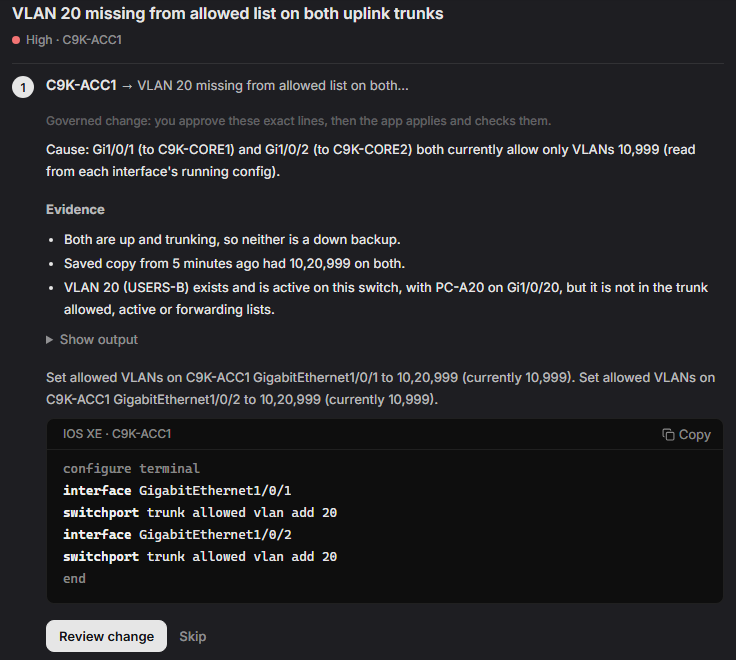
From a finding. A step the app can apply reads Governed change: you approve these exact lines, then the app applies and checks them. and has Review change in place of Check again and Done; Skip stays.
- Select Review change. The app checks every line against the device's write policy, reads the part of the configuration the change touches (masked) and the device's live state, and opens the Approve change · C9K-ACC1 window. If the change cannot be sent right now, the editor opens instead with a notice that says why and what to do, and you can still read, edit and copy the lines.
From your own lines. Once the Changes view (the Changes pill in the chat header) lists at least one change, it also has Start a change with Propose change. The editor is titled Governed change · C9K-ACC1 · step 1 of 2: edit. Fill in Why this change (saved in the audit log) and Configuration statements (one per line), then select Review change. In this version that section is hidden while the Changes view is empty. The same editor opens from Edit the lines in the review window's diff heading, with the finding's lines already in it.
3. Read the review#
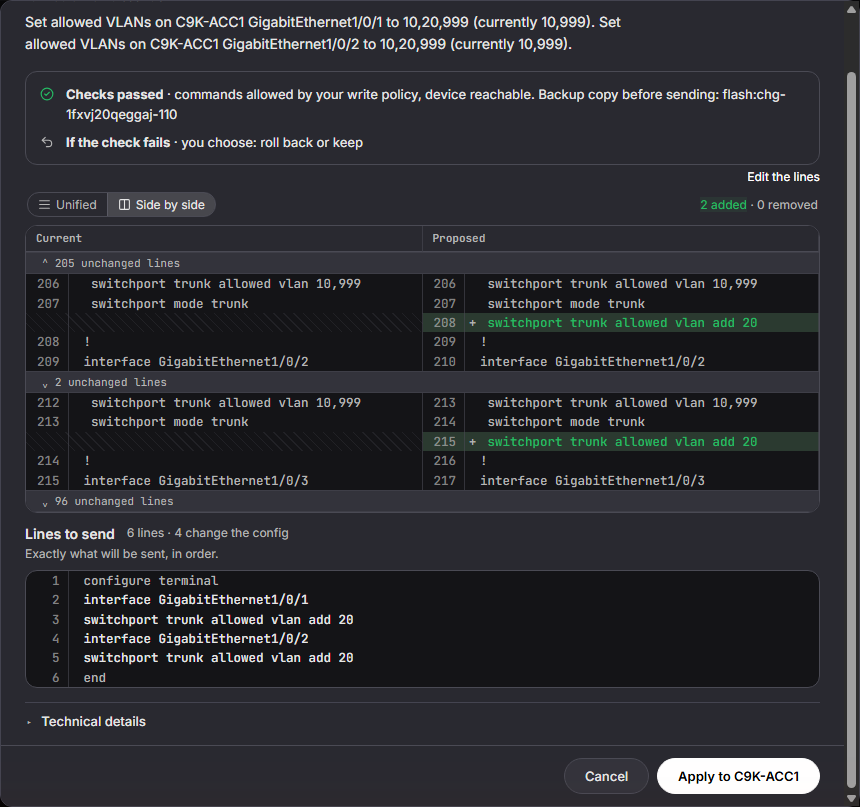
The window is titled Approve change · C9K-ACC1, with one line under it that says what the change does. Read it top to bottom.
The risk chip. Low risk · adds config (or removes config, or changes config) for a change the app found nothing destructive in. Medium risk · changes traffic when a line takes something down or removes something in use: the window then shows Destructive change: read this before approving with a headline such as Shuts down GigabitEthernet1/0/19 and what that means. High risk · can cut access when the change touches the path your own session rides on: the window says This change touches the path this session rides on or, when it would cut you off, You will be disconnected, and rollback cannot be executed remotely. You can still approve; the app warns and never blocks you.
Checks passed · commands allowed by your write policy, device reachable, backup saved. Where the app will first save a rollback copy on the device, the line reads commands allowed by your write policy, device reachable. Backup copy before sending: and the copy's name. If one of the three checks did not pass, the window lists them one by one under Pre-checks · 2 of 3 passed.
If the check fails · one of three answers: the app rolls back automatically, the app asks you to roll back, or you choose: roll back or keep. Which one depends on the risk and on how reliable the rollback is on this device. When the app wanted to roll back on its own but cannot promise to reach the device, the line reads you choose: roll back or keep (downgraded from auto rollback) and a warning under it says why. In this version a failed check waits for your decision unless that change's revert timer has already expired. This applies whichever answer the window shows. A change with its own revert timer still needs your decision before expiry (step 5). After expiry, check the device, then select Confirm reverted.
Manual change. Some settings the app cannot check after a change, such as HSRP. The window then shows Manual change and a sentence such as AI NetShell cannot check HSRP settings after a change. If you apply this fix, confirm the result on the device yourself. Read it before you approve, and check the device yourself afterwards.
The diff. Current beside Proposed, added and removed lines marked. Edit the lines in its heading reopens the editor. If another change is still in progress on the device, a line above the diff says so.
Technical details. Closed by default. It holds Before the change: the configuration excerpt the app read, with its revision, and Observed (live state), the live readings it took. Below that, Undo with the method and the exact commands that would reverse the change.
4. Approve#
- Cancel discards the draft and closes the window. Nothing is sent, and the audit log records who discarded it. If the discard is refused, because the change is being prepared or the audit log cannot record it, the window stays open and says why. A change that was already approved or sent cannot be discarded here; Cancel then only closes the window.
- Apply to C9K-ACC1 sends a low-risk change with a reliable rollback at once.
- Apply: confirm send replaces it for every other change: medium or high risk, a weak or missing rollback, or a downgraded recovery answer. The window then reads This is a high-impact change to C9K-ACC1., says After sending, the app checks that: followed by what must take effect and what must stay unchanged (the exact lines are under Exact checks), and asks you to Type C9K-ACC1 to send it. Send to C9K-ACC1 is enabled only when the typed name matches. Back returns to the review.
While the lines go out, the window reads Sending the lines to C9K-ACC1. Watch the terminal. and the device's terminal shows Typing paused: a change is running. What you type there is not sent, then or later; commands the device already accepted keep running.
5. Watch the check#
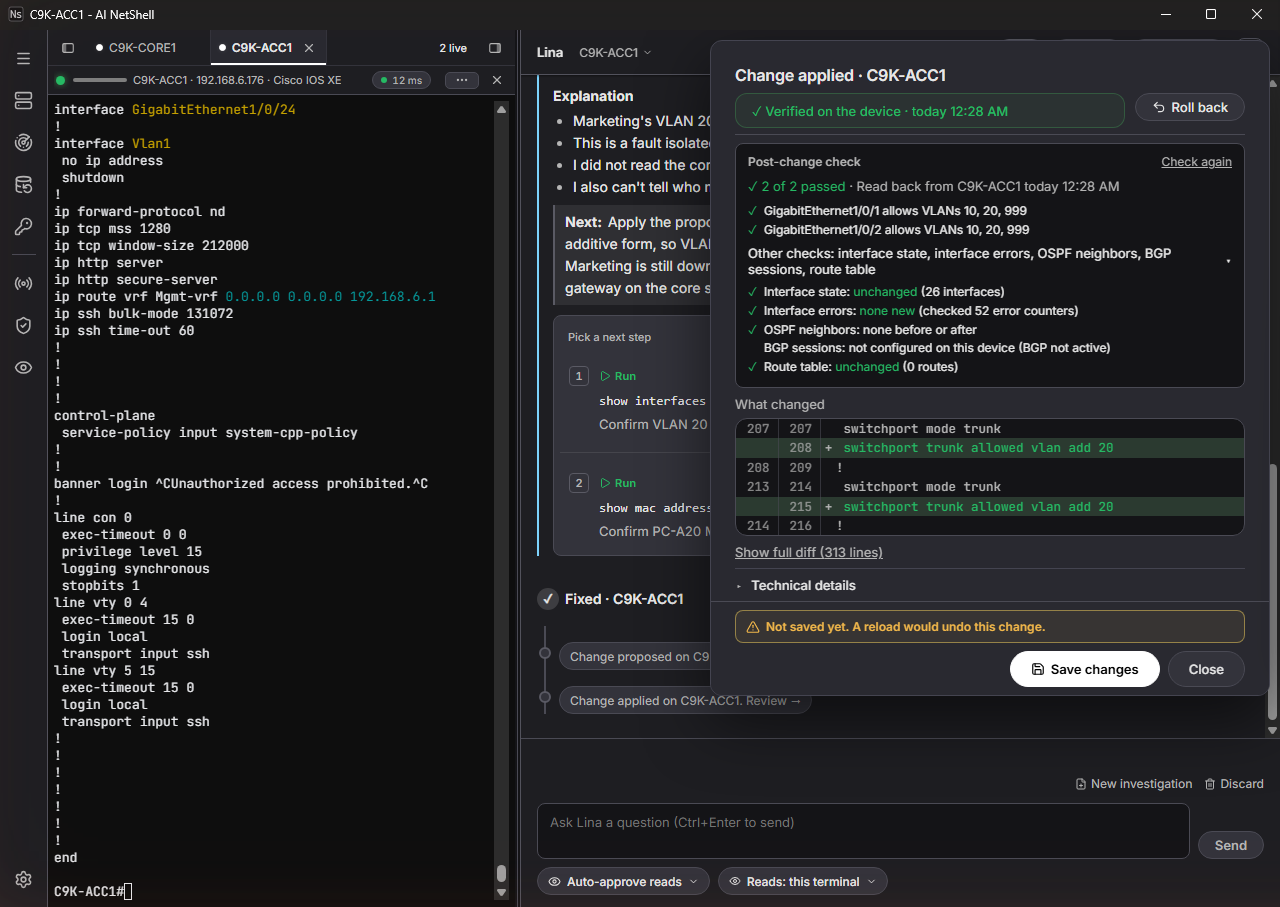
The title changes to Change applied · C9K-ACC1 and the status line reads Applied · verifying…, with Roll back beside it. Under it, Post-change check counts down comparing device state in 30s (select Check now to read sooner), then reports:
- ✓ Verified on the device · today 10:24 AM in the status line, and in the panel ✓ 2 of 2 passed · Read back from C9K-ACC1 today 10:24 AM with each check listed in plain words. A second line, such as Nothing else changed · 4 areas, opens to the other readings the app compared before and after.
- ✗ 1 of 2 failed when a check did not pass. The panel says what differed and ends Check it, then Keep the change or roll back. The window says Your decision needed. New changes to this device wait until you choose. and The check found a problem after this change. Roll back to undo it, or keep it if the device looks right to you., with Roll back and Keep the change. The app does not roll back on its own here, whatever If the check fails said. Check the device, then choose. Nothing else can be applied to that device until you do.
- When the check could not run, or the app could not work out checks for this change, the check ends as incomplete. The panel says why, and the window offers the actions that apply: Check again where a retry is possible, Keep without the check, and Roll back.
- If the send stops part-way, or its outcome is unknown, the window says so and offers Roll back or Resolve. Check the device before anything else.
On FortiOS, a change to an existing object is applied on the device's revert timer: five minutes to keep it, or the device reboots to its last saved configuration, which also discards anything else that was not saved. Even after a passed check the window reads The device applied this on a revert timer and will undo it on its own unless you keep it. Keep the change to make it permanent. Keep the change makes it permanent and ends the app's rollback for it; a kept FortiOS change is undone only by a new change. If you let the timer run, the device reboots and reverts; once you have checked it, record that with Confirm reverted.
What the check is: before the change the app read the device, and after it the app reads again and compares. A passed check means the effects the plan called for are on the device and the state it promised to leave alone did not move; a second list compares other readings taken before and after. It is not a test of the service. Before you tell anyone the problem is fixed, test what the ticket was about: the user's connection, the route, the VLAN.
6. Save to startup#
On Cisco IOS, IOS XE, NX-OS and Arista EOS the change is in the running configuration only. Once the check has passed, the window reads Not saved yet. A reload would undo this change. and offers Save changes. It asks first: Save changes? Saves changes on C9K-ACC1, so they survive a reload. This includes anything changed by hand since the last save, which the app can't see. The line changes to Saved to the startup config today 10:26 AM. The device confirmed it. only when the device confirms the save. If it does not, the line says so and tells you to check the terminal, where the device may be asking a question, then save again. The app does not save on its own. If you kept a change after a failed or incomplete check, the button is not offered: save the running configuration on the device yourself.
On Juniper Junos and Palo Alto PAN-OS the line reads Committed on the device. A commit here is saved; a reload keeps it. On FortiOS it reads Saved on the device when it was kept. A reload keeps it.
7. Roll back#
Roll back stays beside the status line while the app can still undo the change, and on the change's row under Changes. A whole-configuration restore asks first: Roll back this change? C9K-ACC1: set the native VLAN on Gi1/0/1, applied today 10:24 AM. The device goes back to the configuration saved just before this change. Anything changed on the device by hand since then is undone too. If you had saved the change to startup, the dialog adds that a rollback changes the running configuration only; the row then keeps Save changes so you can save the rollback too (after an app restart it asks you to save on the device yourself).
In this version a Junos change cannot be rolled back from the app. The review still offers Undo · native rollback, so review the device instead.
When the configuration is restored, the status line reads ↩ Rolled back to the pre-change backup. and the title Change rolled back · C9K-ACC1. If a cleanup step on the device did not complete, the sentence continues with the command to run yourself, and the title reads Change needs attention · C9K-ACC1. The finding the change came from opens again with ↩ Your change was rolled back at 10:31 AM, so this is open again. On Cisco IOS, IOS XE, NX-OS and Arista EOS, a rollback after a save shows Rolled back, but not saved yet. A reload would bring this change back. Click Save changes to keep the rollback.
What Roll back does on each device type:
| Device type | How the app rolls back |
|---|---|
| Cisco IOS, IOS XE, Arista EOS | Restores the copy of the running configuration it saved on the device just before the change. |
| Cisco NX-OS | Rolls the running configuration back to the checkpoint it took before the change. |
| Juniper Junos | Not through the app in this version. The device's rollback restores the commit before the newest one, and the app cannot confirm that the newest commit is this change, so the row reads The app can't confirm the newest Junos commit is this change. Roll back is not available. Undo the change on the device yourself. |
| Palo Alto PAN-OS | Loads the configuration it saved before the change and commits it. |
| FortiOS | A new object the change created is deleted, with no reboot. A change to an existing object is undone only by letting its revert timer run, which reboots the device; once kept, it cannot be rolled back. |
The app refuses a rollback, and sends nothing, when it would do the wrong thing:
- A newer change was applied on the device after this one. The row reads Newer change on this device and the dialog says Roll back the later change first, then this one. In this version an earlier change stays blocked after that too, because the device's record moved on: the row then reads The device changed after this change. Roll back is not available. Undo an earlier change on the device by hand.
- The device's configuration no longer matches what the change left. The message reads Roll back is blocked: C9K-ACC1 has changed since this change was applied on Nov 5. and lists what differs. Review the device, then make a new change if needed.
- No backup was taken after the change, or it was applied more than a day ago with nothing saved after it. The row says so and that Roll back is not available.
- The device is not connected. The row reads Nothing was sent. C9K-ACC1 is not connected. Connect to it, then roll back. and offers Connect.
- The session is busy with another task. The message names it, for example this session is busy (a verification read); try again in a moment.
A rollback is only as good as the device's recovery method. A change that cuts your management path cannot be rolled back remotely, and the window says so before you approve. Keep another way into the device, such as a console or out-of-band connection, for that kind of change.
Where every change is recorded#
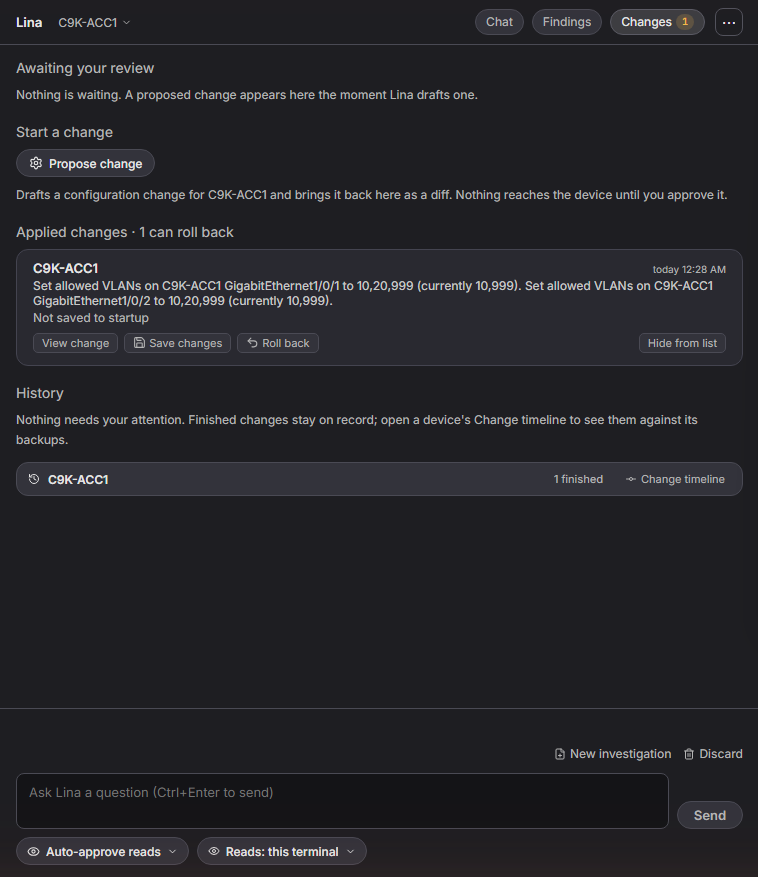
- The Changes pill in the chat header opens the Changes view. It has Awaiting your review (each change with Review), Applied changes (each row with its device, time, intent, Not saved to startup or Saved to startup, and Roll back, Save changes and Hide from list) and History, which lists only the changes that still need you. Finished changes are on each device's Change timeline, next to its backups. See Backups and drift. Hide from list keeps the change on the device and gives up the app's rollback for it.
- The audit log on your PC records the switch, each change's intent, the approval or discard, and the outcome, under the account that acted.
- The app keeps the masked configuration it read before the change as a backup when it can, and takes another backup right after the change settles on Cisco IOS, IOS XE, NX-OS, Arista EOS and PAN-OS, so the Change timeline shows the change there within seconds.
Your first change: a checklist#
- Pick a small change with an easy test: a description, an access VLAN on one port, an allowed-VLAN list.
- Check the device name in the window title and the line under it before you read anything else.
- Read the diff line by line. Replace any placeholder, and remove any line that is not part of this fix, with Edit the lines.
- Read the risk chip and If the check fails. Plan to decide yourself if the check fails. To keep a change with its own revert timer, select Keep the change before expiry.
- If the window says the change touches the path this session rides on, have a console or out-of-band connection ready before you approve.
- Do not type in that device's terminal while the change runs.
- Wait for the check result. If it failed or is incomplete, decide in the window; for a Manual change, check the device yourself. Then test the service the ticket was about.
- On Cisco IOS, IOS XE, NX-OS and Arista EOS, select Save changes when you are satisfied. If the button is not offered, save on the device yourself.
- Keep the change's row under Changes until you are sure. Roll back stays there while the app can still undo the change.
Next#
- Ask Lina about a problem: the finding card, Copy, Check again, Done and Skip.
- Backups and drift: the Change timeline and the backups around each change.
- Known limitations: what the app does not do in this version.
- Credits, plans and billing: which plan includes governed changes.
Checked on AI NetShell 0.4.20